Class, pickup and competition reminders
Choose when Ovation reminds you to leave for class and to pick up, and the reminders before each competition.
- About 2 minutes
Before you start
Reminders need notifications allowed for Ovation in iOS. They are Ovation's reminders on this iPhone, for every dancer in your account.
-
Go to Manage and, under REMINDERS, tap Reminders.
Screenshot coming soon -
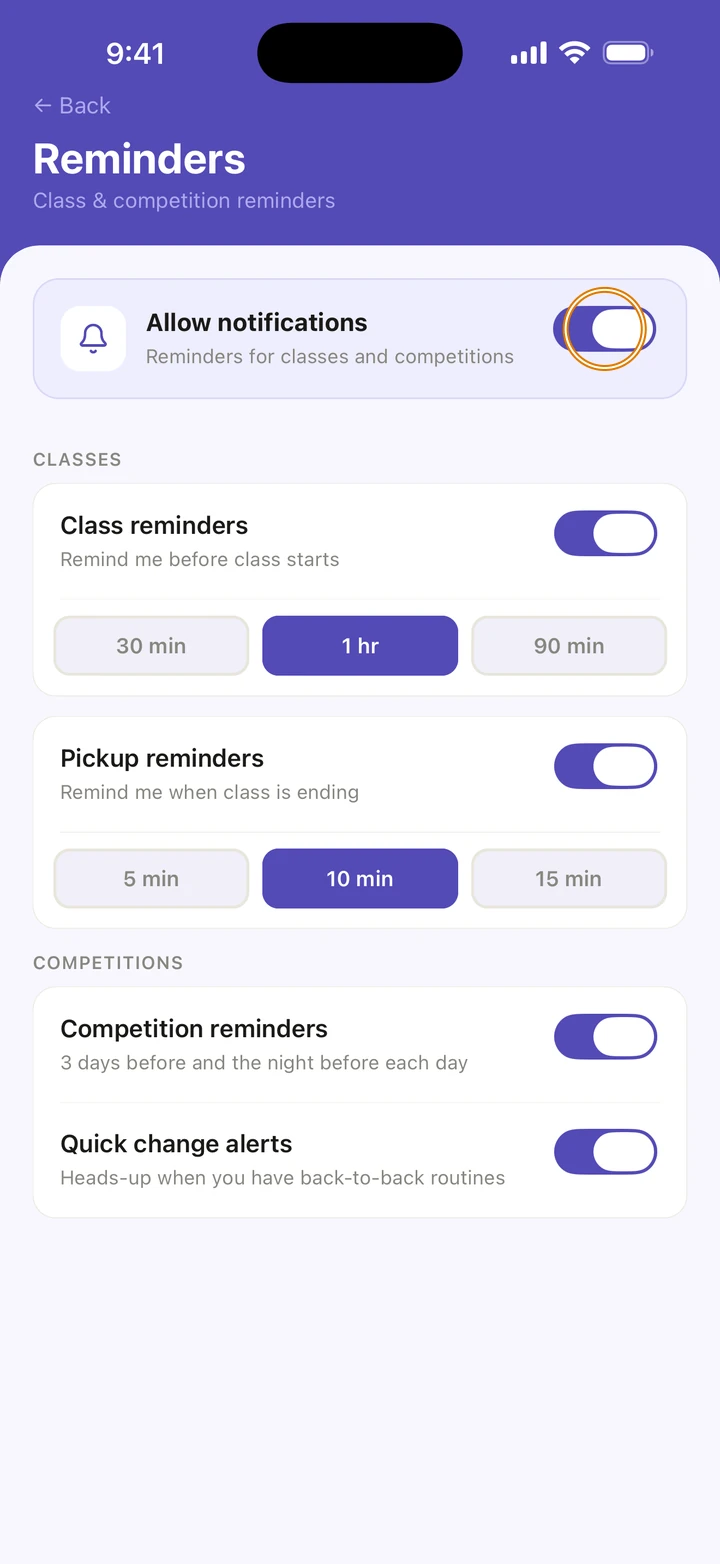
Make sure Allow notifications is on.
-
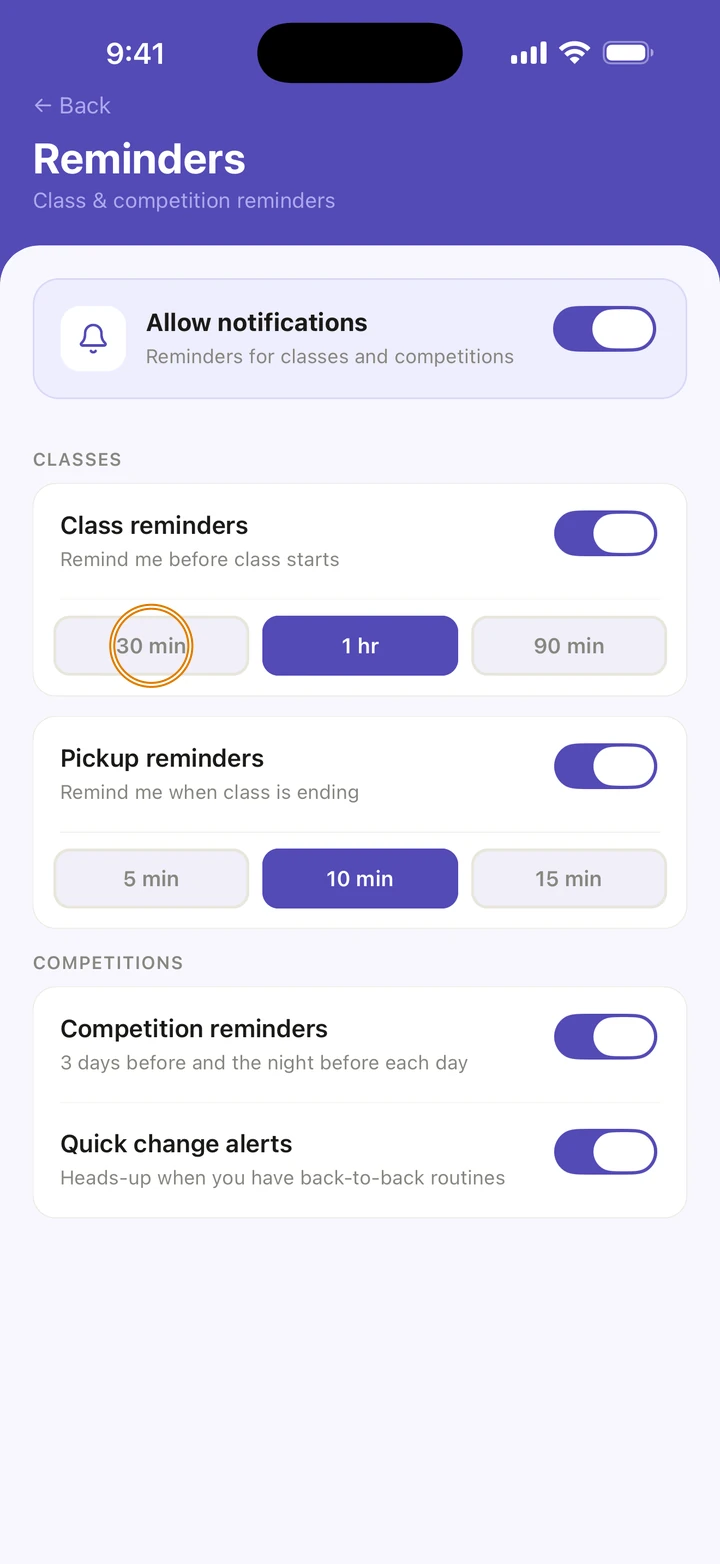
Under CLASSES, turn on Class reminders and choose how long before class: 30 min, 1 hr or 90 min.
-
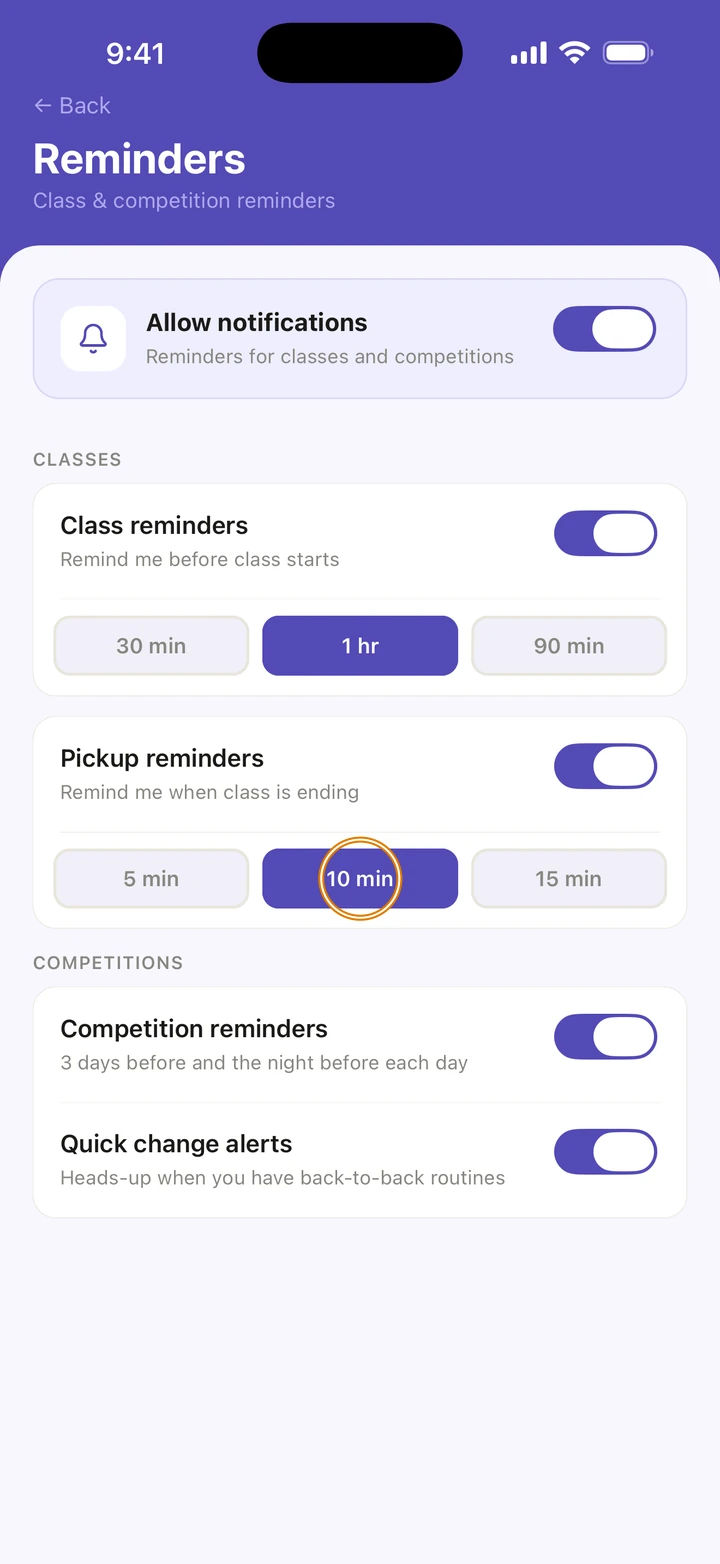
Turn on Pickup reminders and choose how long before class ends: 5 min, 10 min or 15 min.
-
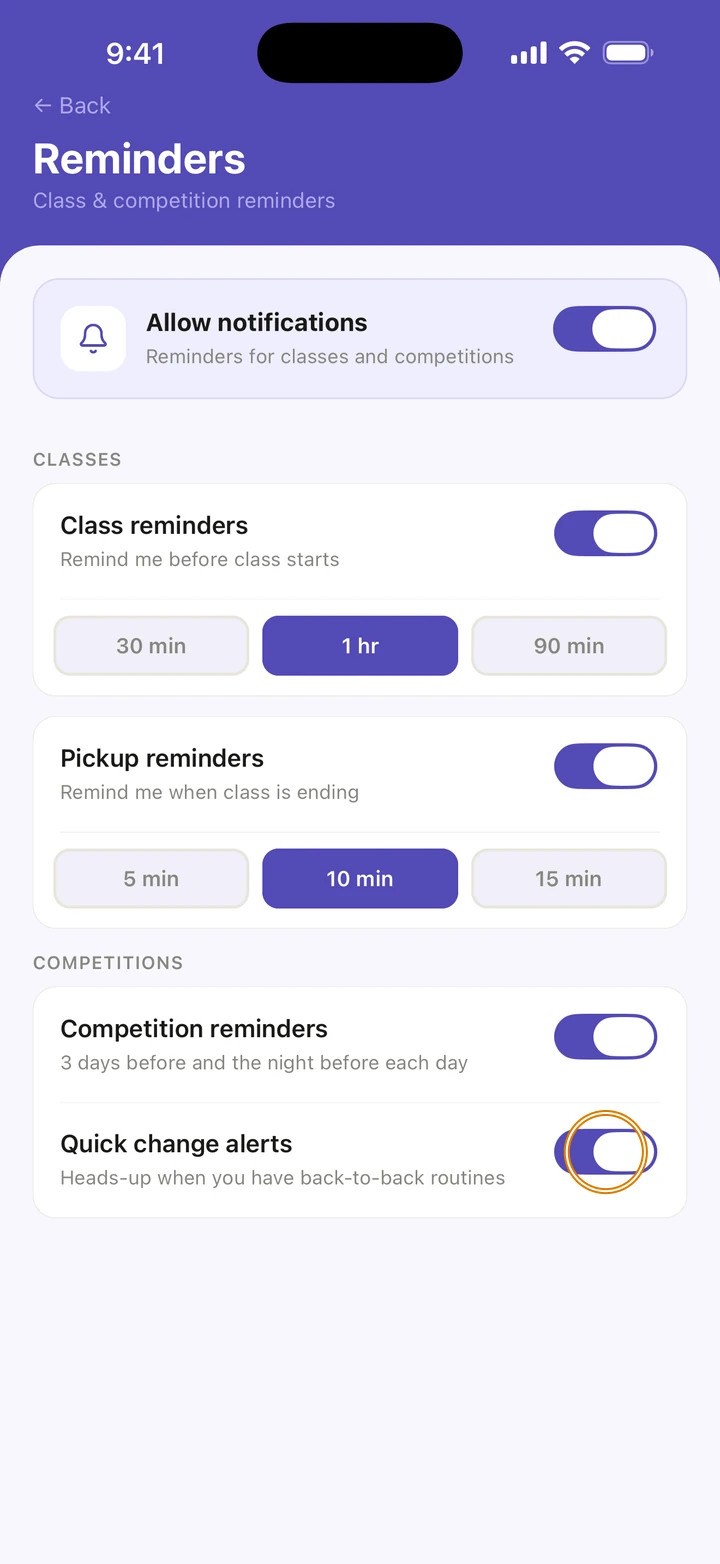
Under COMPETITIONS, turn on Competition reminders and Quick change alerts.
Good to know
- Every change is saved straight away. There is no Save button.
- Classes one after another make one trip: one reminder before the first class, and one before the last one ends.
- Competition reminders come 3 days before, and the night before each day.
- Quick change alerts come the night before a competition starts, when two of your dancer's routines are less than 30 minutes apart. They are part of competition reminders: with Competition reminders off, quick change alerts stop too, even though their switch still shows on.
- A skipped class gets no reminder, and a class with a new time for one day is reminded at the new time.
- Convention days get a reminder before you leave and before pickup too.
- Turning off Allow notifications pauses these reminders. It doesn't turn off every notification Ovation sends, such as a reply to a message you sent us. iOS Settings controls all of them.
- Ovation sets up reminders for the weeks ahead each time you open it.
If something goes wrong
- If Manage says Reminders are off, iOS is blocking them. Tap Turn on in iOS Settings, then turn on Allow Notifications.
- If it says Reminders are paused, tap Resume.
- If it says Reminders aren't on yet, tap Turn on, and allow notifications when iOS asks.
- For anything else, go to Manage → Get help. A real person reads every message.
Related
Checked on Ovation 1.1.5