Competition day
Your dancer's whole day on one screen: routines in order, call times, quick changes, and times that move when the competition runs late.
- About 3 minutes
Before you start
Add the competition and its schedule first. The Day tab plans the day once your dancer's routines have times.
-
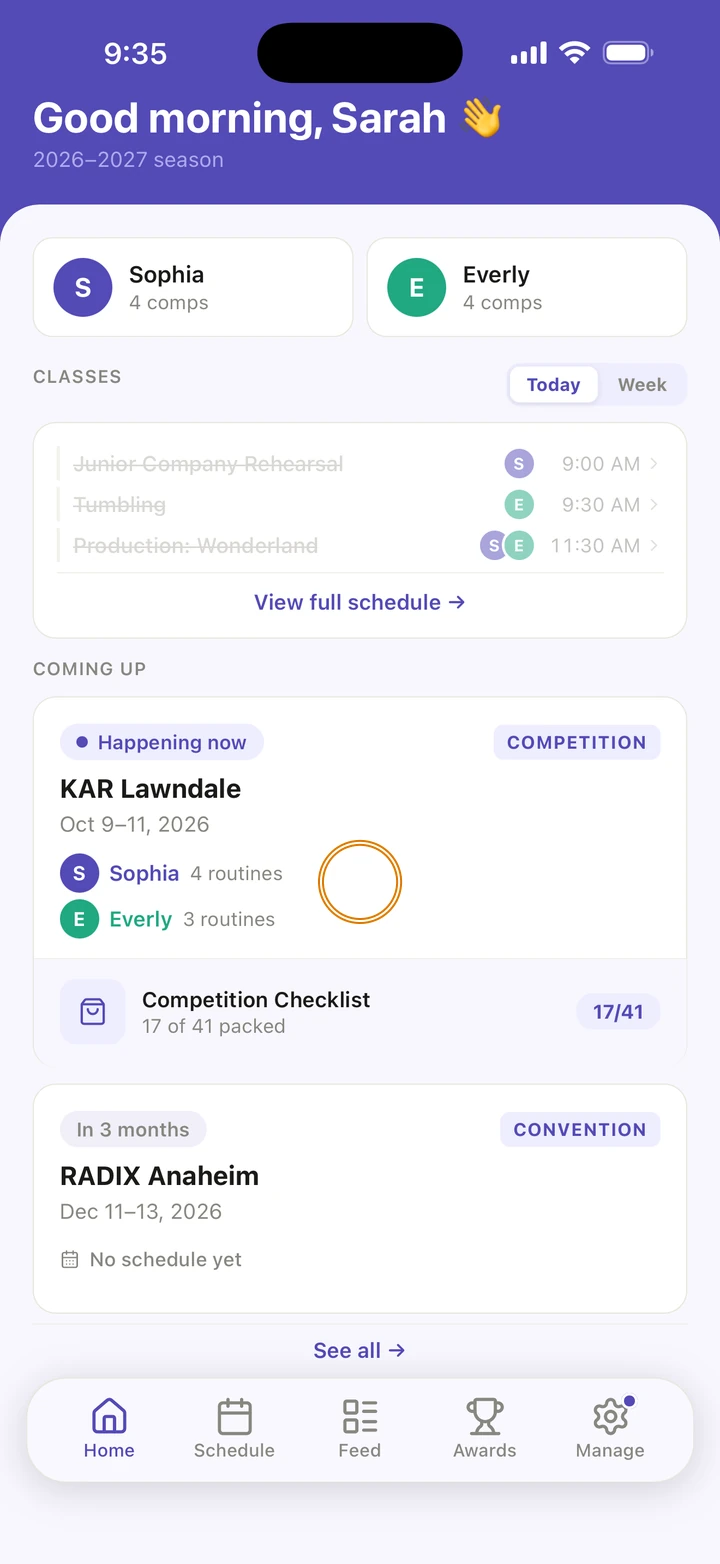
Open the competition: on Home, tap its card under COMING UP, or tap it on its date on the Schedule tab.
-
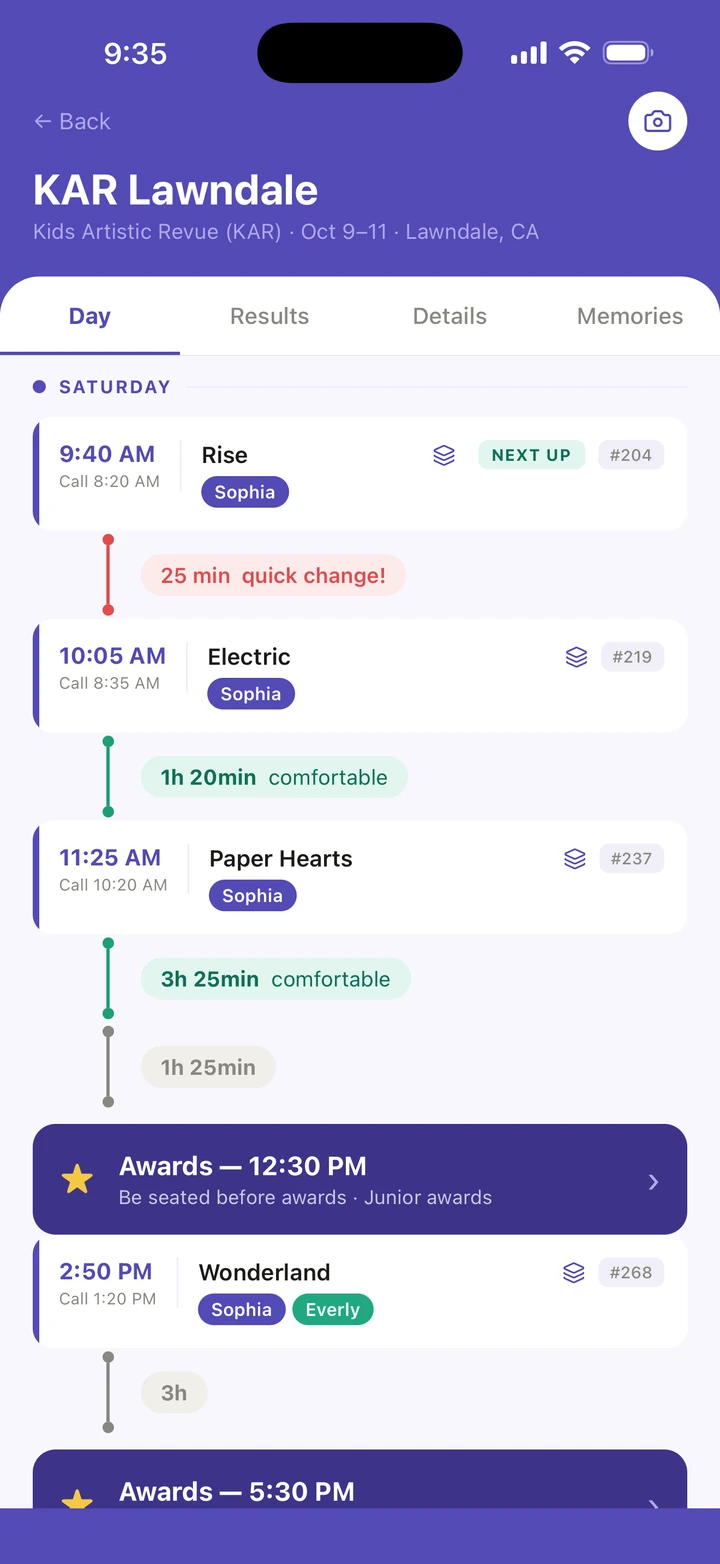
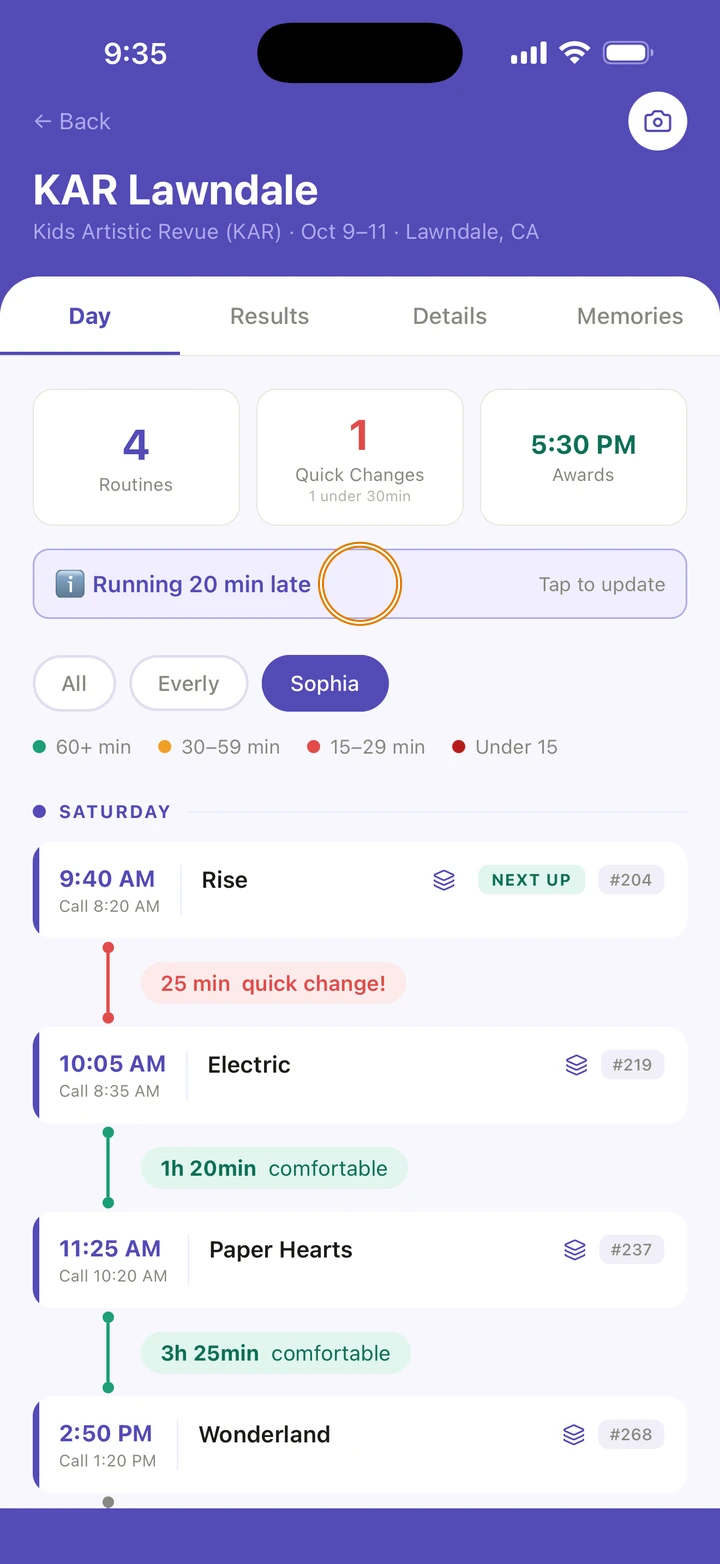
The Day tab lists the routines in performance order. Each one shows its time, its Call time and its entry number, and the next one is marked NEXT UP. On the day, the tab opens on that routine.
-
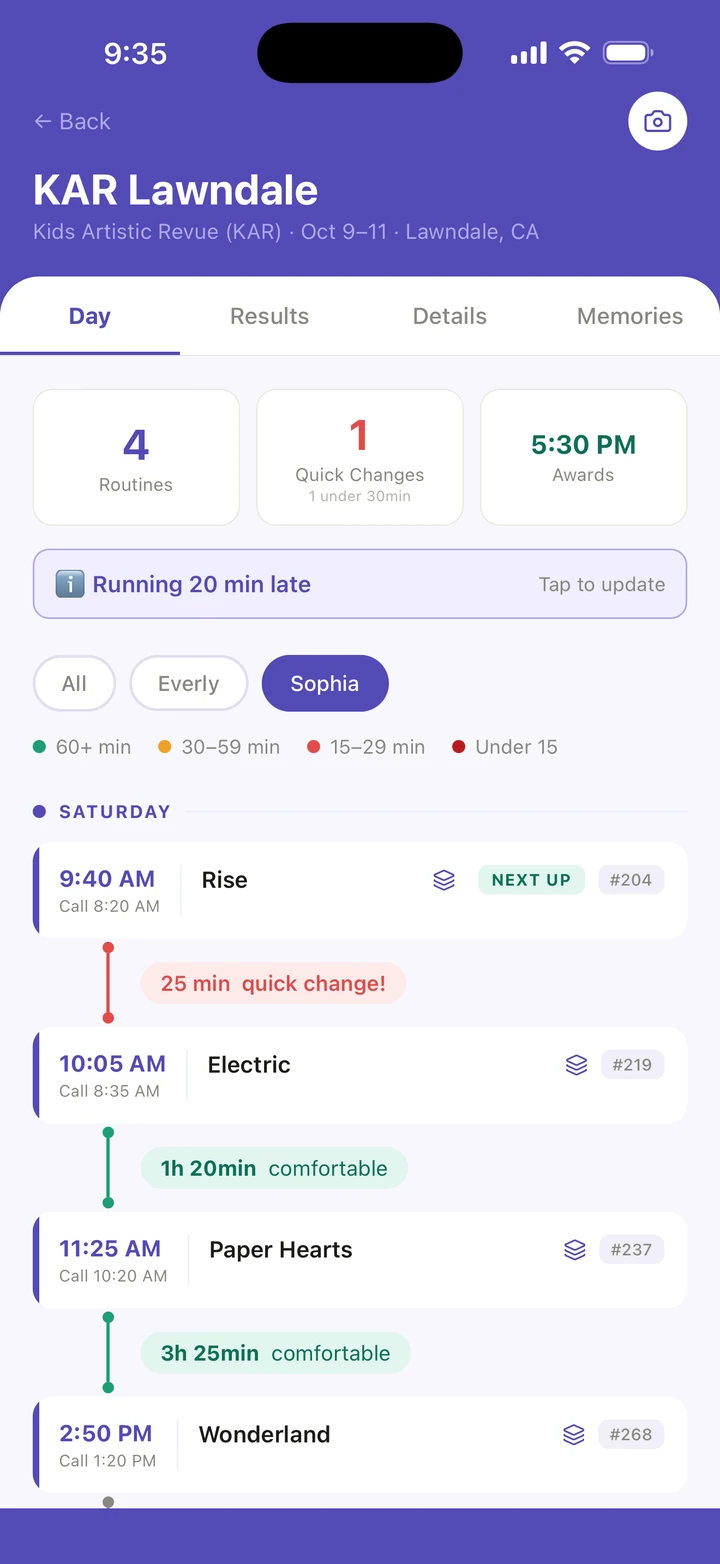
The colored pill between two routines is the time between them: green for 60+ min, amber for 30–59 min, red for 15–29 min and dark red for Under 15. Quick Changes at the top counts the routines under 30 minutes apart.
-
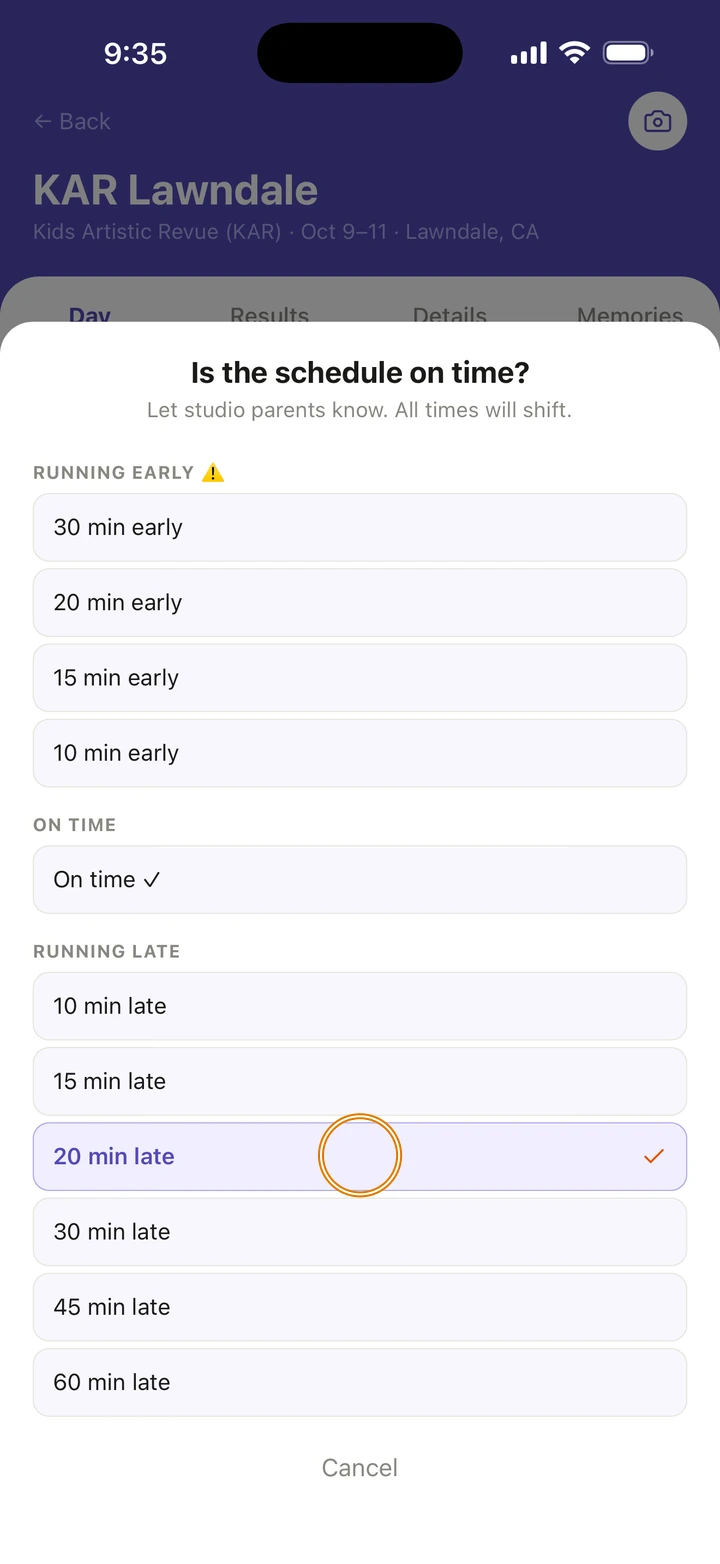
On the day, if the competition is running late, tap Is schedule on time? and choose the delay, for example 20 min late. Every time on the page moves with it.
-
To change the delay, tap the Running 20 min late banner. When they catch up, choose On time ✓.
-
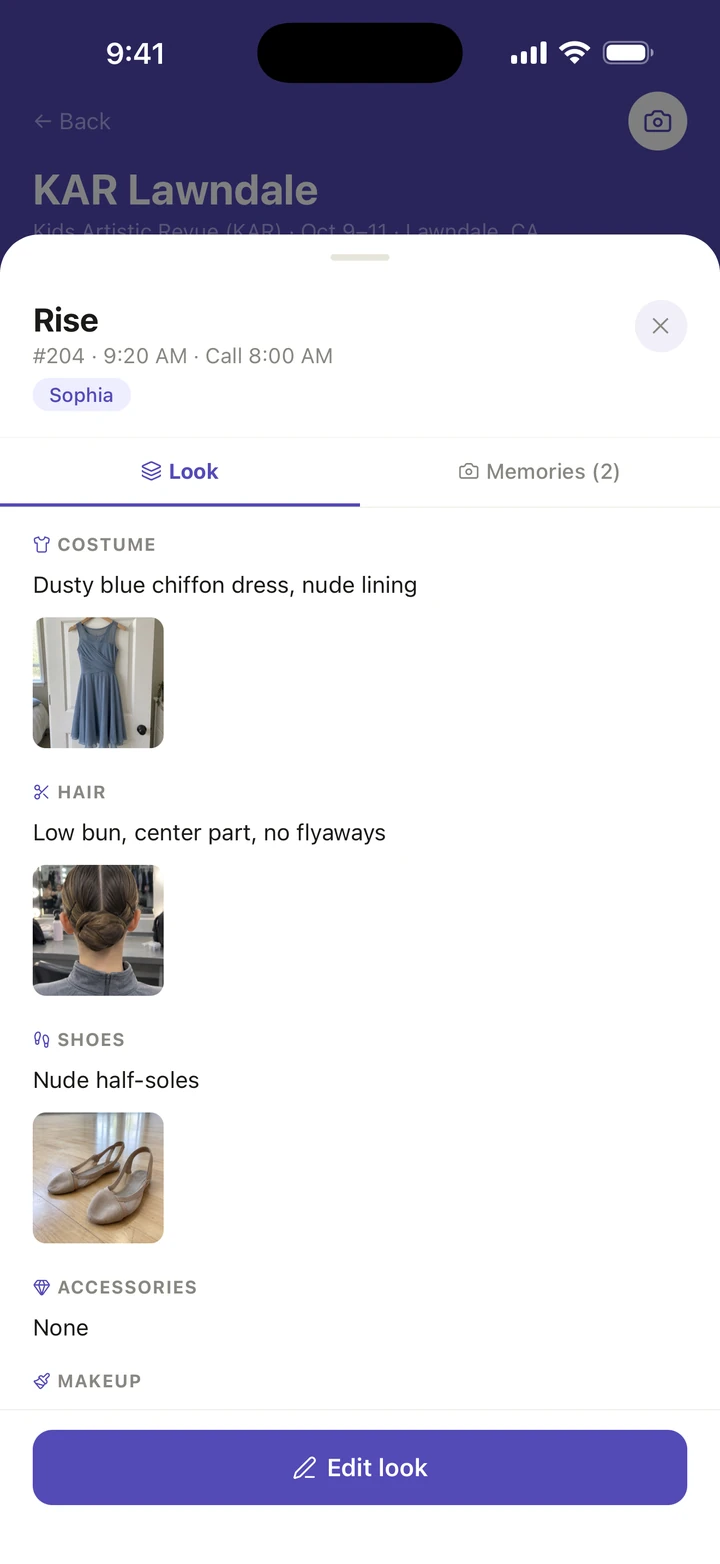
Tap a routine to see its Look, with costume, hair, makeup, shoes and accessories, and its Memories.
-
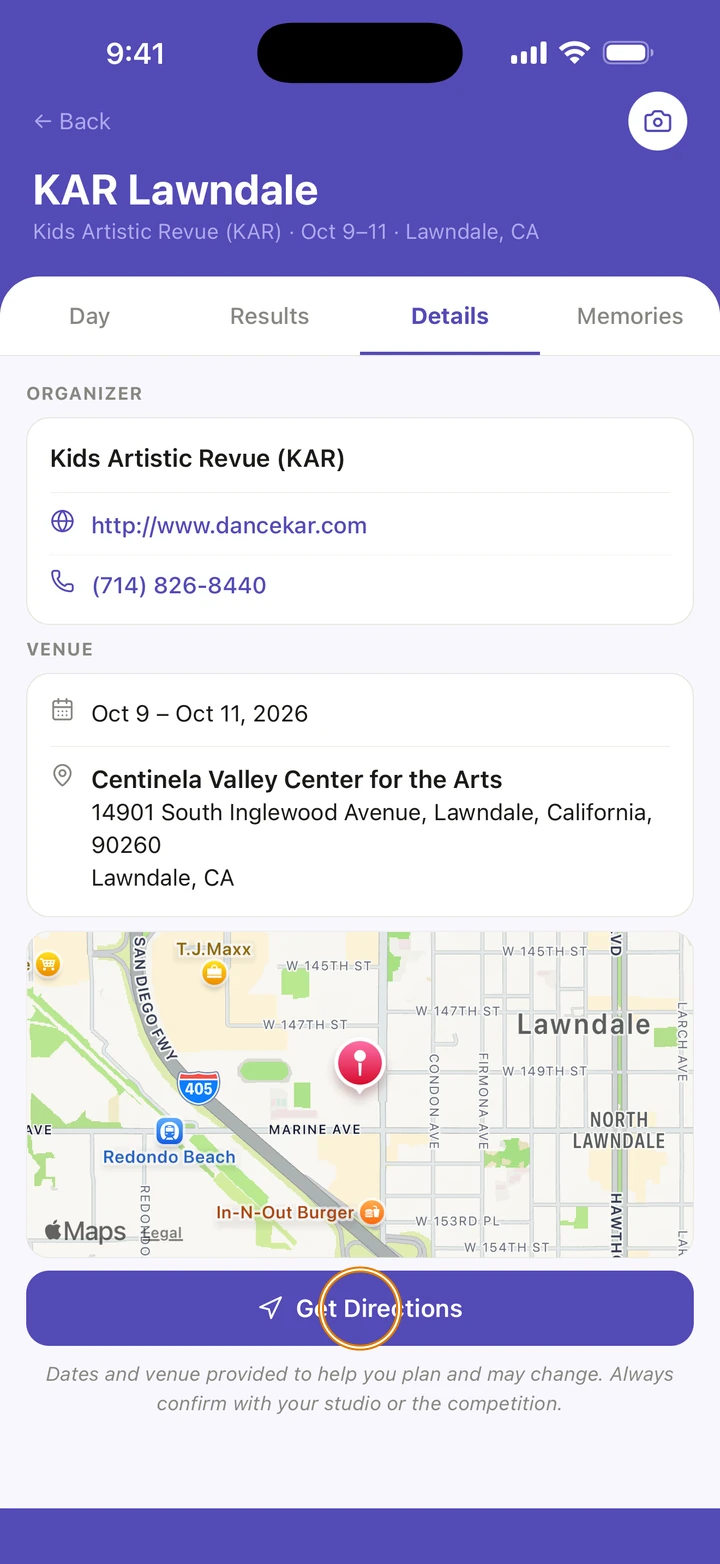
For the venue, open the Details tab and tap Get Directions.
-
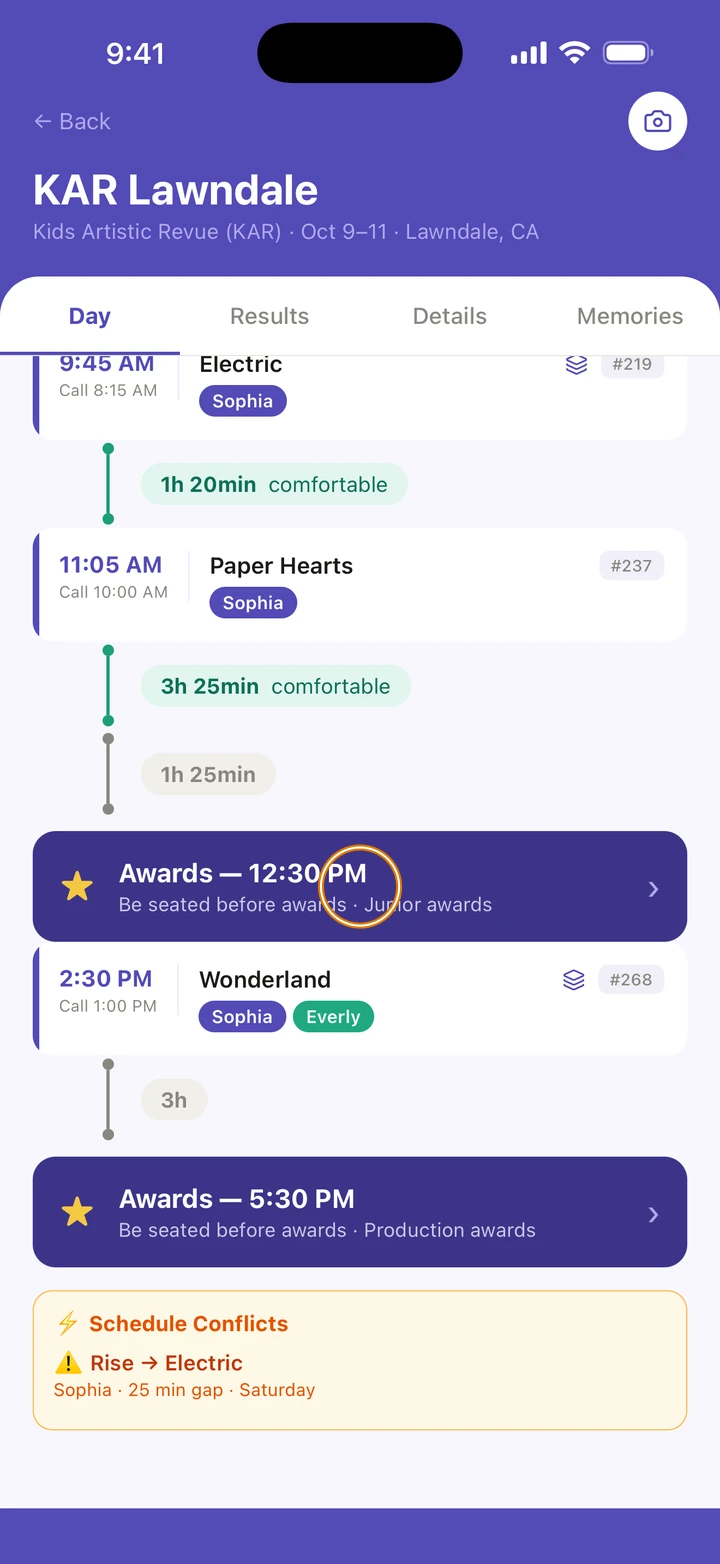
The Awards row shows when awards start, so you can be seated in time. Afterward, record your dancer's results on the Results tab.
Good to know
- Is schedule on time? appears only on the day of the competition, and only once routines have times.
- NEXT UP also shows only on the competition's days. When a routine's time passes, with any delay added, the badge moves to the next one.
- With more than one dancer, tap a name at the top to see only their routines. All shows everyone, and Schedule Conflicts flags two routines that are too close together.
- With reminders on, Ovation reminds you 3 days out and the night before each day, with a heads-up the night before about quick changes.
- A convention has its own Day tab, laid out by class rather than by routine.
If something goes wrong
- No routines showing? The schedule hasn't been added yet. Tap Add the schedule on the Day tab.
- Times look wrong after a delay? Tap the banner and choose the right delay, or On time ✓.
- For anything else, go to Manage → Get help. A real person reads every message.
Related
Checked on Ovation 1.1.5