The packing checklist
Before each competition, a checklist of every routine's look and the family's competition bag, to tick off as you pack.
- About 2 minutes
Before you start
The routine part of the checklist comes from each routine's Look details, so add the looks first.
-
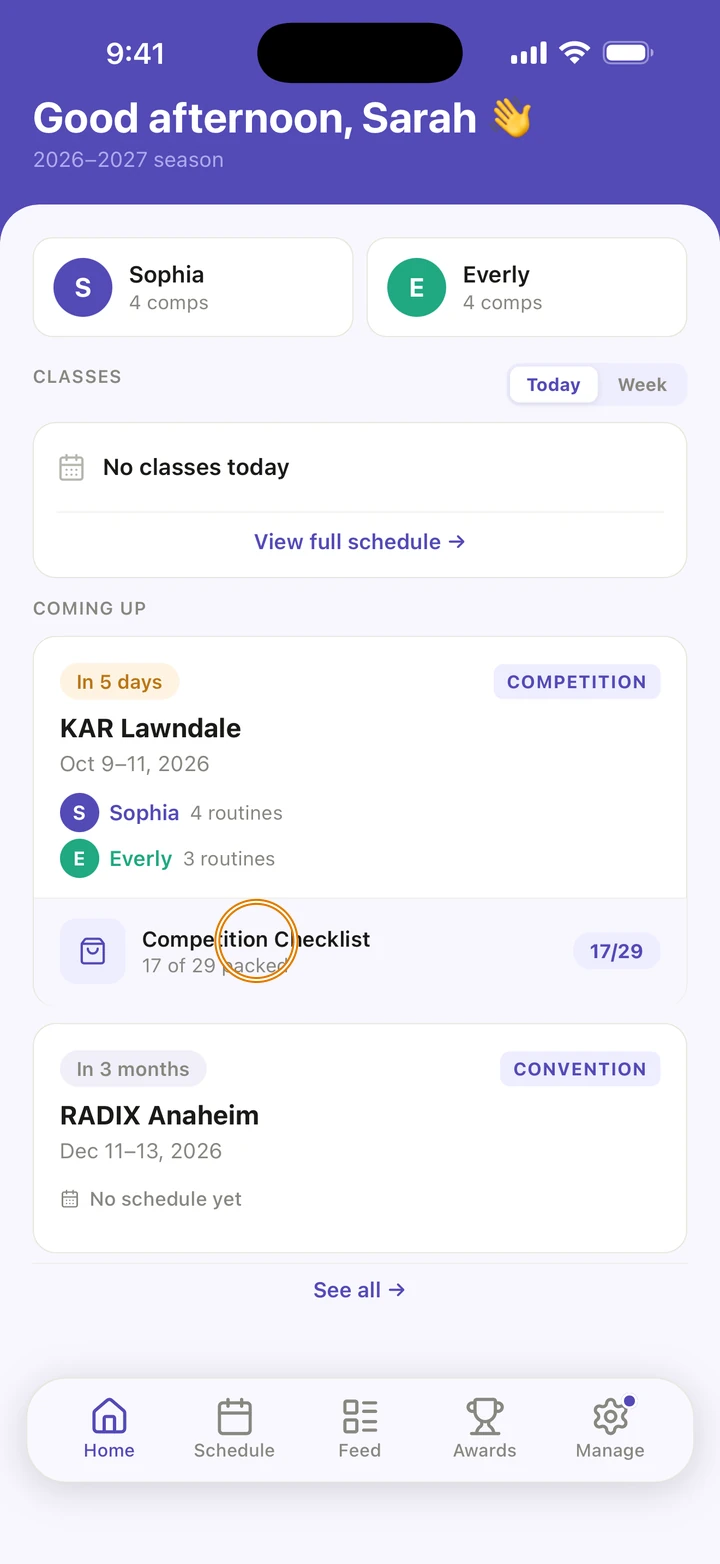
In the week before the competition, go to Home and tap Competition Checklist on its card under COMING UP. Or tap Ovation's packing reminder.
-
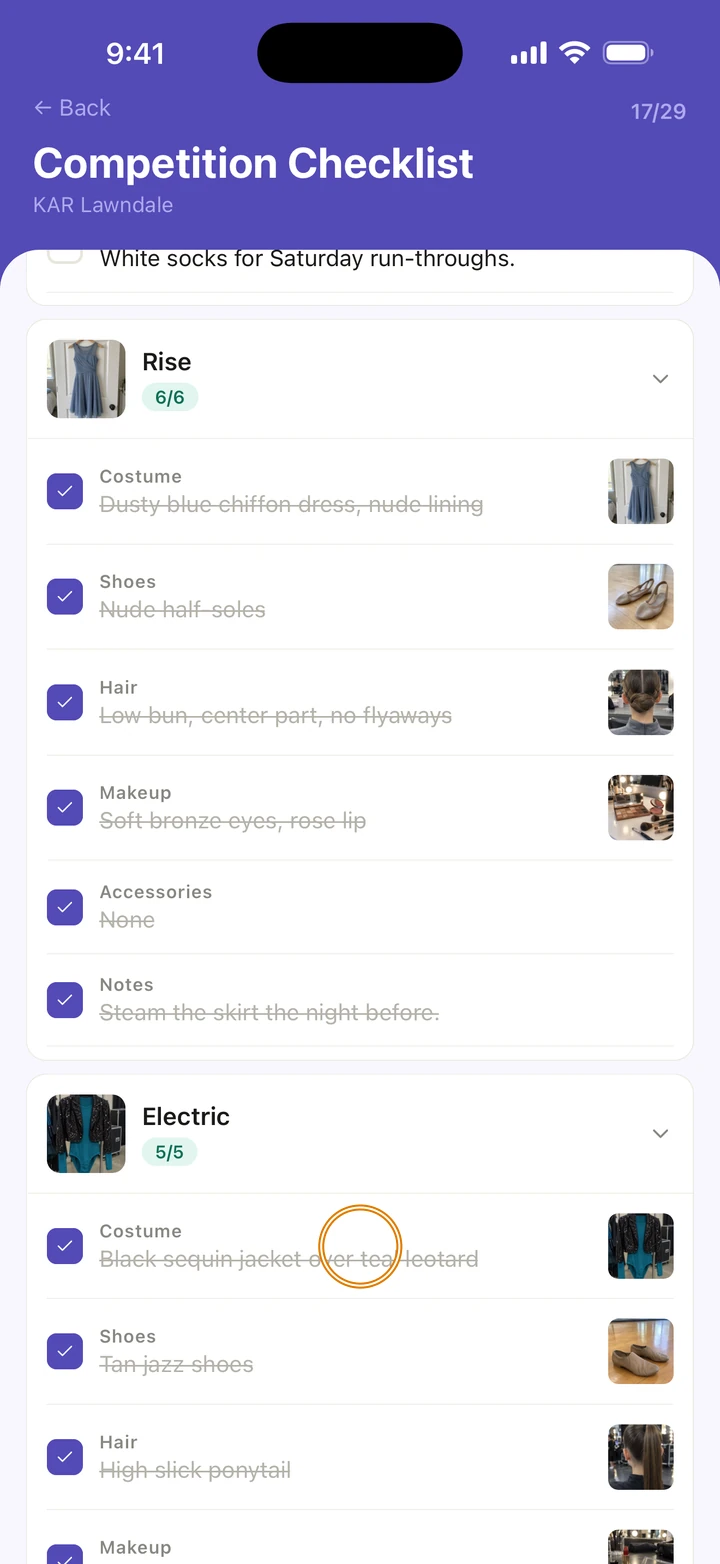
Under each dancer's name, each routine has a card with its look: costume, shoes, hair, makeup, accessories and notes. Tap each item as you pack it.
-
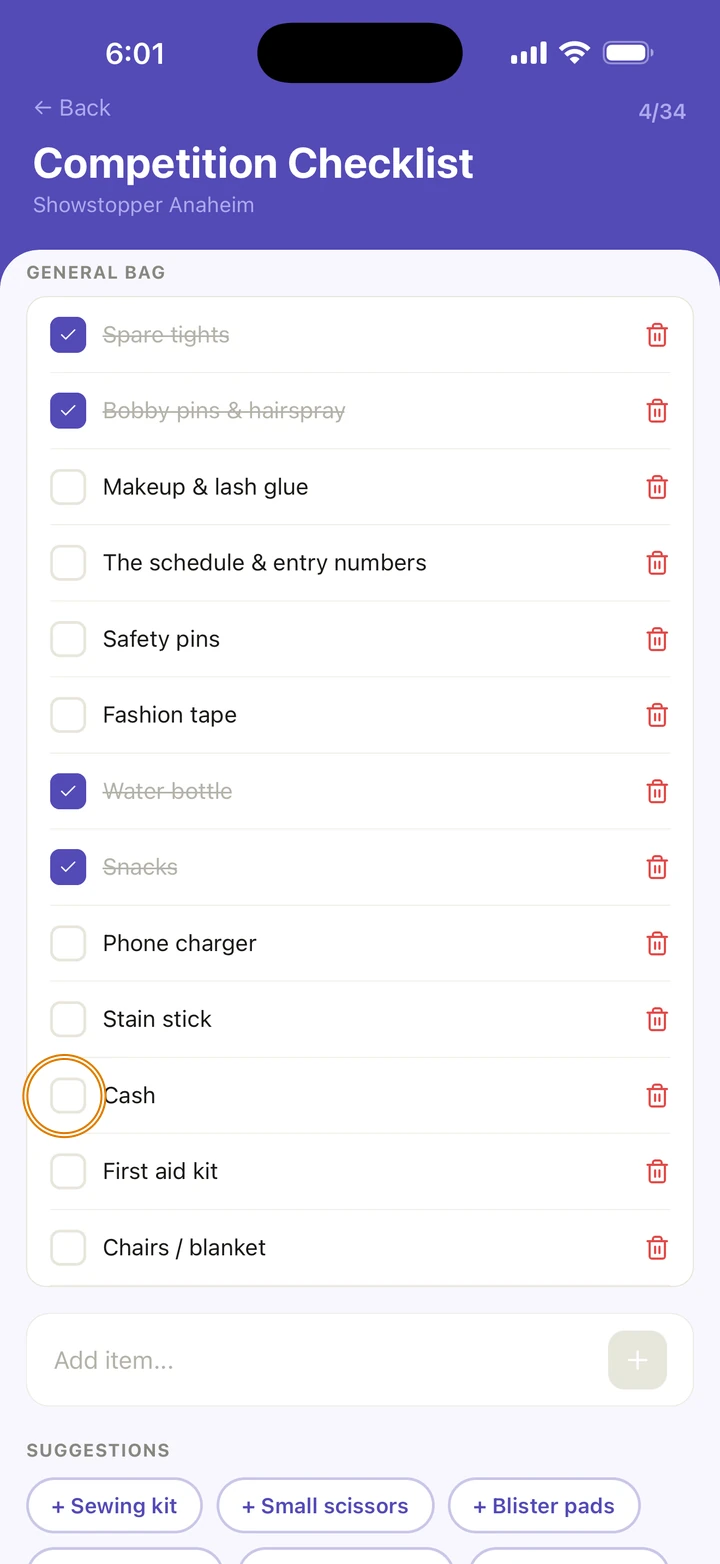
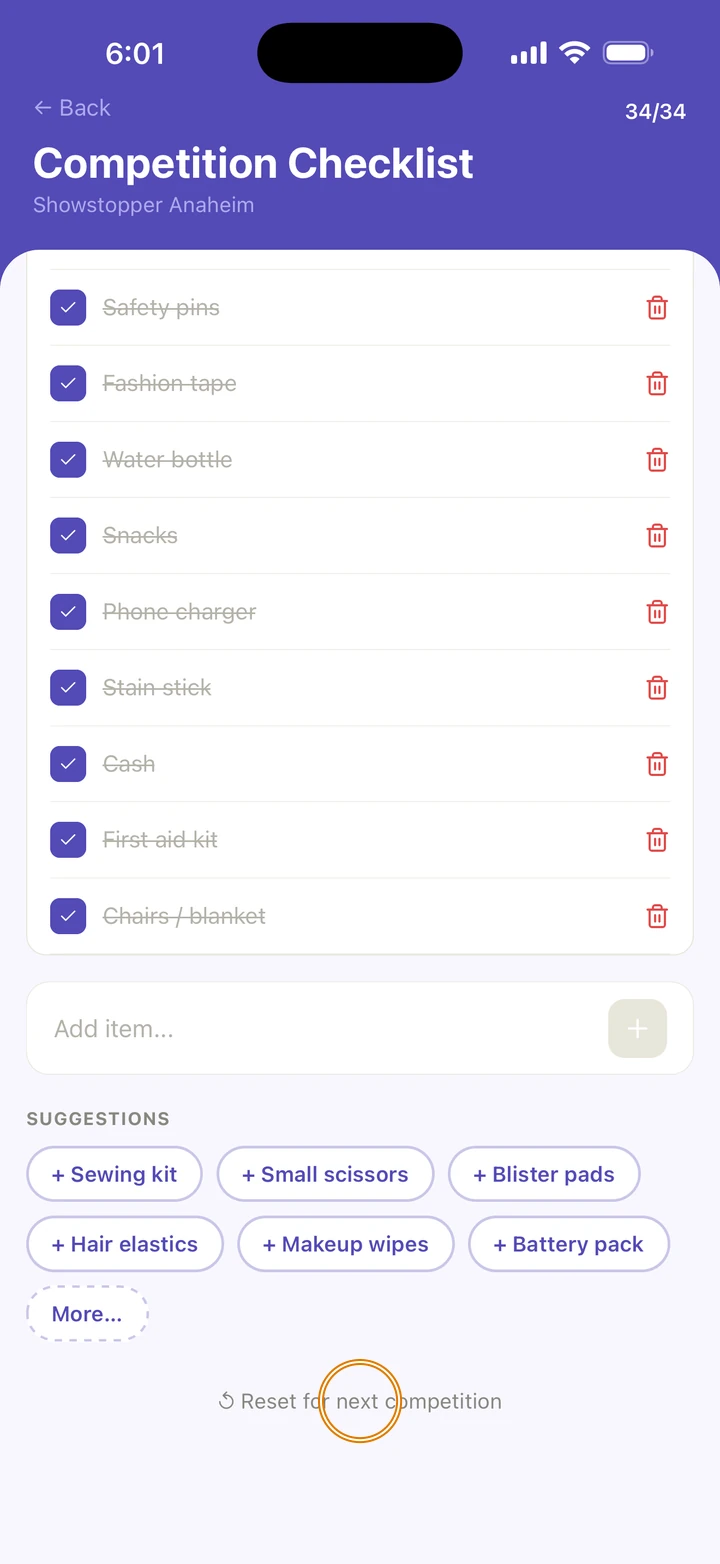
Under GENERAL BAG, tick off the family's bag. A new competition starts with Spare tights, Bobby pins & hairspray, Makeup & lash glue, The schedule & entry numbers, Safety pins, Fashion tape, Water bottle, Snacks, Phone charger, Stain stick, Cash, First aid kit and Chairs / blanket. To add your own, type it where it says Add item... and tap +, or tap a suggestion under SUGGESTIONS; More… shows the rest. To take an item off, tap the bin next to it.
-
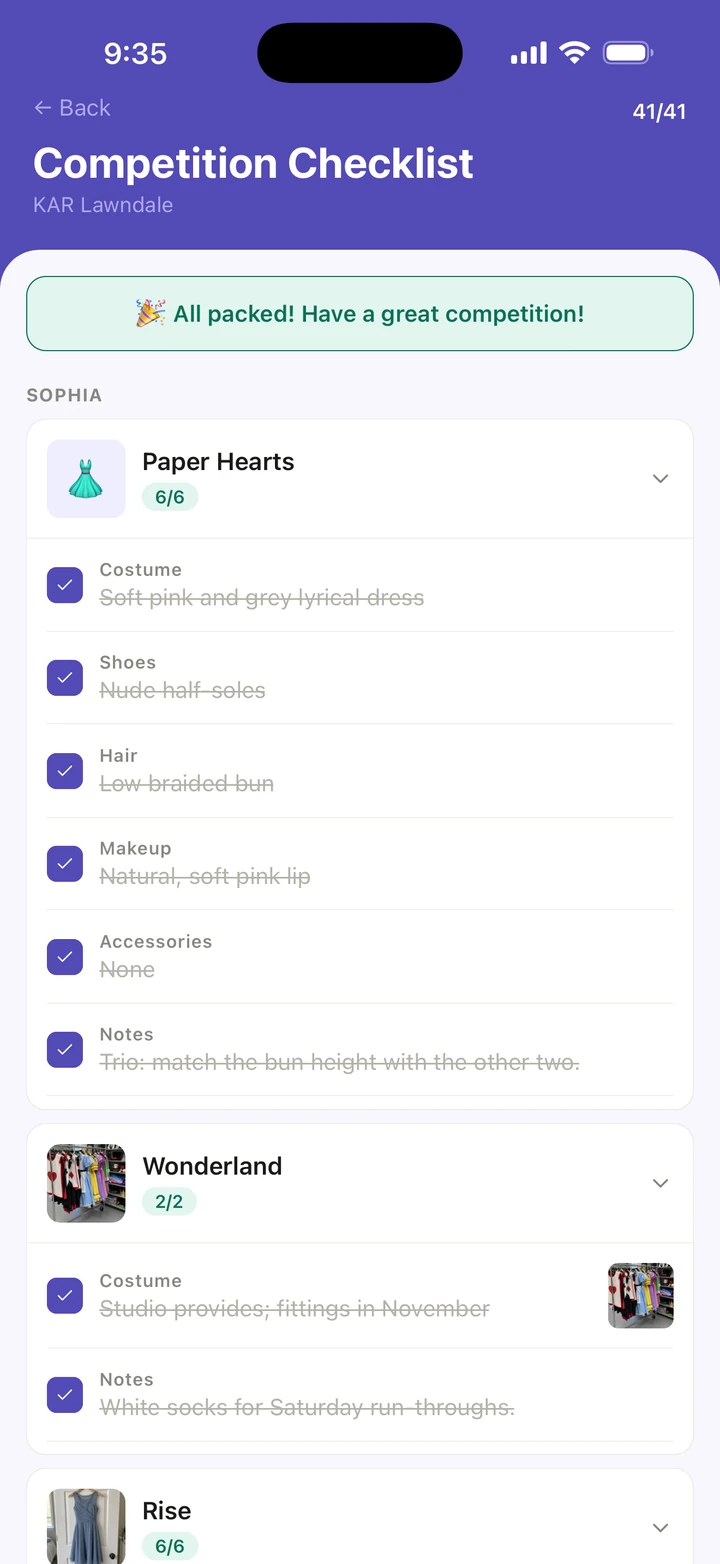
When everything is ticked, the checklist says All packed!.
-
After the competition, tap ↺ Reset for next competition, then Reset, to untick everything for next time.
Good to know
- Once you have changed a bag, your next competition starts from it instead: the items you added are there and the ones you took off are not, all unticked.
- A checklist you already had keeps its items as they were.
- The checklist shows how much is packed on its Home card, for example 6 of 9 packed.
- With reminders on, Ovation reminds you 3 days before the competition and the night before each day. Tapping the reminder opens the checklist.
- A routine with no look yet says No look details yet. Add it in the routine's Look details, and it appears here.
- Each routine also has its own Packing list on its page, for things that always go with that routine. Tap Add item to add to it. That list is separate and doesn't appear on the competition checklist.
If something goes wrong
- No checklist on Home? It appears on the competition's card in the week before it starts.
- For anything else, go to Manage → Get help. A real person reads every message.
Related
Checked on Ovation 1.1.5