What to pack for class
Keep a list of what your dancer needs for each class, such as shoes, tights or a water bottle, on the class itself.
- About 1 minute
-
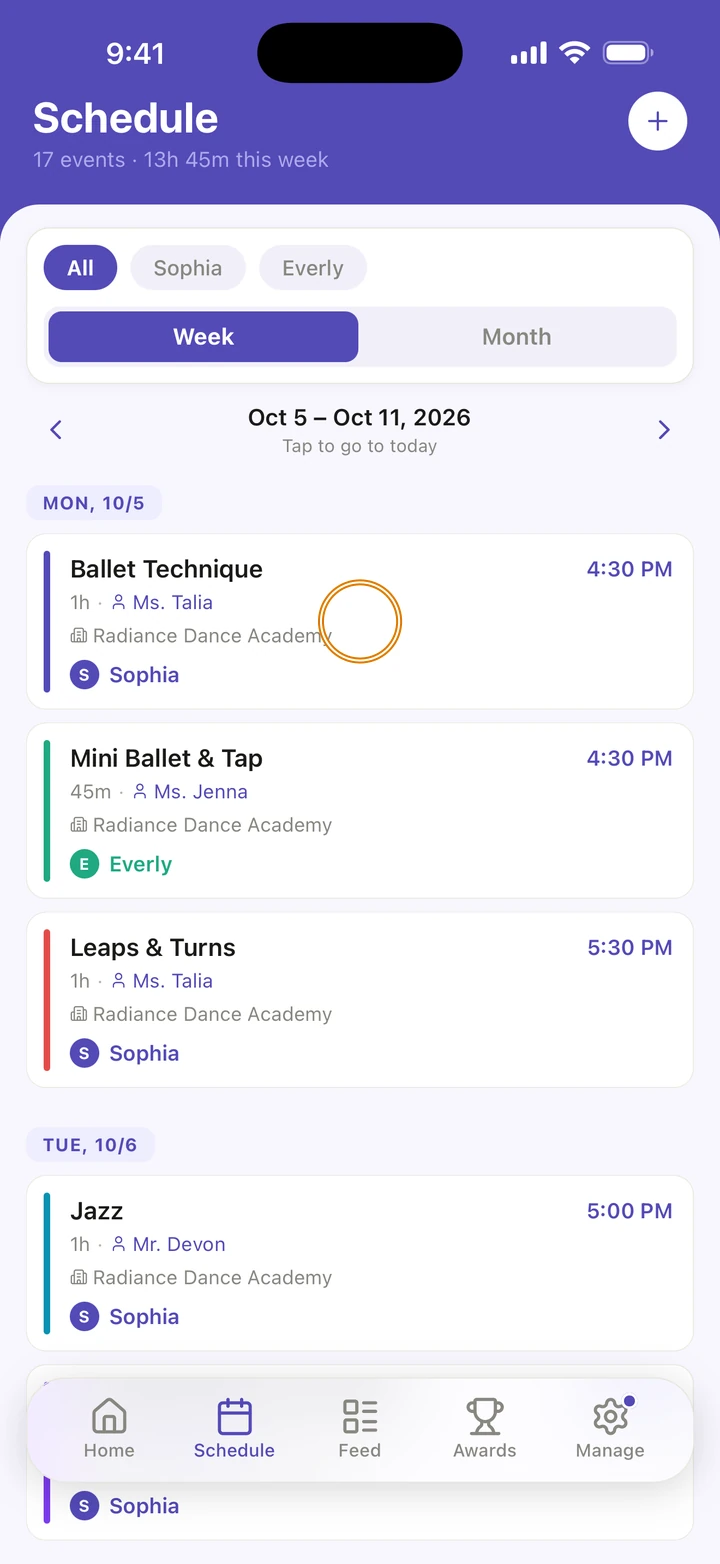
Tap the class on Home or on the Schedule tab to open it.
-
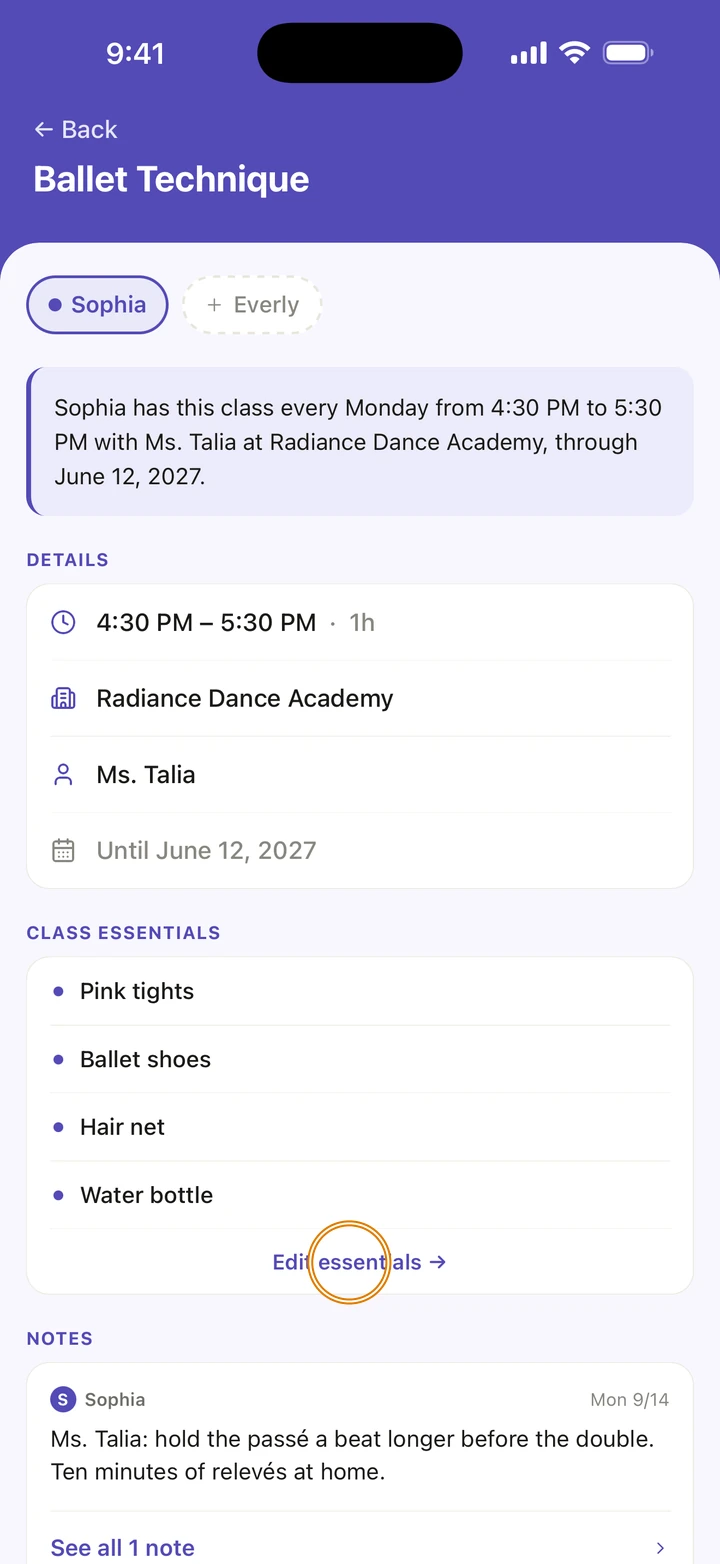
Under CLASS ESSENTIALS, tap Add essentials →, or Edit essentials → if the list has items.
-
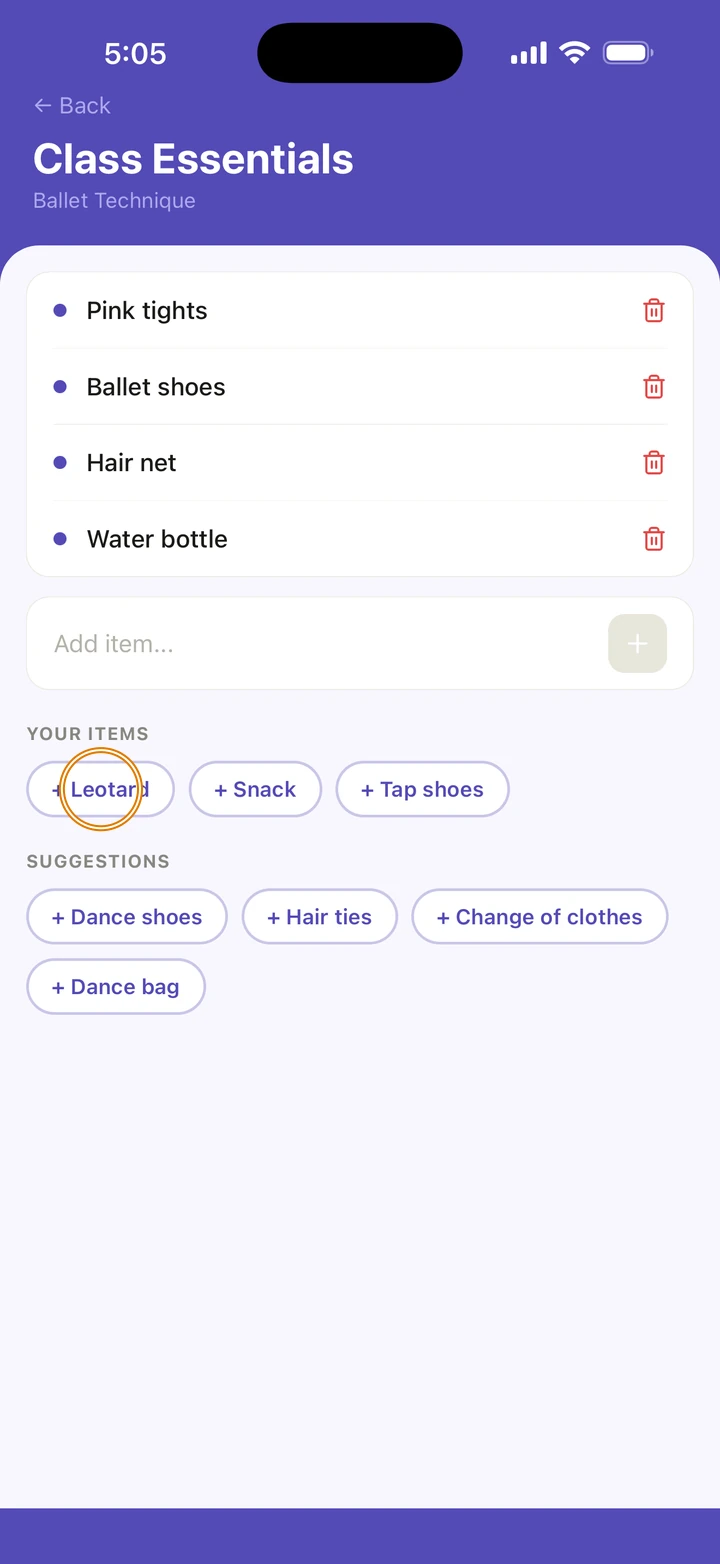
Tap a suggestion under SUGGESTIONS, or an item under YOUR ITEMS, the things on your other classes' lists, such as + Leotard, to add it. Or type an item where it says Add item... and tap +. On an empty class, tap Add all on Same as another of your classes to copy that class's list.
-
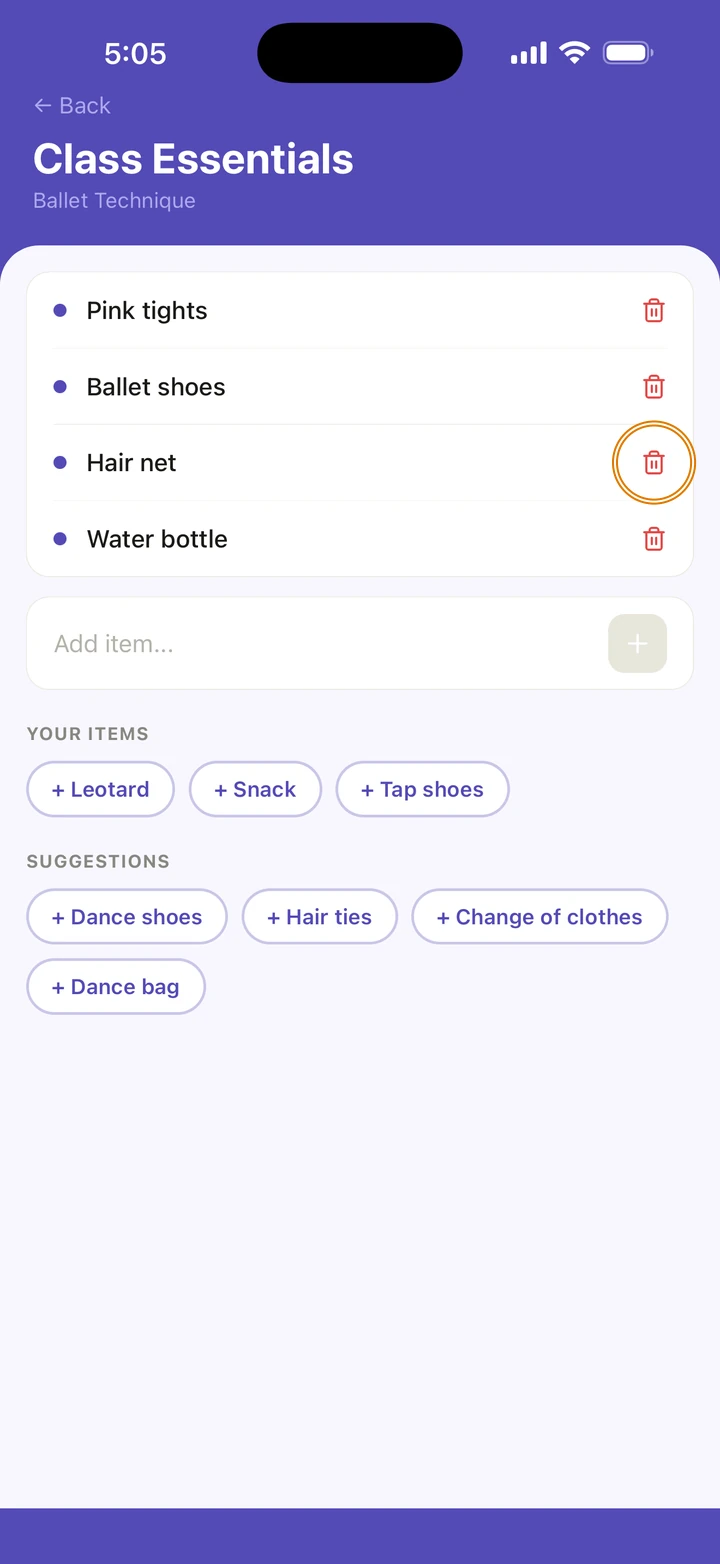
To take an item off, tap the bin next to it.
Good to know
- The suggestions follow the class's style: ballet suggests ballet shoes and pink tights, for example. Anything already on the list, or under YOUR ITEMS, is left out.
- Same as picks the class most like this one: the same dancer first, then the same style, then the one with the most items.
- There is one list for each class, shared by every dancer in it.
- You can also choose essentials when you add a class, on its Class essentials step.
- The class reminder says Check your bag before you head out. Tap it to open the class and its list.
- Removing an item happens straight away, with no question first.
If something goes wrong
- For anything else, go to Manage → Get help. A real person reads every message.
Related
Checked on Ovation 1.1.5