Add a class by hand
Add one class at a time, weekly or on a single date, with its teacher, place and what to bring.
- About 2 minutes
Before you start
Add your dancer first, in Manage → Add dancer. Only three things are required: who is in the class, its name, and its days.
-
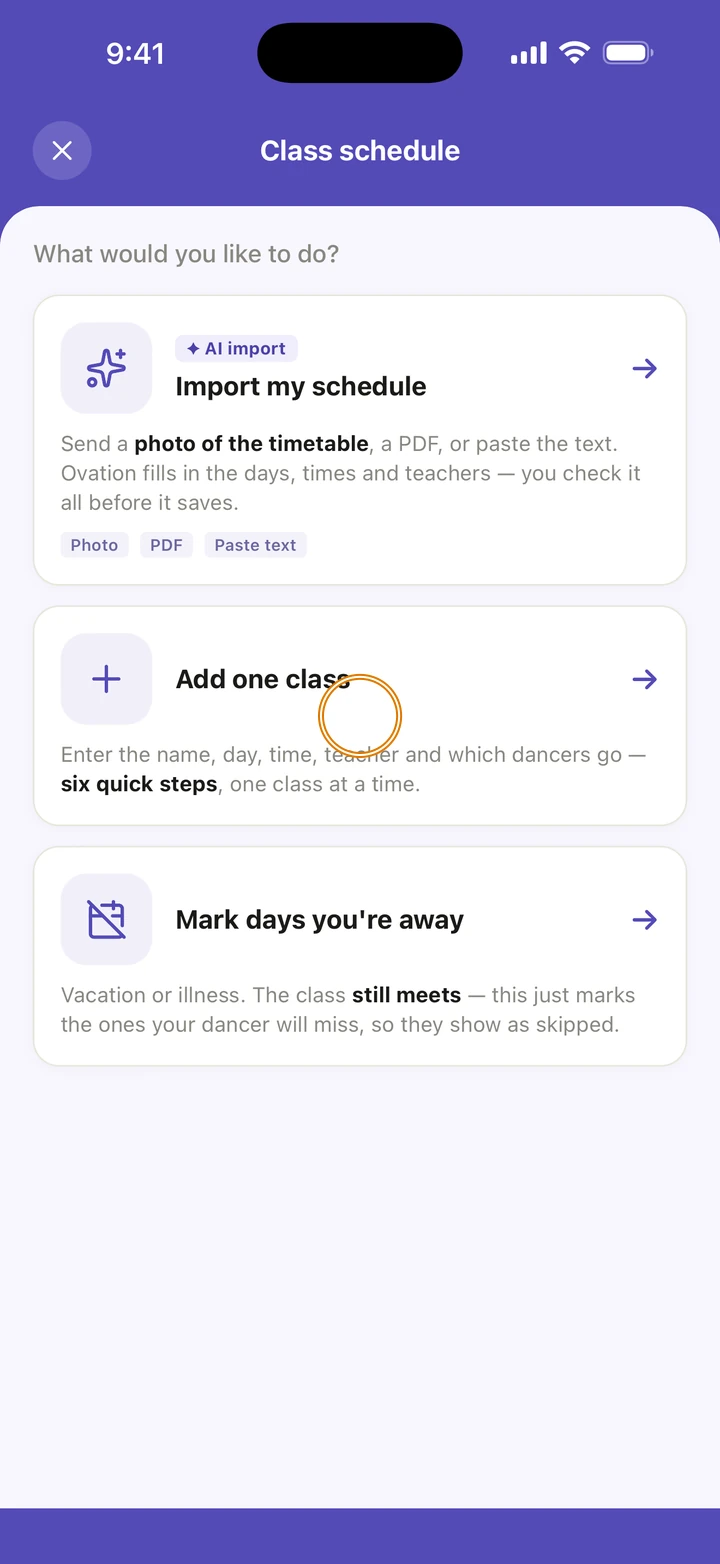
On the Schedule tab, tap +, then Class schedule, then Add one class.
-
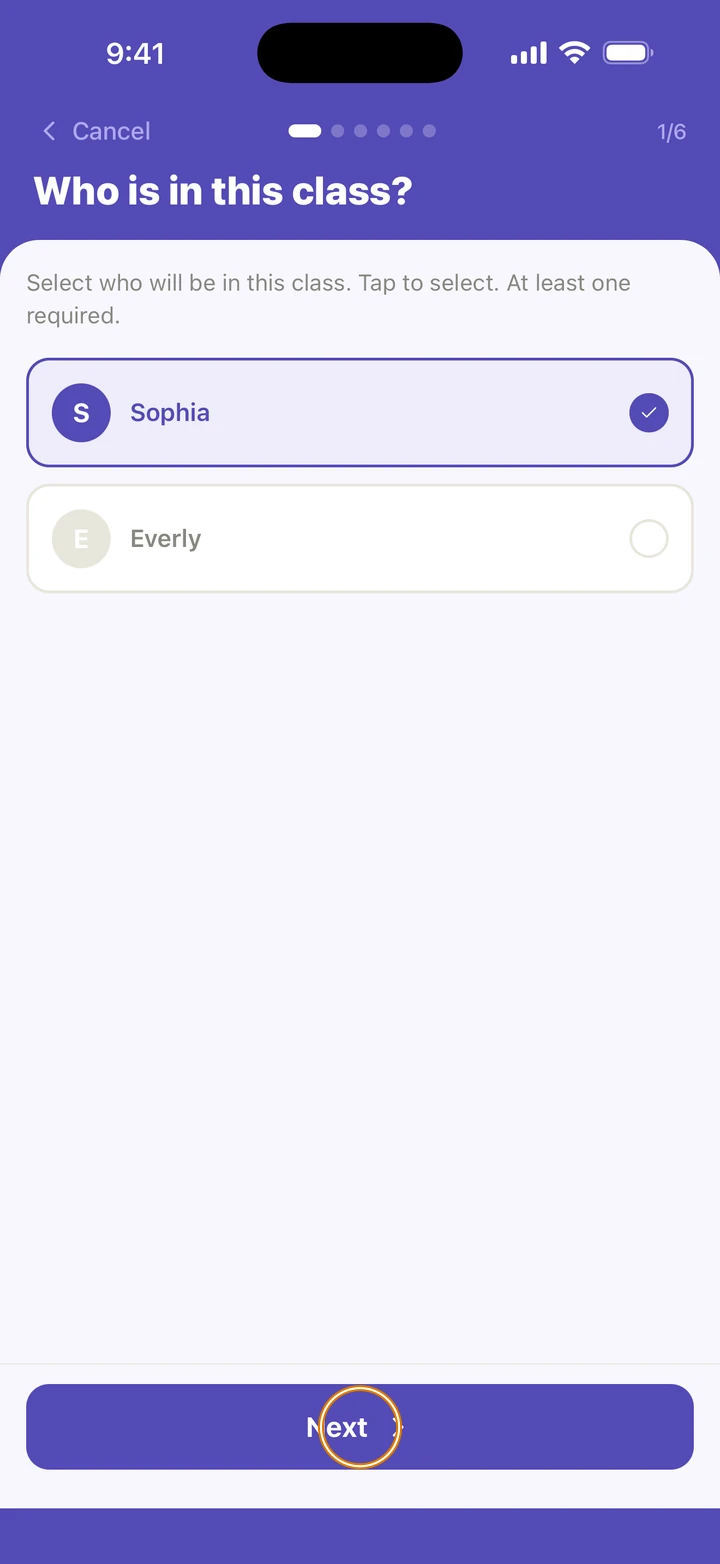
On Who is in this class?, tap each dancer who takes it, then tap Next.
-
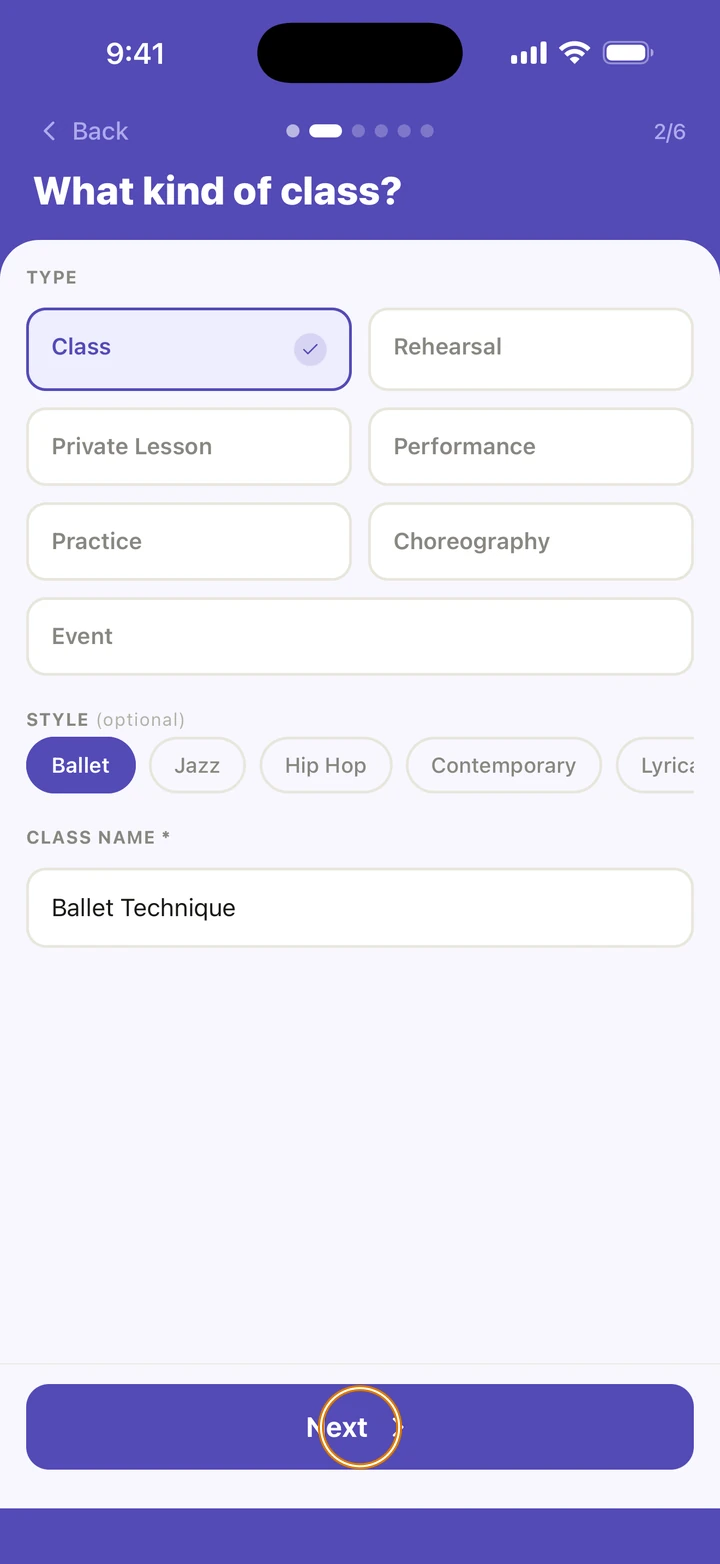
On What kind of class?, choose the TYPE, such as Class or Rehearsal, and a STYLE if you like. Tap a SUGGESTED NAME, or type one under CLASS NAME. Tap Next.
-
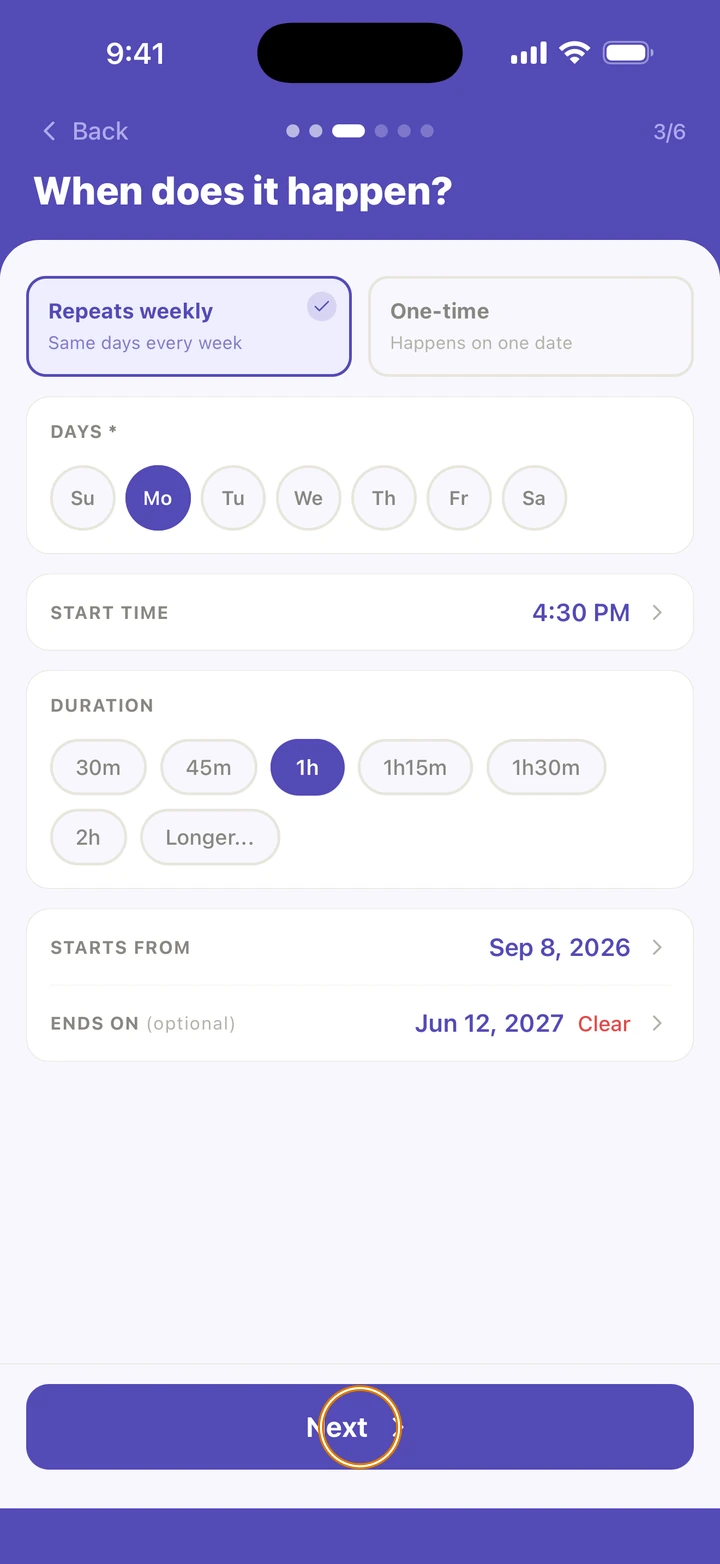
On When does it happen?, choose Repeats weekly and tap its days, or One-time and choose its DATE. Set the START TIME and DURATION. For a weekly class, check STARTS FROM, and add ENDS ON if you know it. Tap Next.
-
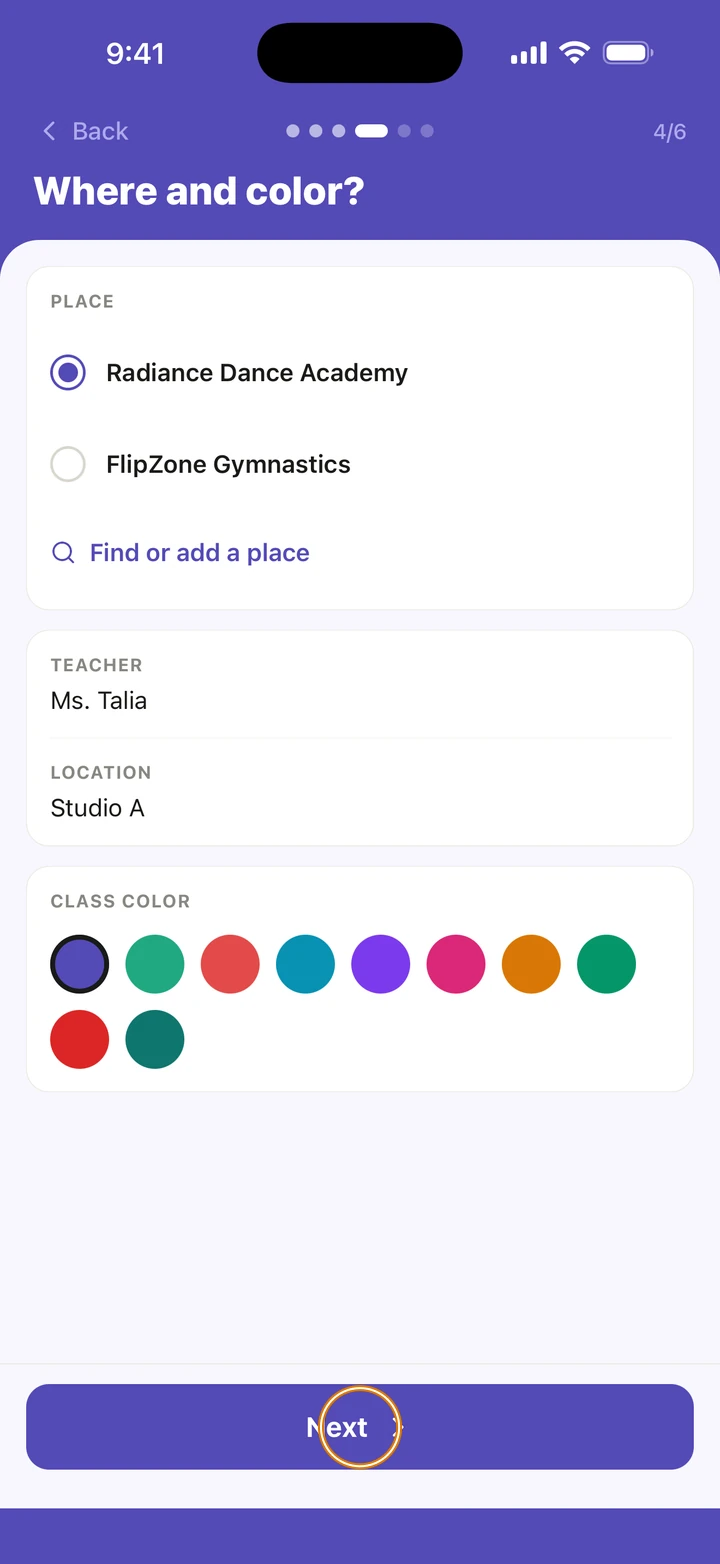
On Where and color?, choose the place, add the TEACHER and the LOCATION (a room, for example), and pick a CLASS COLOR. Tap Next.
-
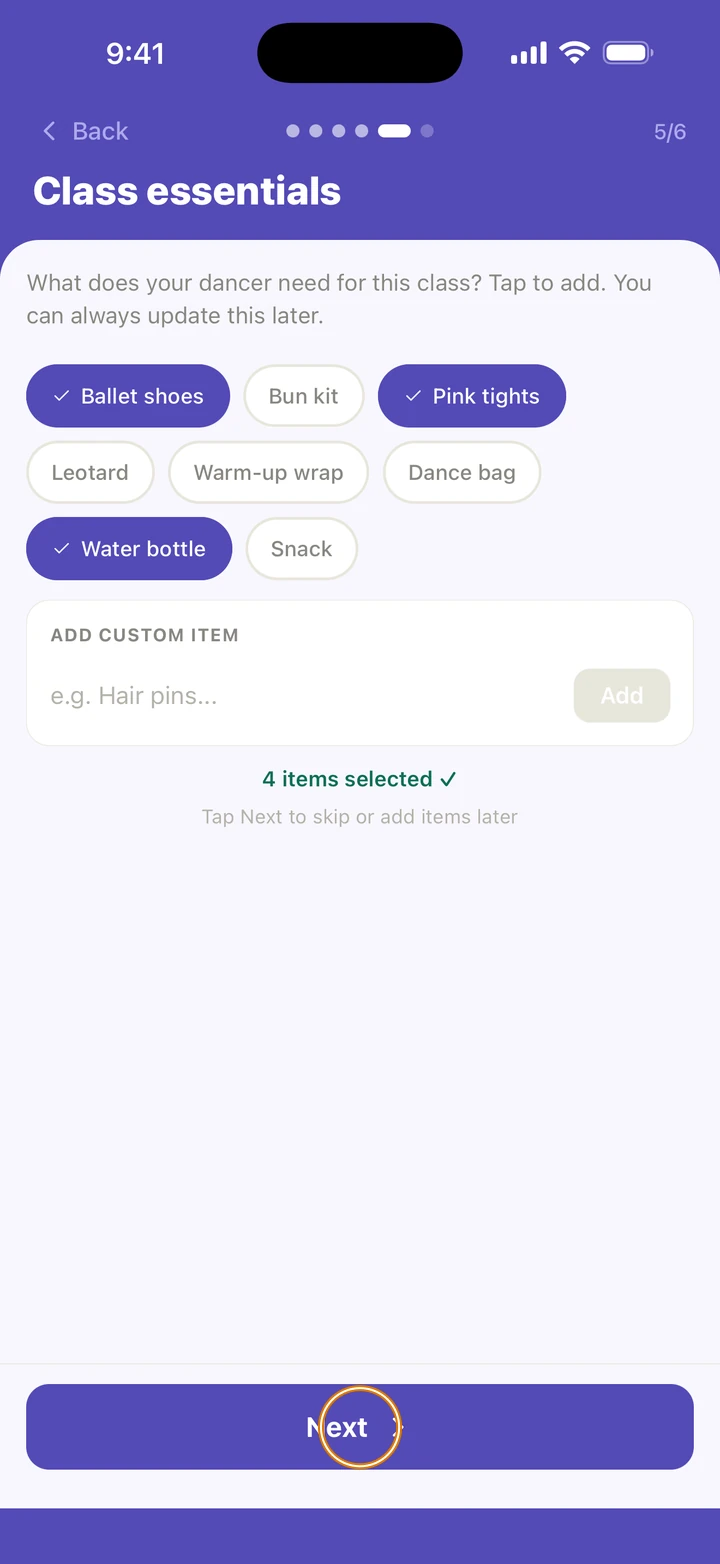
On Class essentials, tap what your dancer needs for this class, or add your own. Tap Next.
-
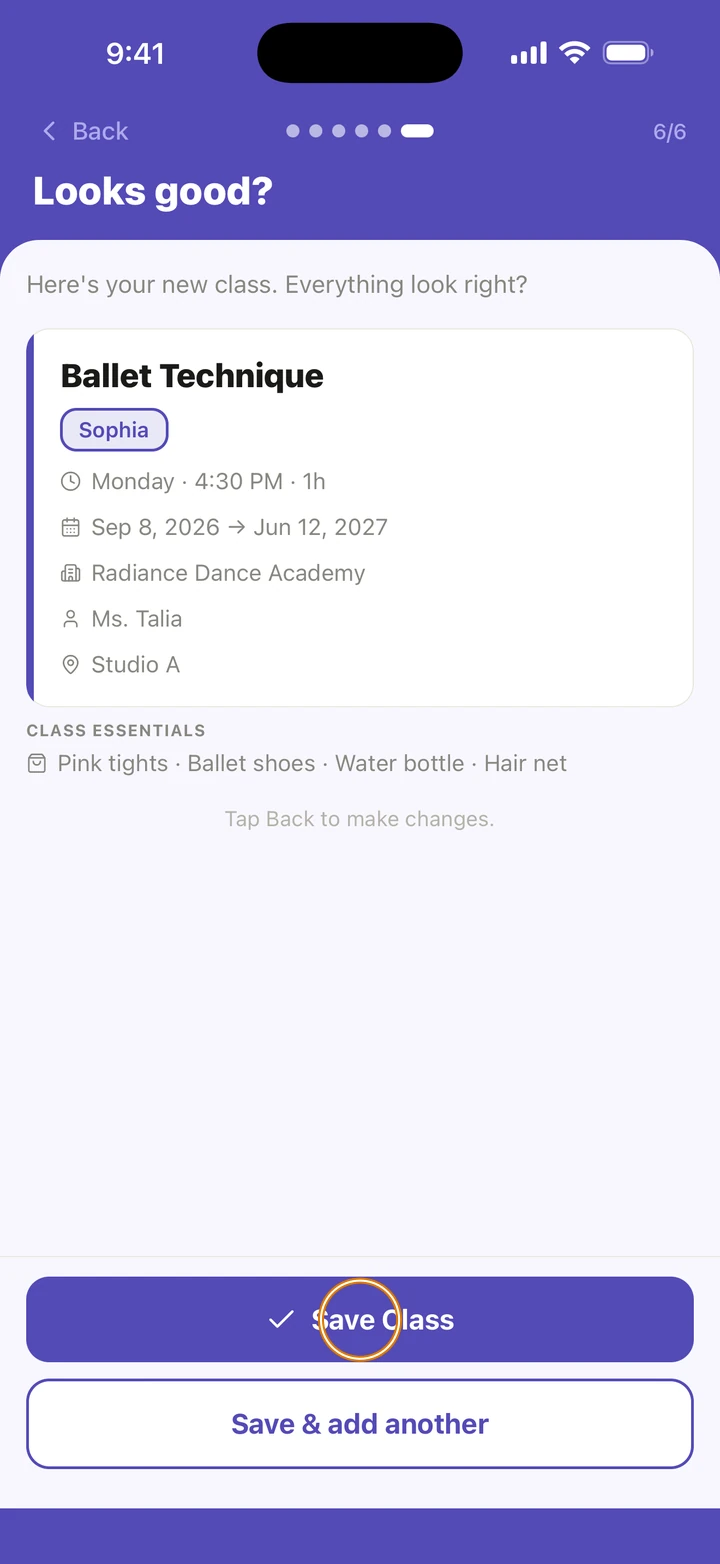
On Looks good?, check the class, then tap Save Class. To add another straight away, tap Save & add another.
Good to know
- Choose the TYPE and STYLE before typing a name: changing either one afterwards replaces the name with a new suggestion.
- For a Rehearsal, choose its ROUTINE too, so the routine's choreography videos show on the class.
- A weekly class with no end date keeps going until you add one.
- A studio closure you have already saved also applies to a new class on those dates.
- To change a class later, tap it and tap Edit this class →. To delete one, go to Manage → Classes, tap the bin next to it, then Delete.
If something goes wrong
- The place you want isn't listed? Tap Find or add a place to search for it or add it.
- For anything else, go to Manage → Get help. A real person reads every message.
Related
Checked on Ovation 1.1.5