Add the Ovation widget
See your next class, and when to get ready and pick up, on your Home Screen or Lock Screen without opening Ovation.
- About 2 minutes
Before you start
Widgets need iOS 17 or later. You add them from iOS itself; there is no widget setting inside Ovation.
-
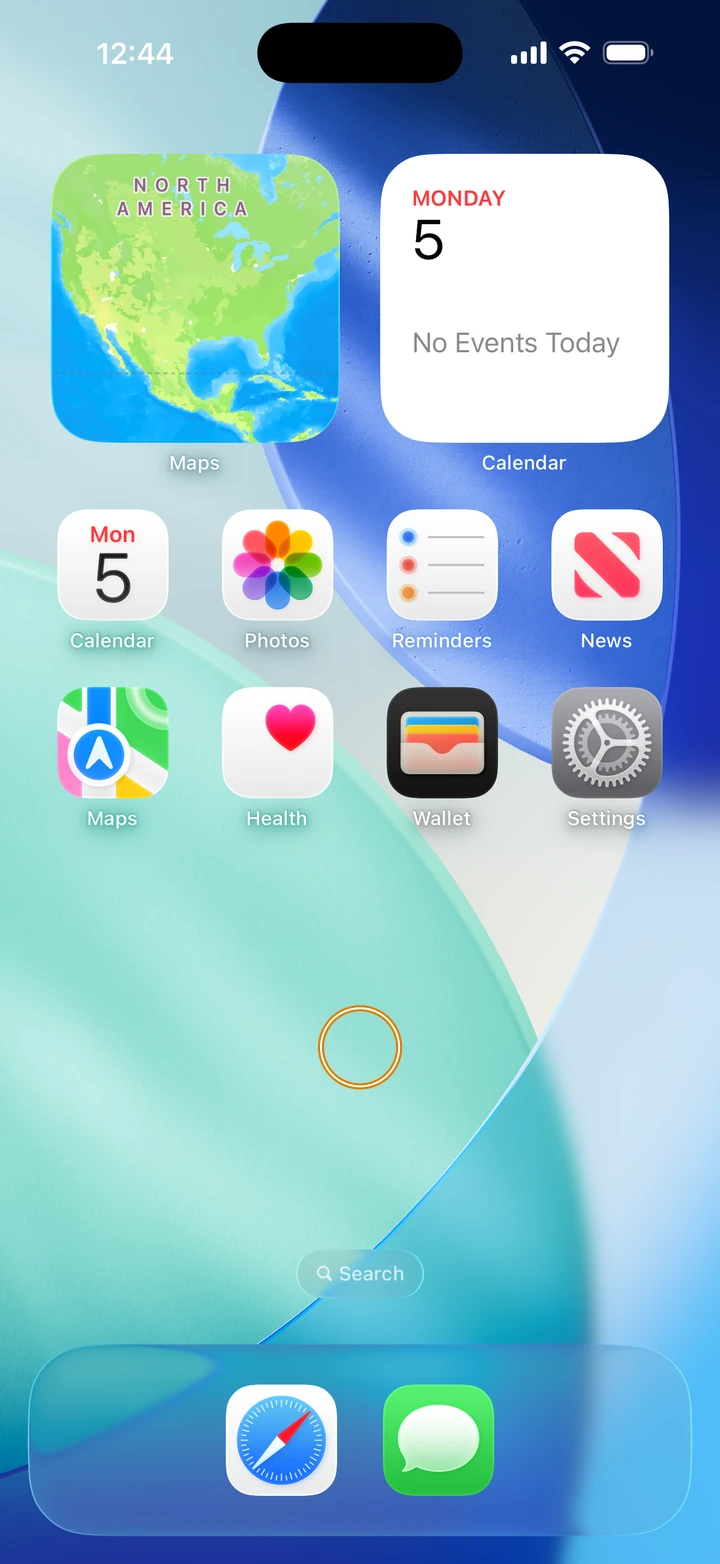
On your Home Screen, touch and hold an empty area until the apps jiggle.
-
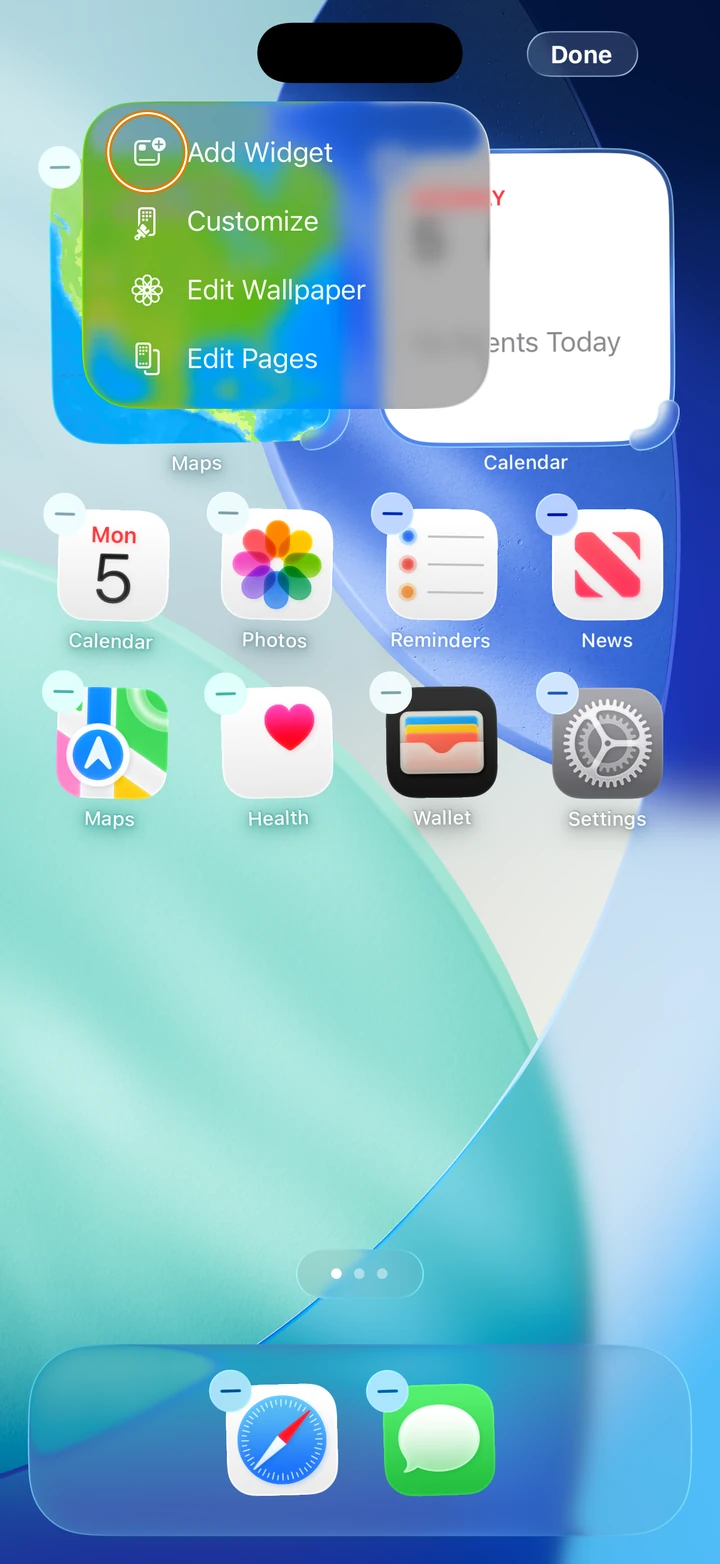
Tap Edit at the top of the screen, then Add Widget. On iOS 17, tap the + at the top left instead.
-
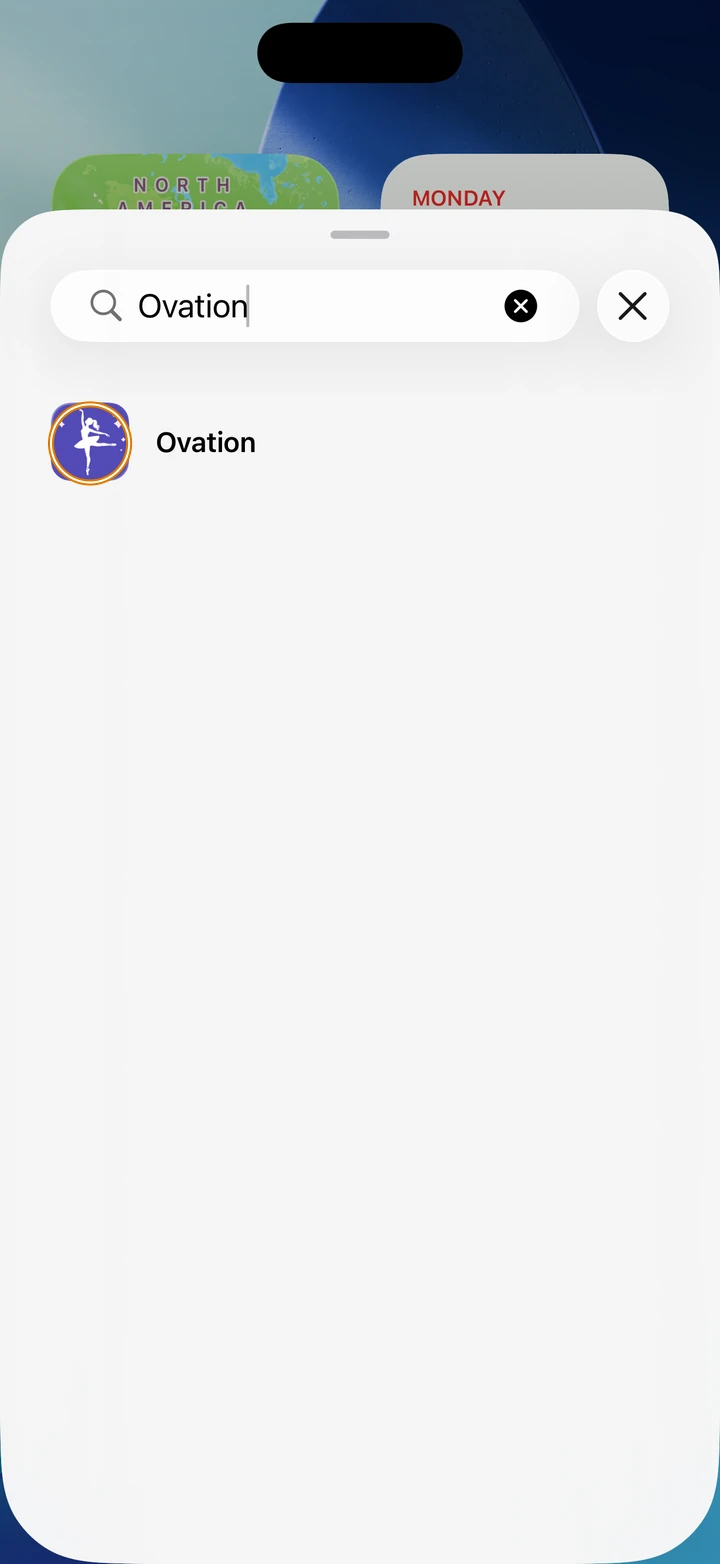
Search for Ovation, and tap it.
-
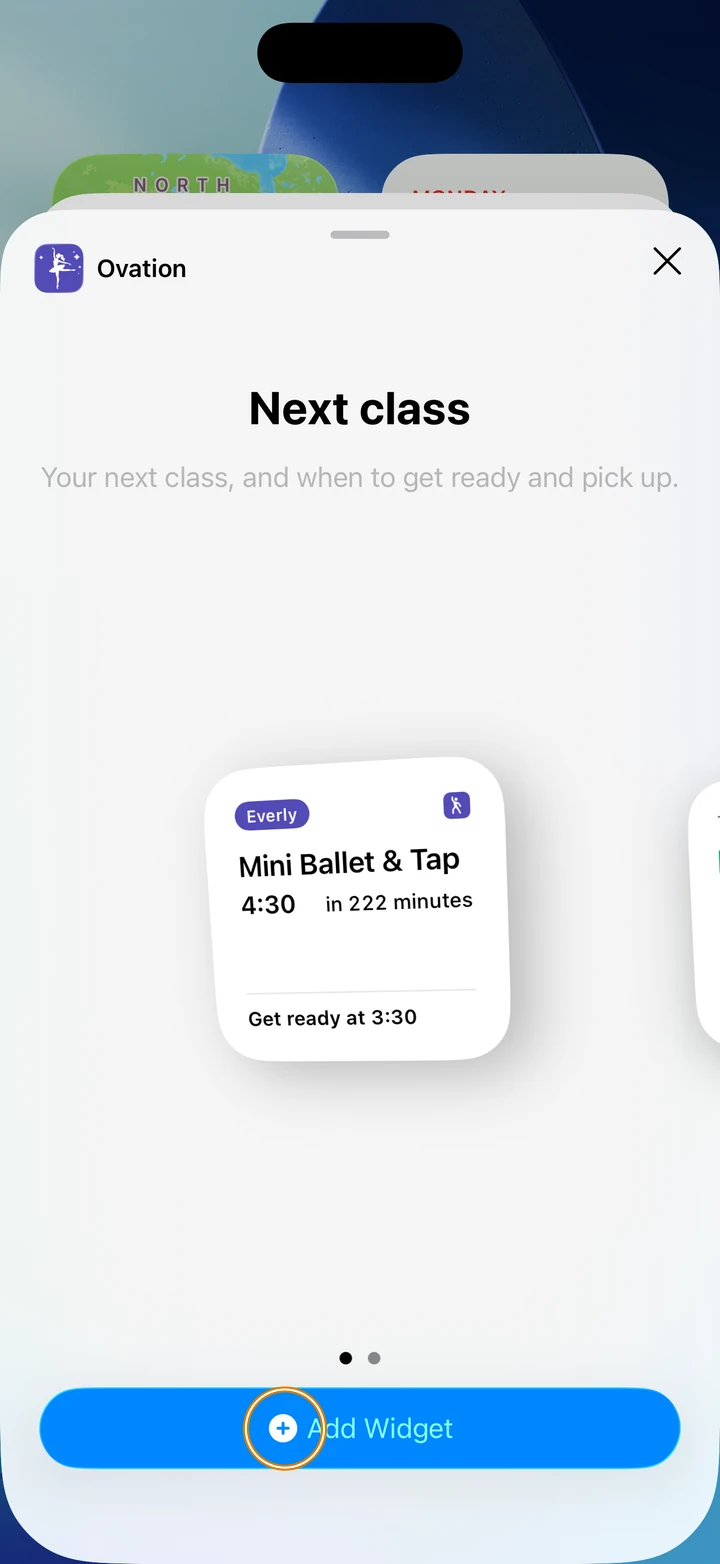
Swipe to the widget you want: Next class (small) or Today (medium). Tap Add Widget, then Done.
-
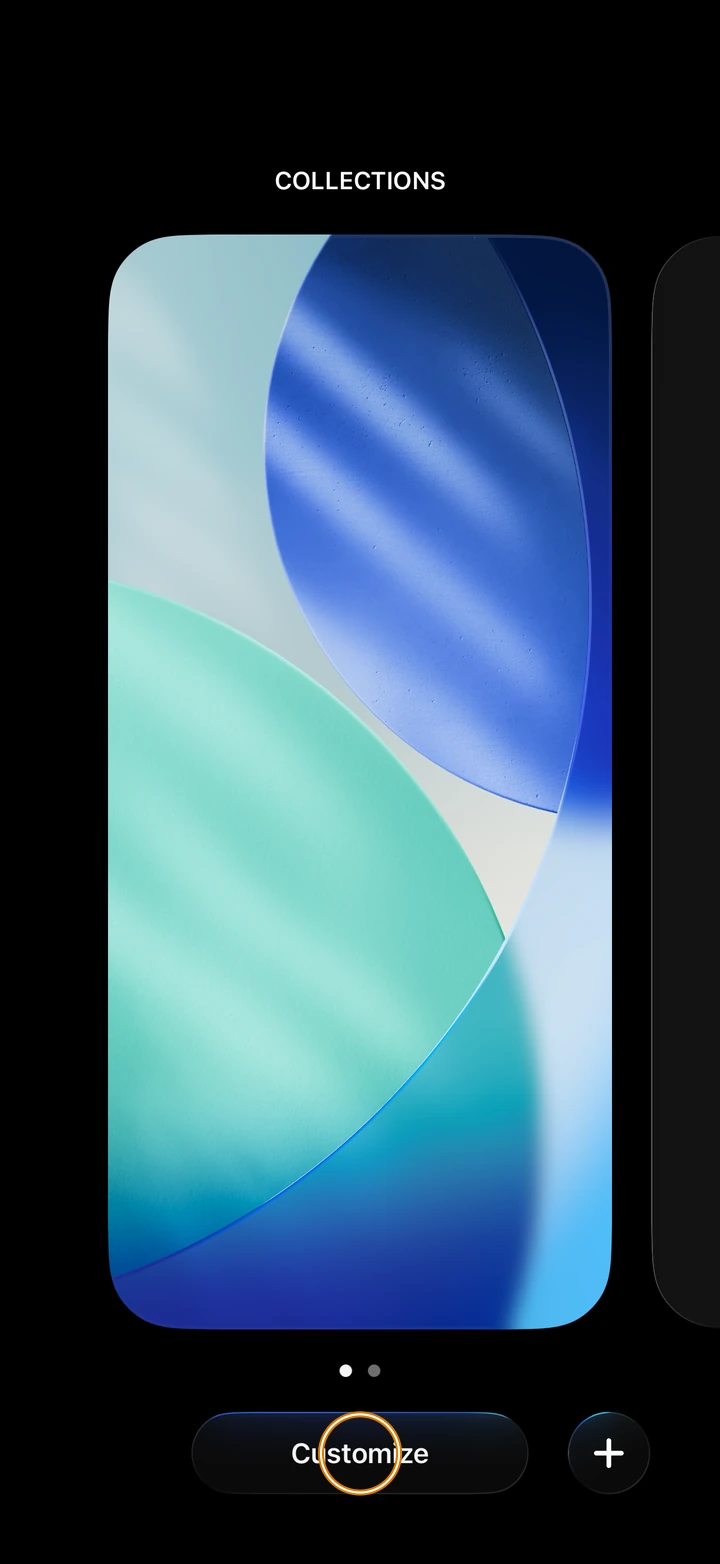
For the Lock Screen, touch and hold the Lock Screen until Customize appears. Tap Customize (then Lock Screen, if asked).
-
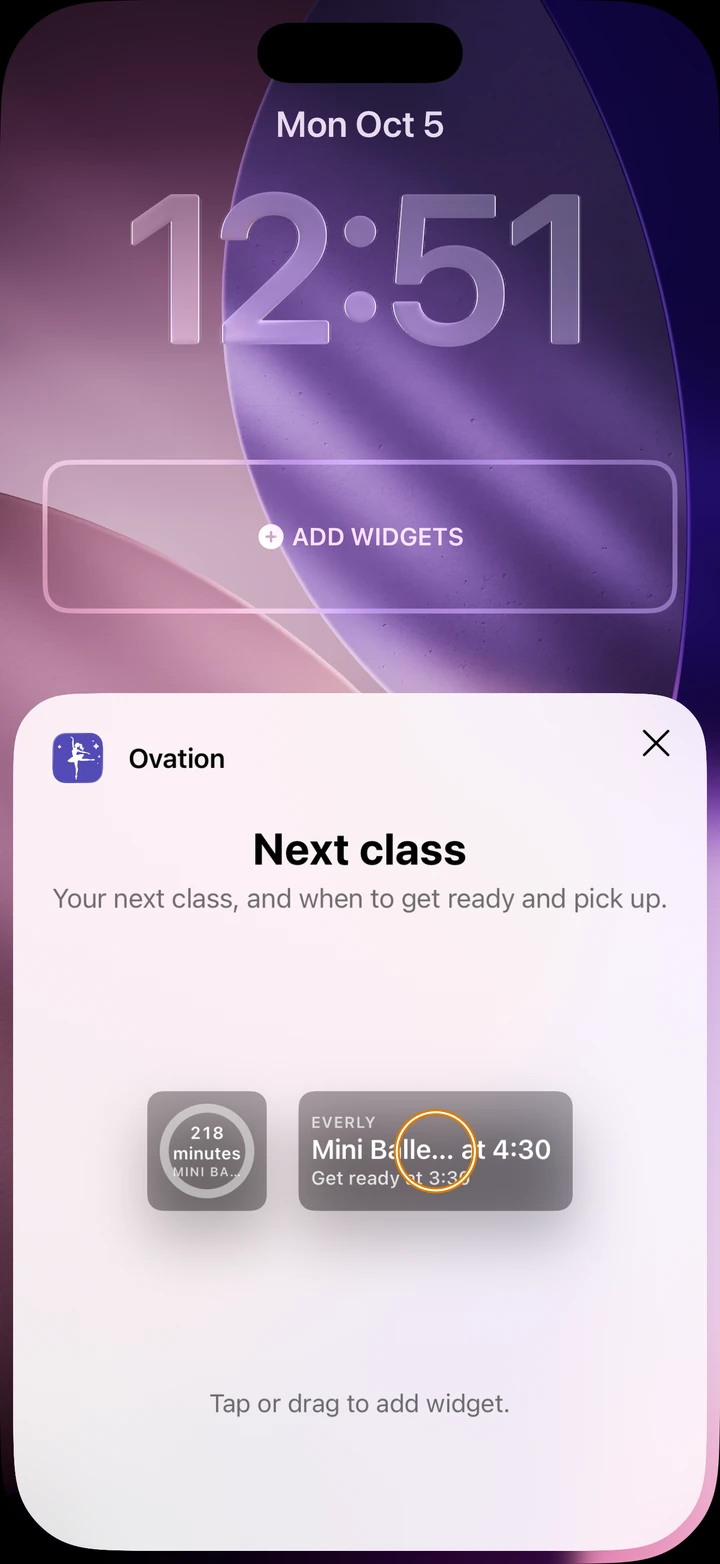
Tap the widget area (under the time, or at the bottom on iOS 26), tap Ovation, and choose Next class. Tap Done.
Good to know
- Next class shows your next class, and when to get ready and pick up. It comes in a small Home Screen size and two Lock Screen sizes.
- Today shows today's trips, when to get ready and when to pick up, in a medium Home Screen size.
- The time to get ready follows your class reminder time in Manage → Reminders.
- The widgets show classes, including convention days, but not competitions.
- The widget updates when you open Ovation, and keeps showing your classes even if reminders are paused.
- Signing out of Ovation empties the widget.
If something goes wrong
- Ovation isn't in the widget list? Update Ovation from the App Store, and check your iPhone is on iOS 17 or later.
- The widget says No classes? Open Ovation once so it can update, and check your classes are on your schedule.
- For anything else, go to Manage → Get help. A real person reads every message.
Related
Checked on Ovation 1.1.5