Change when your season starts
Set the day your dance season starts, so awards, routines and your dancer's Journey are grouped into the right season.
- About 1 minute
Before you start
Every season starts on September 1 until you change it.
-
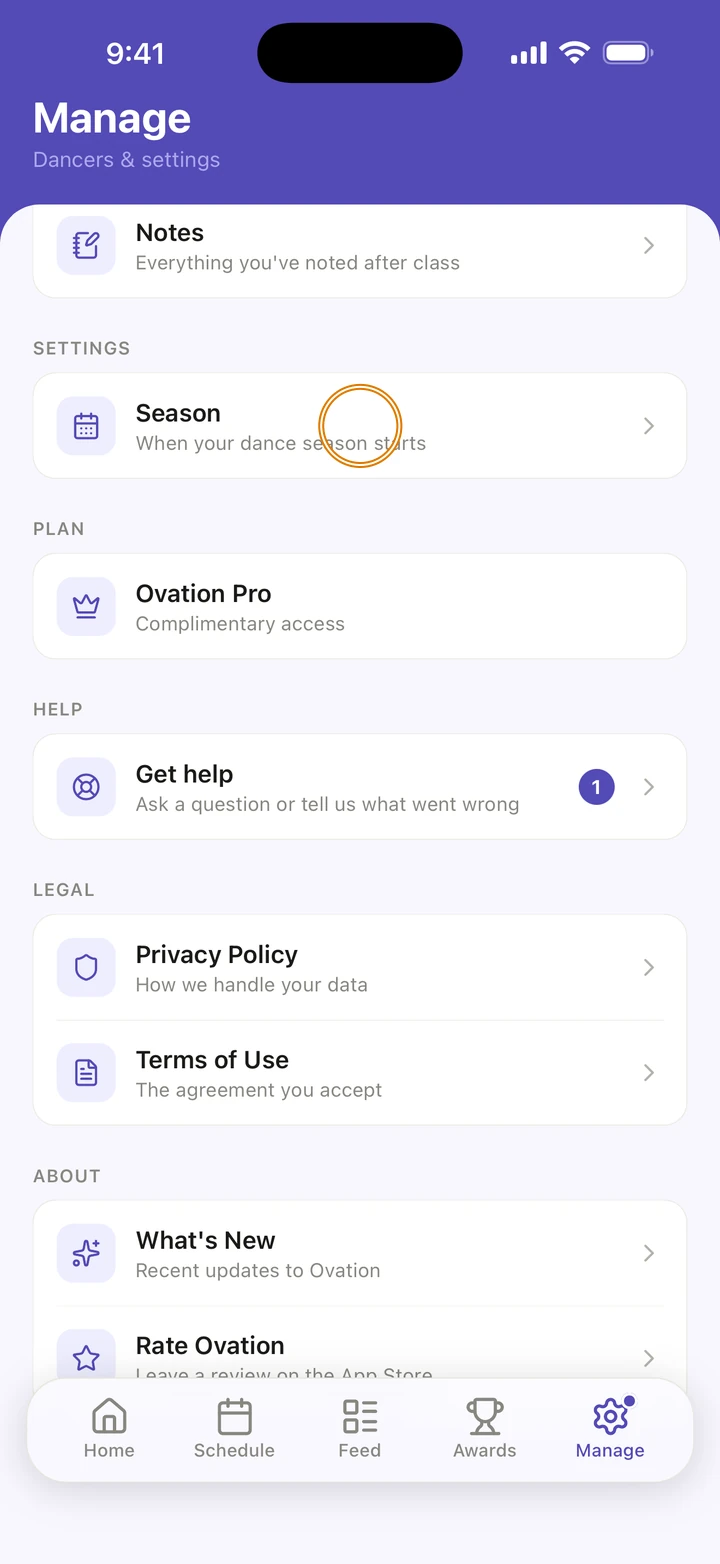
Go to Manage and, under SETTINGS, tap Season.
-
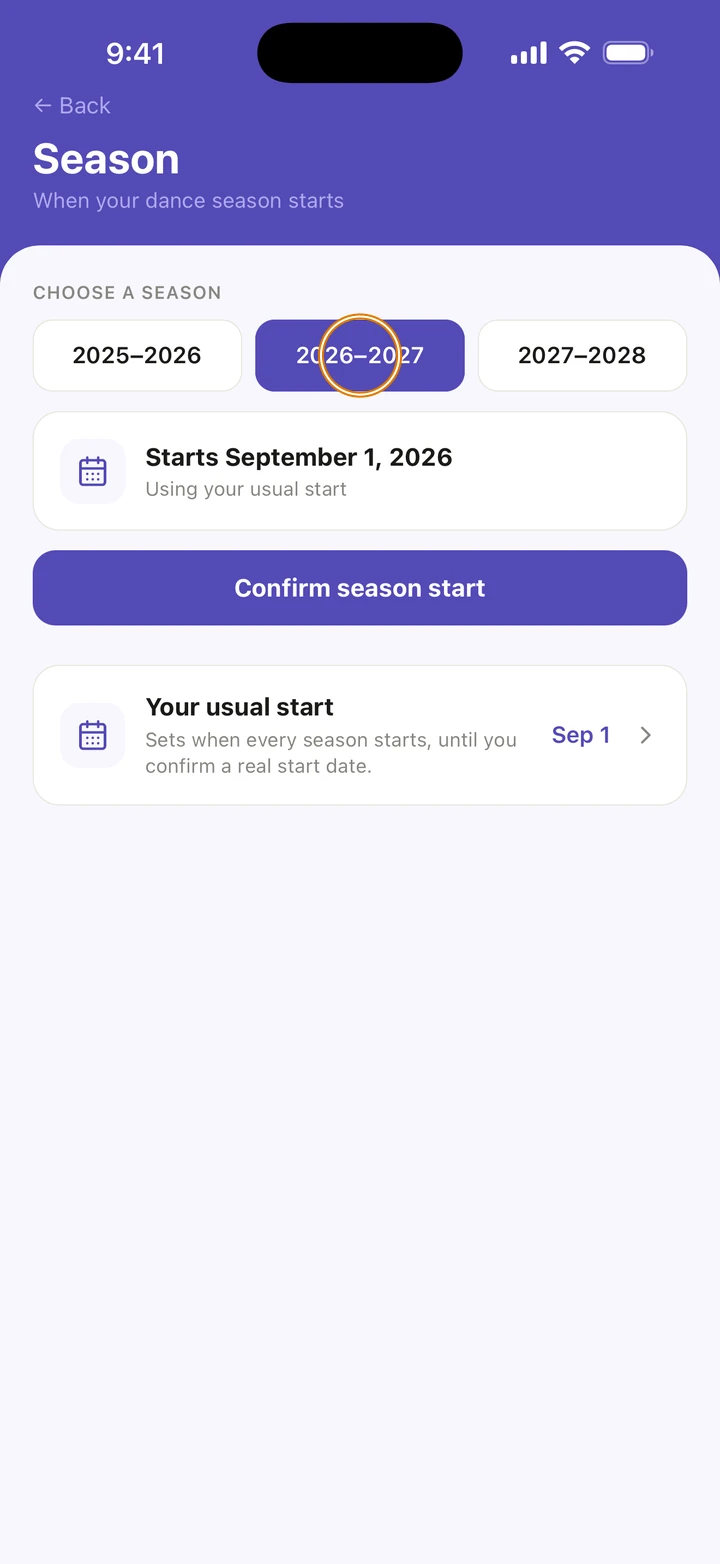
Under CHOOSE A SEASON, tap the season, for example 2026–2027.
-
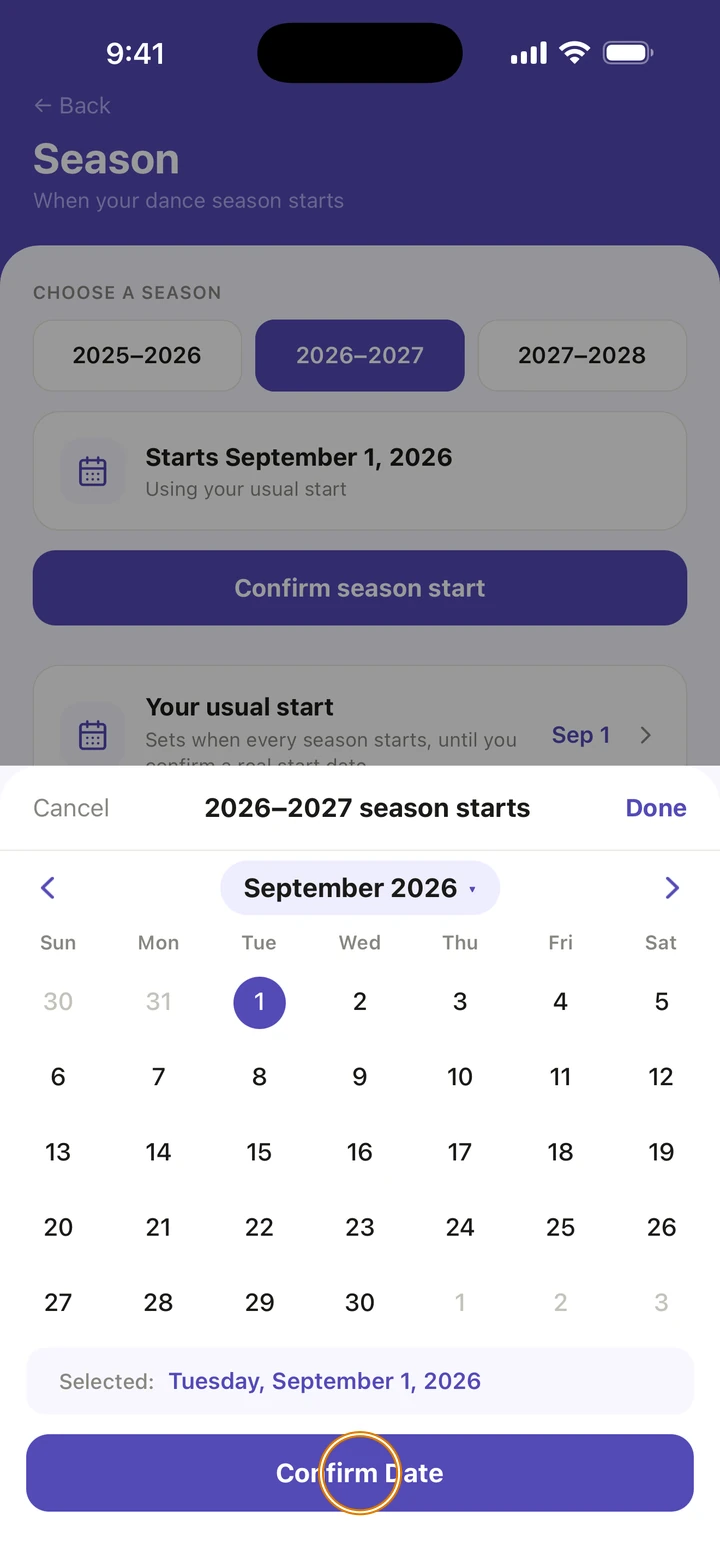
Tap Confirm season start, choose the day this season starts, and tap Confirm Date.
-
To change it later, tap Change → beside the date. To go back to your usual start, tap Use my usual start instead.
Screenshot coming soon -
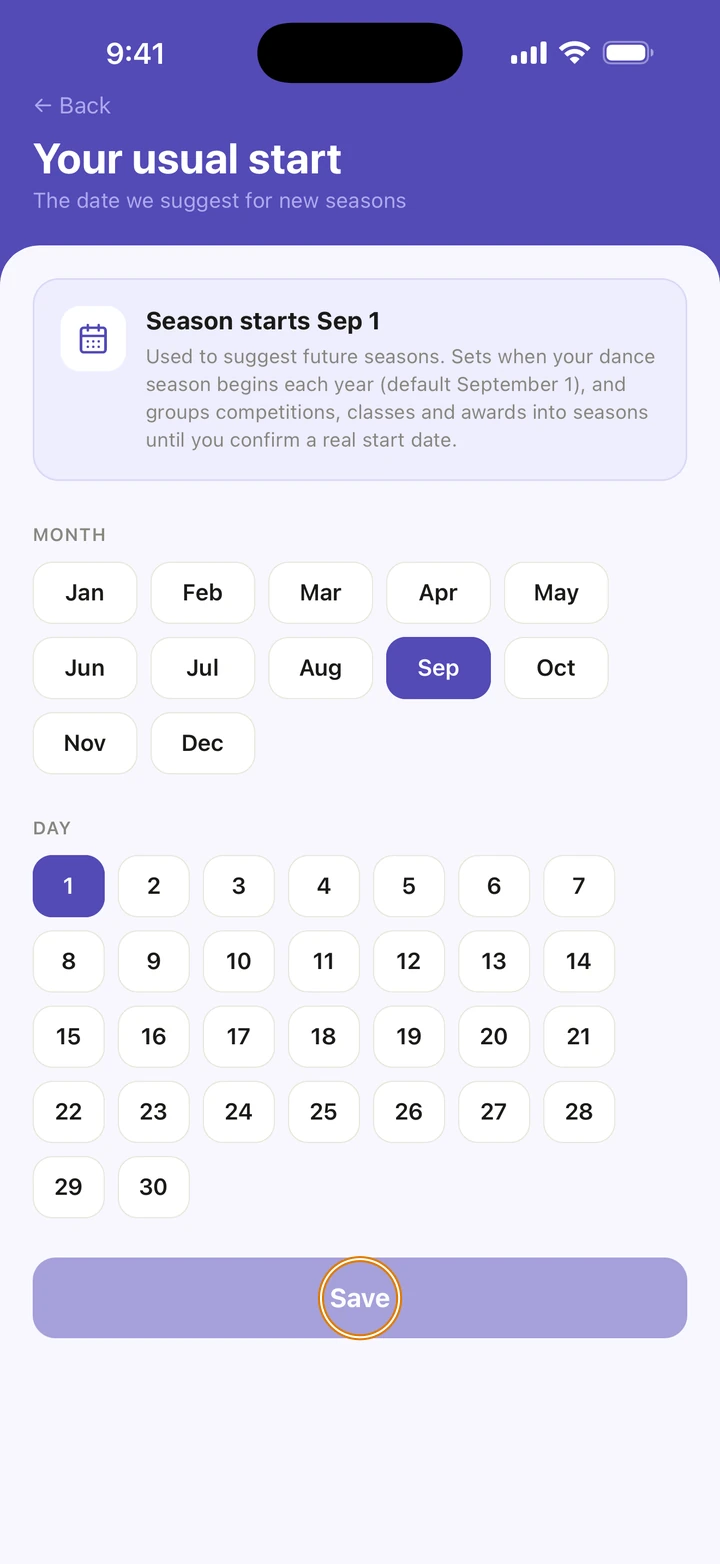
To change the day every season starts, tap Your usual start, choose the MONTH and DAY, and tap Save.
Good to know
- A season you have confirmed keeps its date. Your usual start only changes seasons you haven't confirmed.
- The season decides what Home, the Awards tab, Journey and your routines count as this season.
- On the free plan, the 50 photos a season are counted from this date.
- To go back to September 1, open Your usual start and tap Reset to September 1.
If something goes wrong
- If the date won't save, Ovation says why under the season. A season's start must fall in its first year.
- For anything else, go to Manage → Get help. A real person reads every message.
Related
Checked on Ovation 1.1.5