The Awards tab and the season recap
Every result your dancers have recorded, season by season, and a recap card of the season to share or save.
- About 2 minutes
-
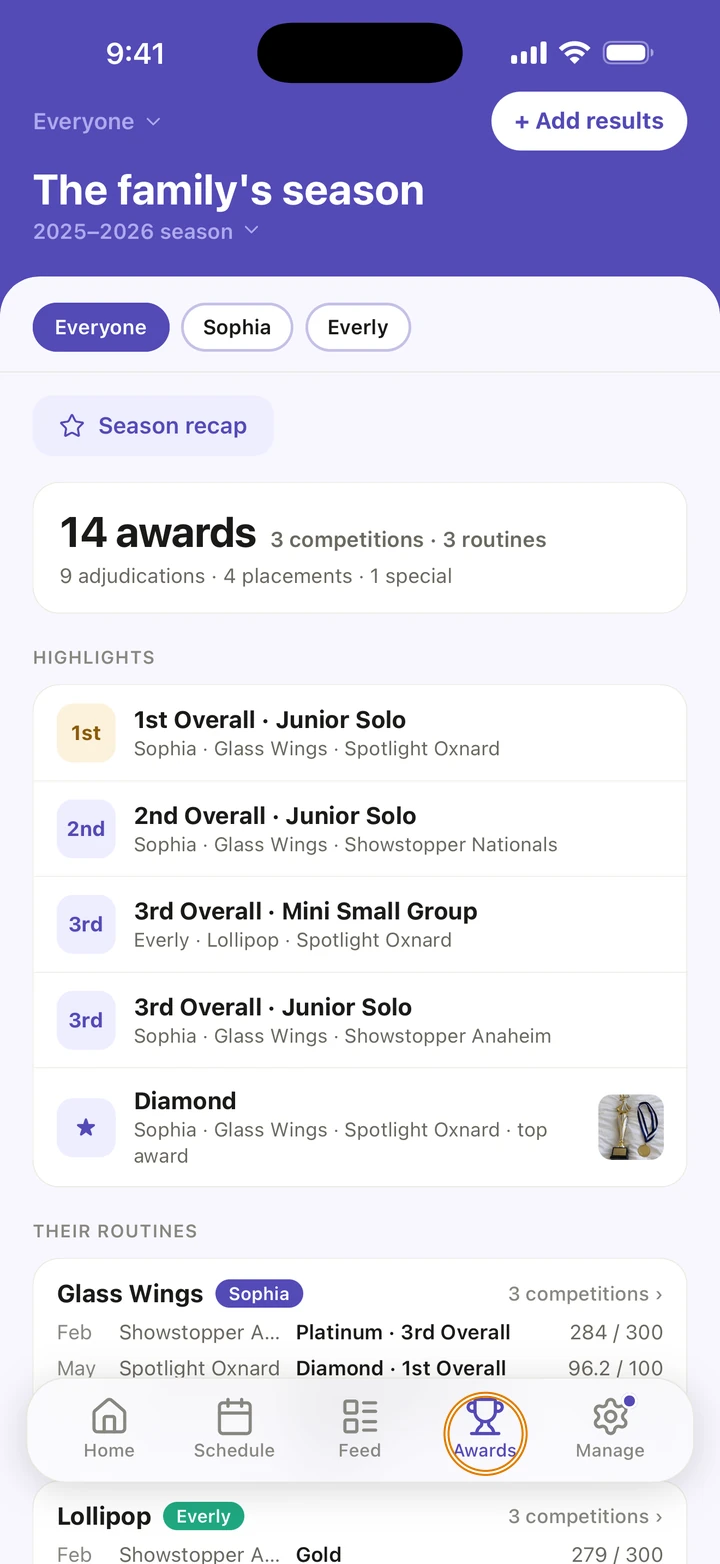
Tap the Awards tab.
-
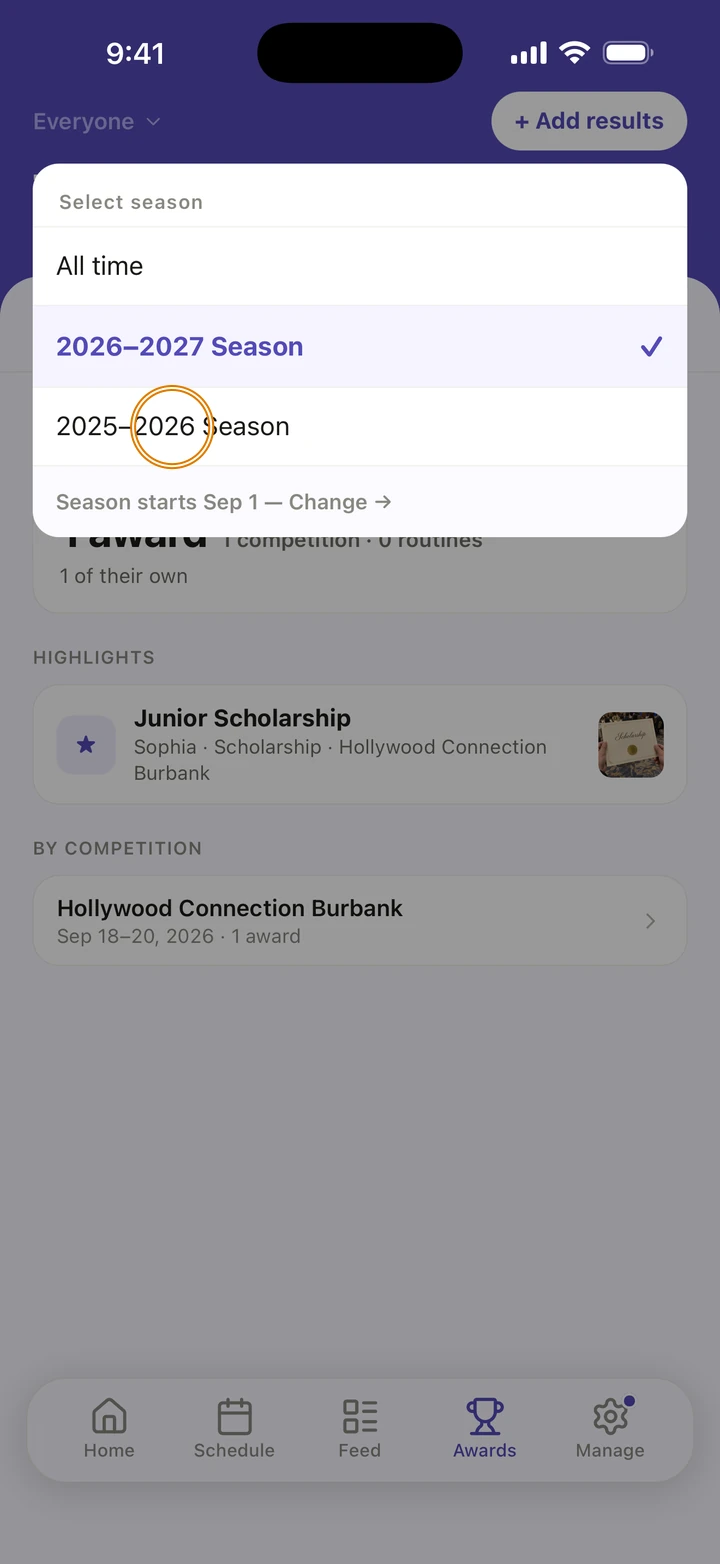
To see another season, tap the season under the title and choose it, or All time.
-
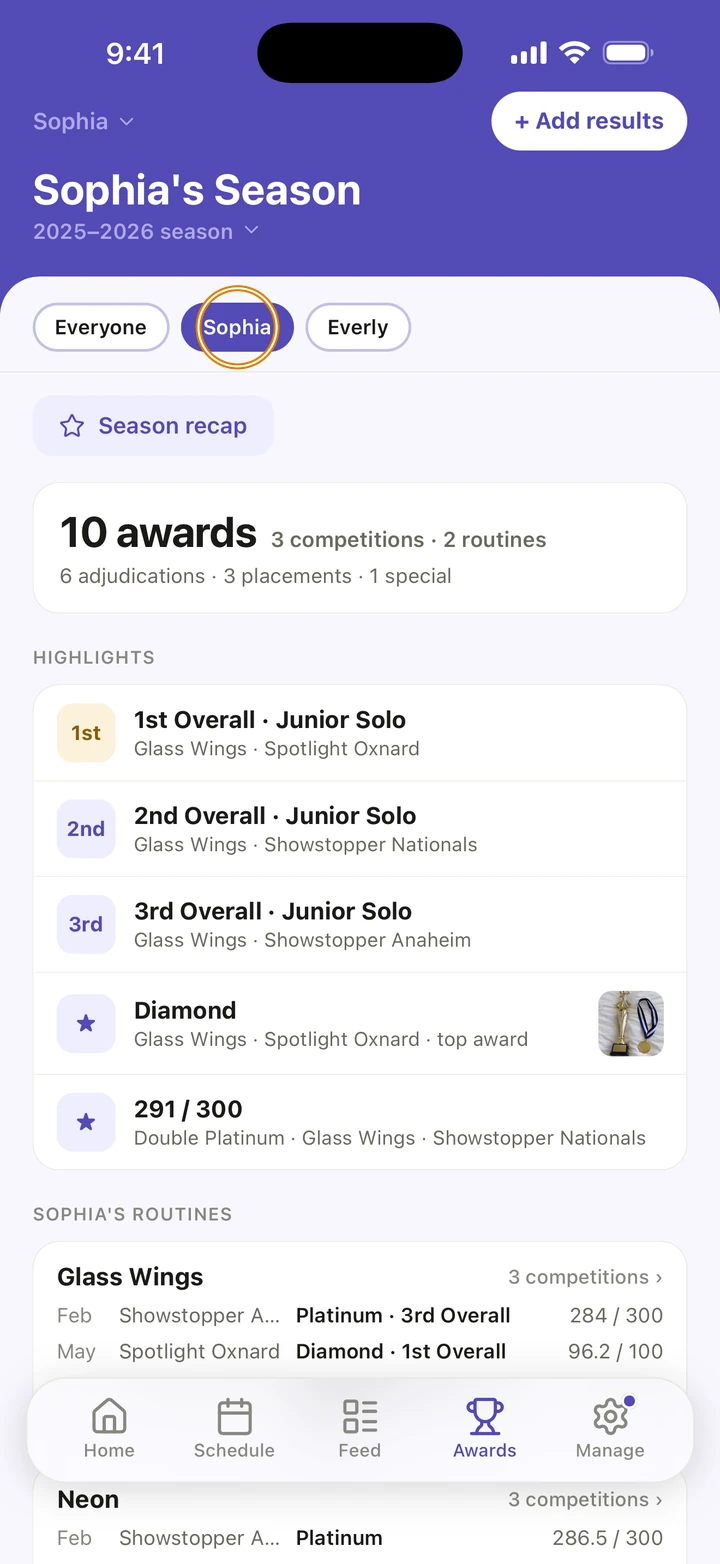
With more than one dancer, tap Everyone or a dancer's name at the top.
-
WAITING FOR RESULTS lists competitions that have finished without results. Tap one to add them.
Screenshot coming soon -
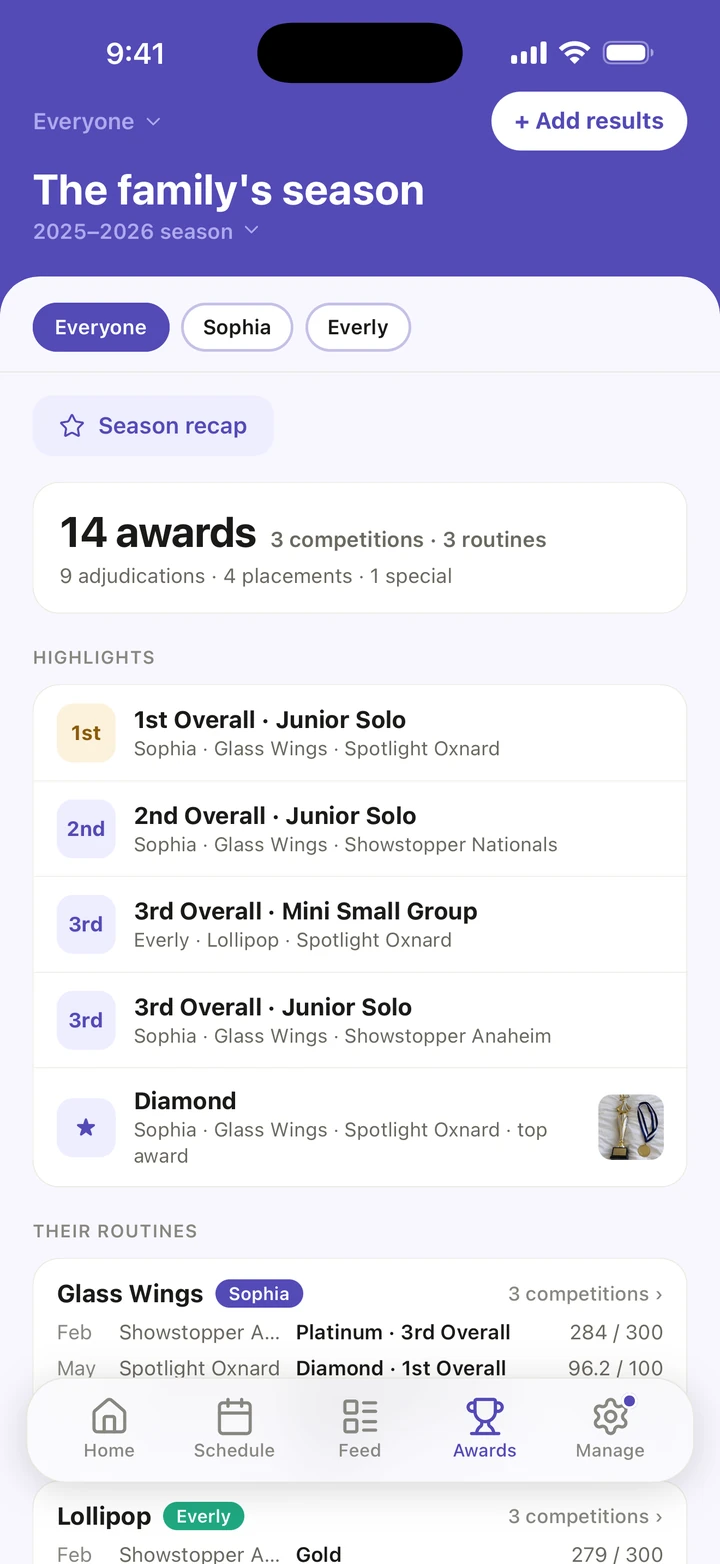
Below, HIGHLIGHTS shows the season's best results, then each routine's season, then BY COMPETITION. Tap any of them to open that competition's results.
-
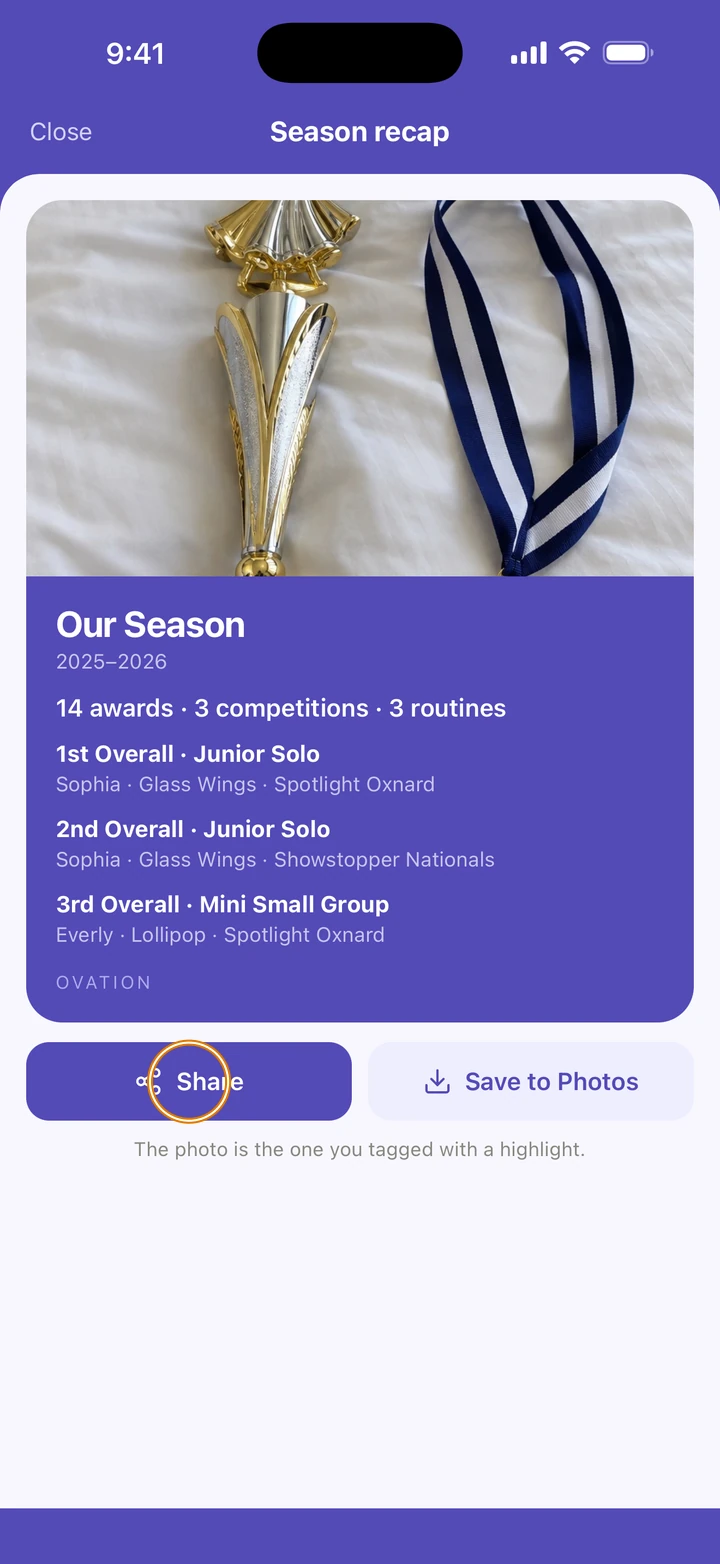
Tap Season recap to see the season on one card, then tap Share to send it, or Save to Photos.
Good to know
- Each award, placement, special award and award your dancer won on their own counts as one award. A score on its own is a result, not an award.
- Season recap appears once the season has at least one award. It is not offered for All time.
- A photo you tagged with a highlight's award appears beside it, and on the recap card.
- Seasons follow your season's start date, which you can change in Manage → Season.
- With notifications allowed, Ovation sends Season recap ready! on June 1.
If something goes wrong
- An award is missing? Open the competition's Results tab and check the routine's card.
- If the tab says Something went wrong, pull down to refresh, or tap Try again.
- For anything else, go to Manage → Get help. A real person reads every message.
Related
Checked on Ovation 1.1.5