Import results from the results sheet
Send Ovation the competition's results sheet, and it finds your dancer's routines and fills in their awards for you to check.
- About 2 minutes
- Photo
- Paste text
- Link
Before you start
A results import is one of the free plan's first two AI imports; Ovation Pro has no limit. An import that finds nothing to save doesn't count.
-
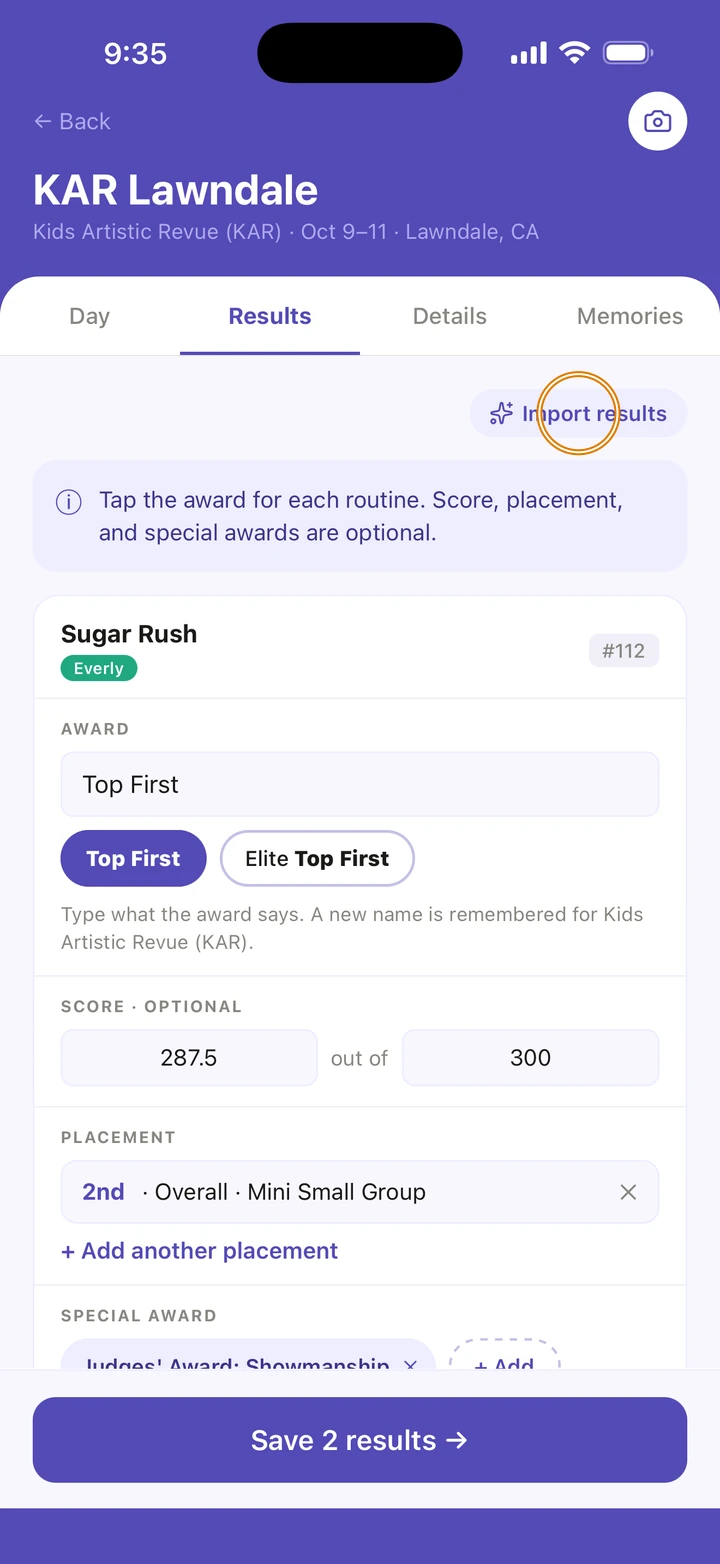
Open the competition and tap its Results tab, then tap Import results.
-
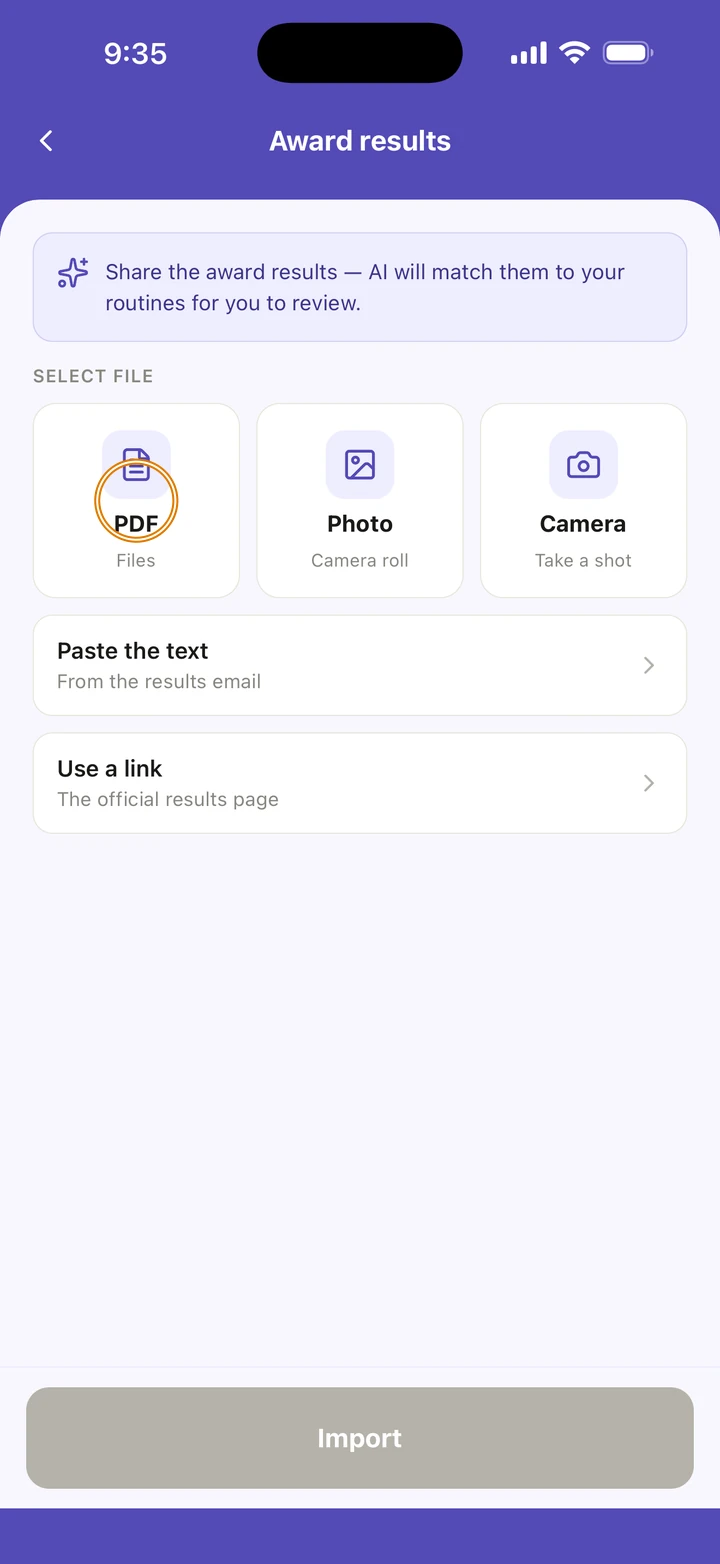
Under SELECT FILE, tap PDF, Photo or Camera. Or tap Paste the text and paste it from the results email, or Use a link for the official results page.
-
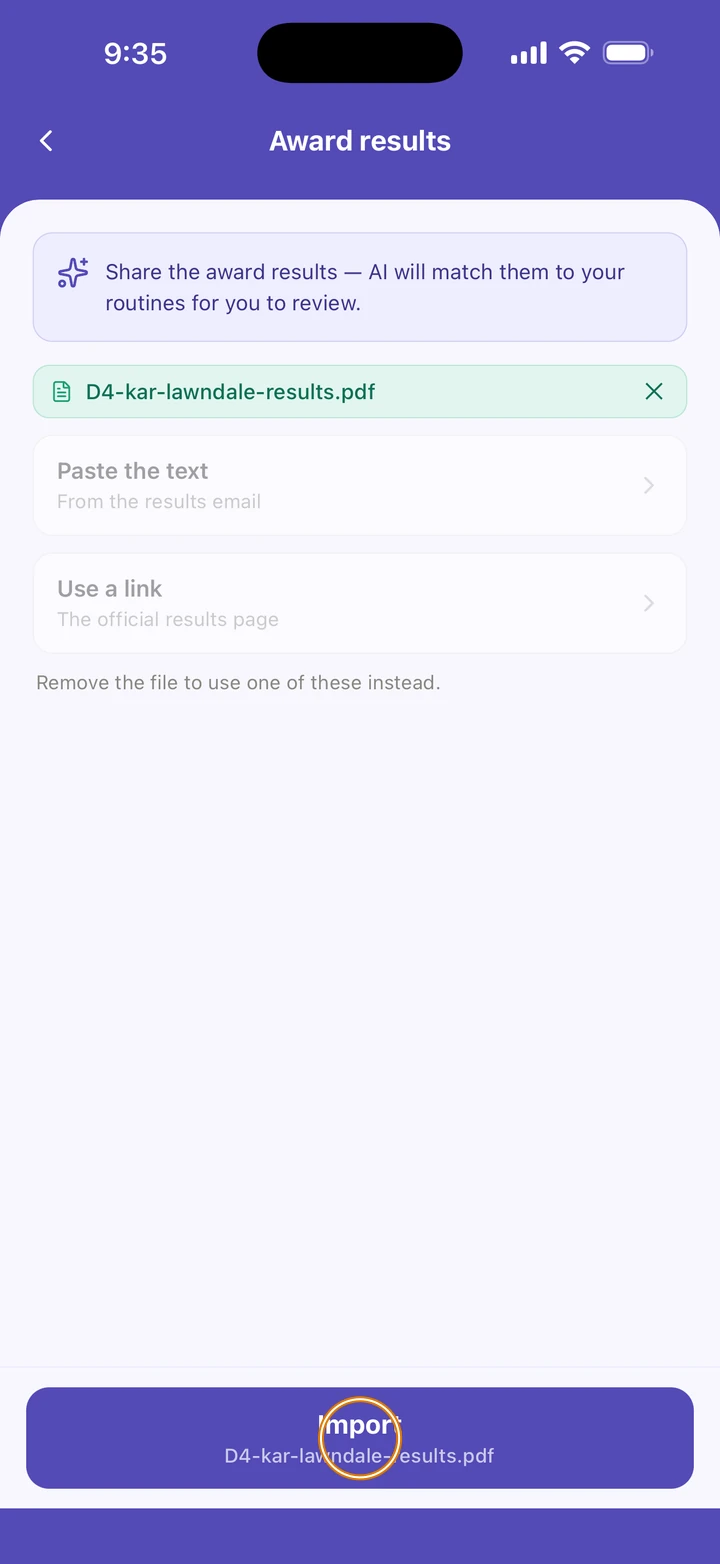
Tap Import. Choosing a file only selects it; nothing is read until you tap Import.
-
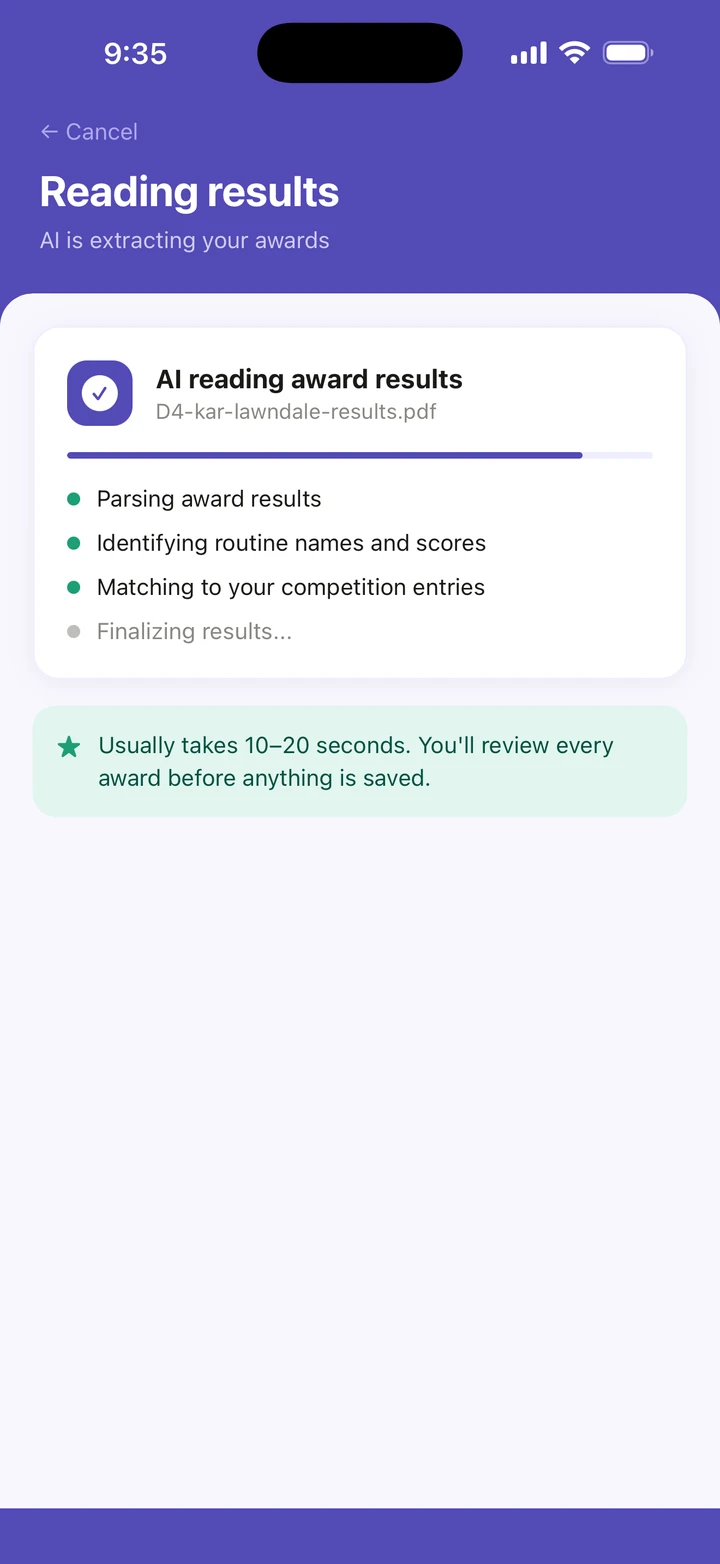
Wait while Ovation reads it. It usually takes 10–20 seconds.
-
On Review Awards, check each routine. Ready to Add are the ones Ovation is sure of; check the ones under Please Review closely. Tap anything to fix it, and switch off anything wrong.
Screenshot coming soon -
Tap Save results, then OK.
Screenshot coming soon
Good to know
- A whole results page is fine. Ovation only looks for your dancer's routines.
- A PDF works best. For a photo, use good lighting and lay the sheet flat.
- Your routines that aren't on the sheet are listed under Couldn't Find, and are not added. Add those by hand on the Results tab.
- Awards your dancer won on their own, such as a title, are listed with their own awards.
- A long pasted results page is imported in parts. Up to five parts, imported within an hour, count as one import.
If something goes wrong
- If an award is missing or wrong, tap Something missing or wrong? at the end of the review list. It opens a message to us with your results attached.
- If the import stops, tap Send this to us on the message that says so.
- For anything else, go to Manage → Get help. A real person reads every message.
Related
Checked on Ovation 1.1.5