Password, sign-in and deleting your account
Change or reset your password, connect Apple or Google sign-in, sign out, or delete your account and everything in it.
- About 2 minutes
-
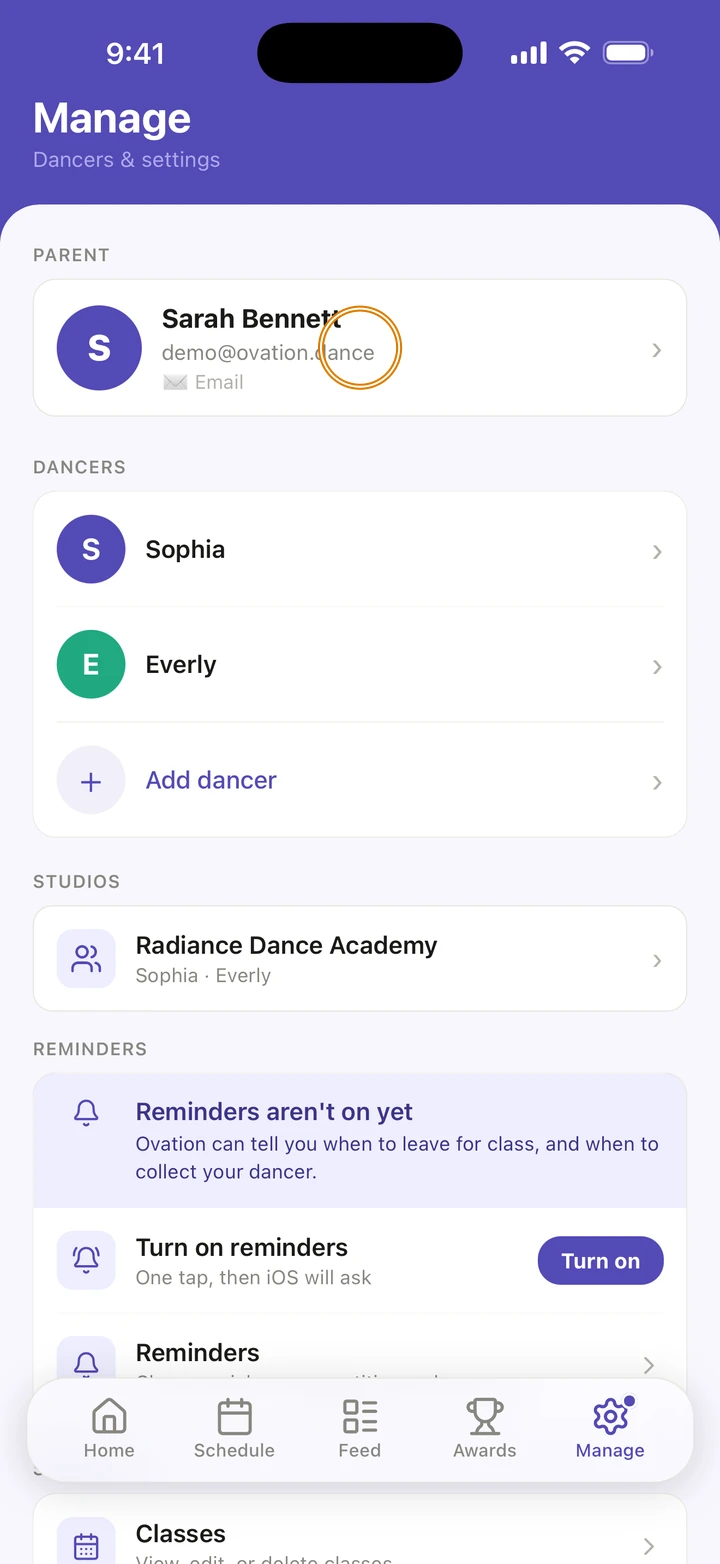
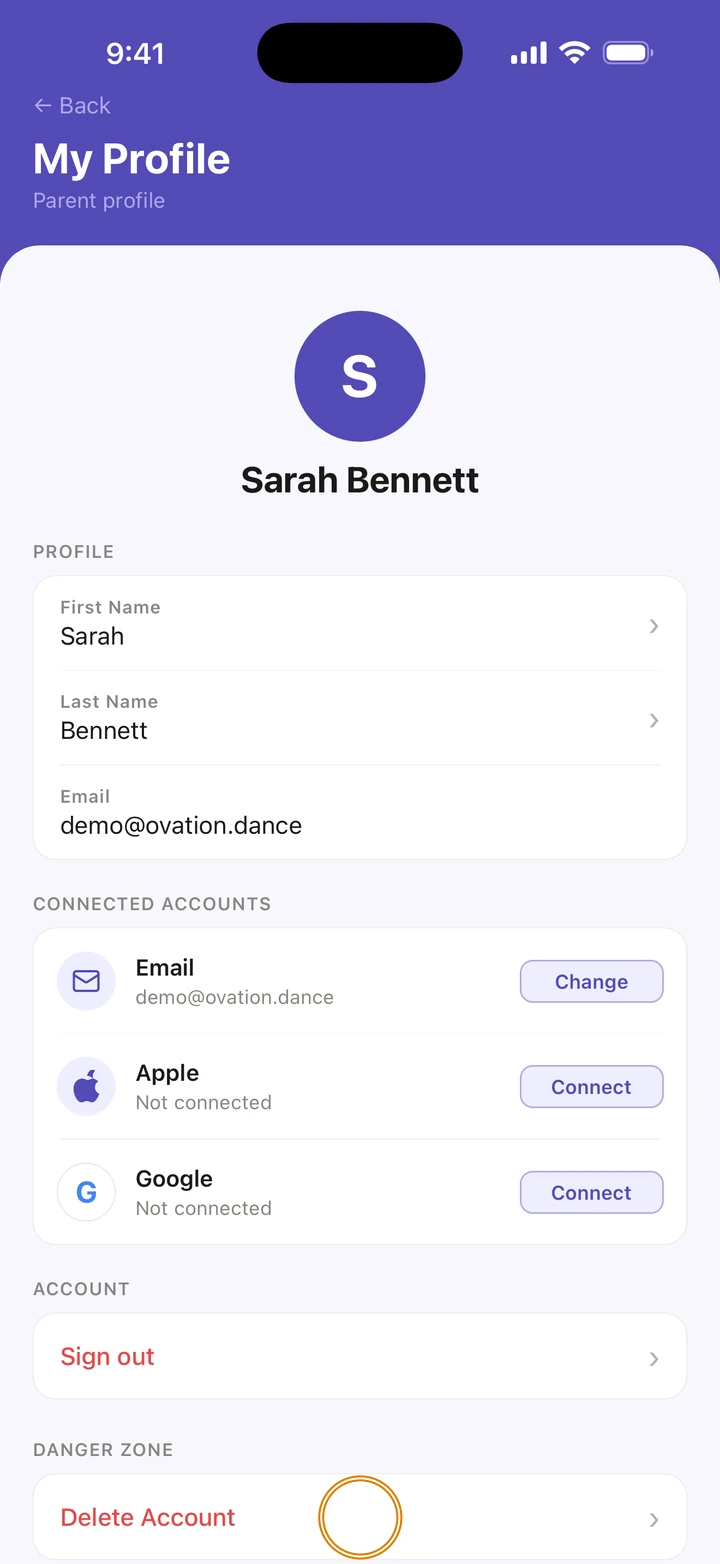
Go to Manage and tap your name at the top to open My Profile.
-
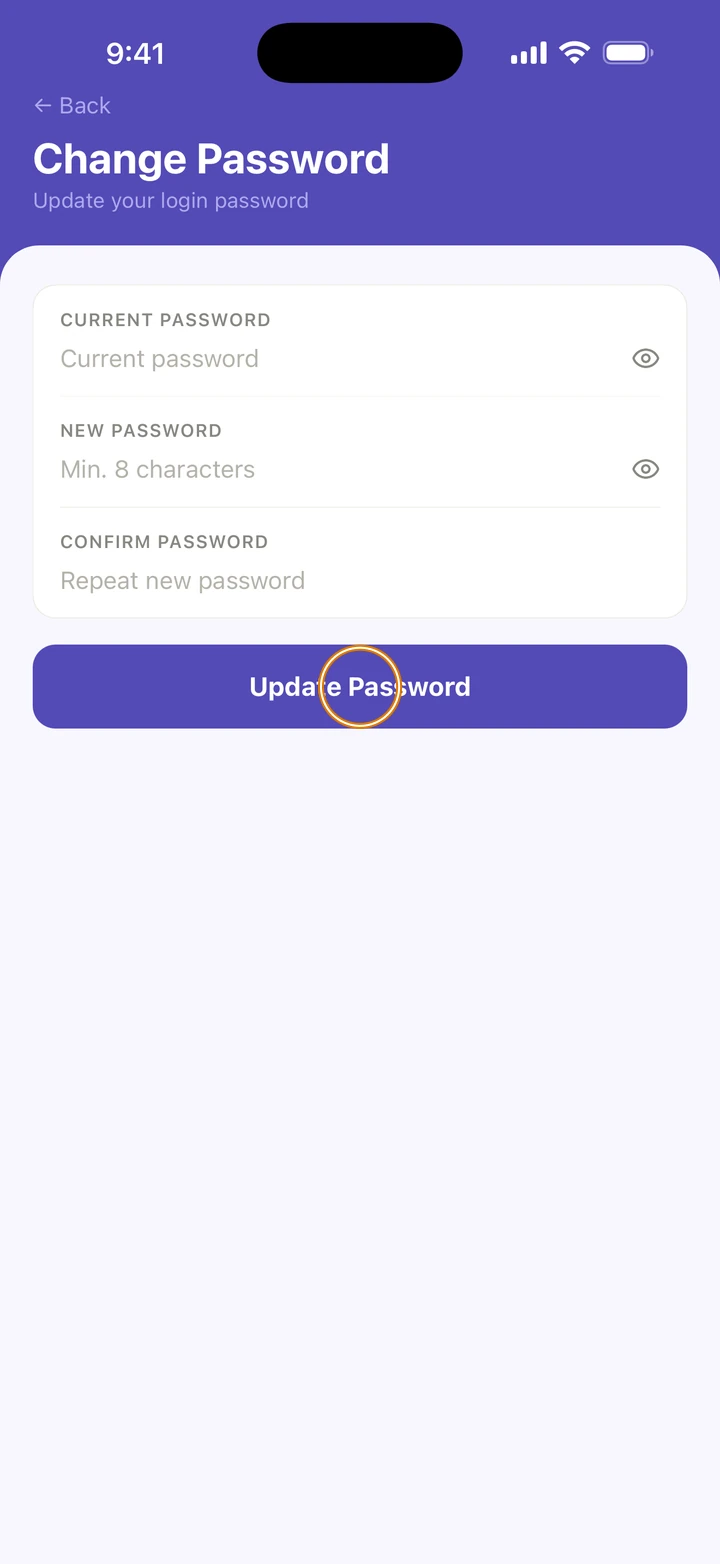
To change your password, tap Change next to your email under CONNECTED ACCOUNTS. Type your CURRENT PASSWORD, a NEW PASSWORD of at least 8 characters, and the same again under CONFIRM PASSWORD. Tap Update Password.
-
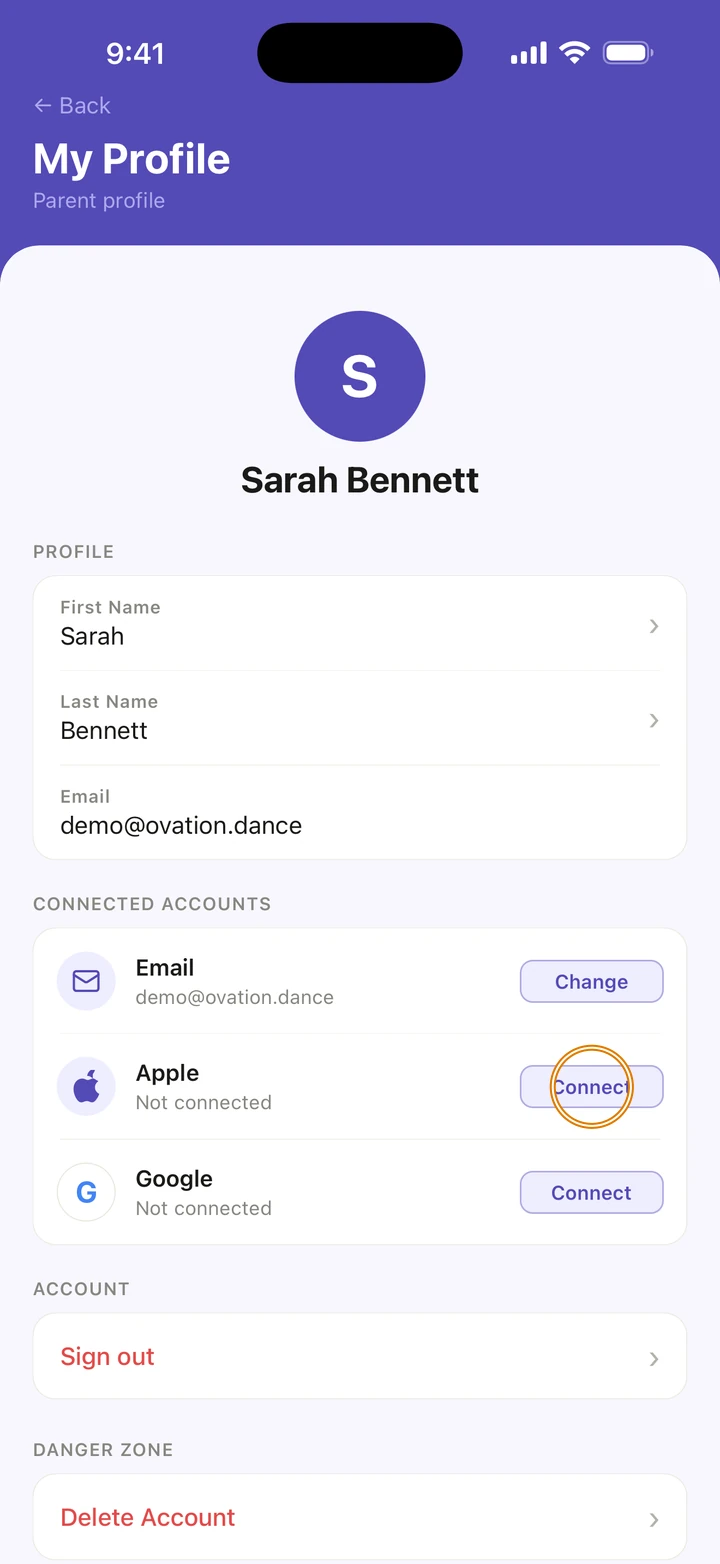
To sign in with Apple or Google as well, tap Connect next to it under CONNECTED ACCOUNTS.
-
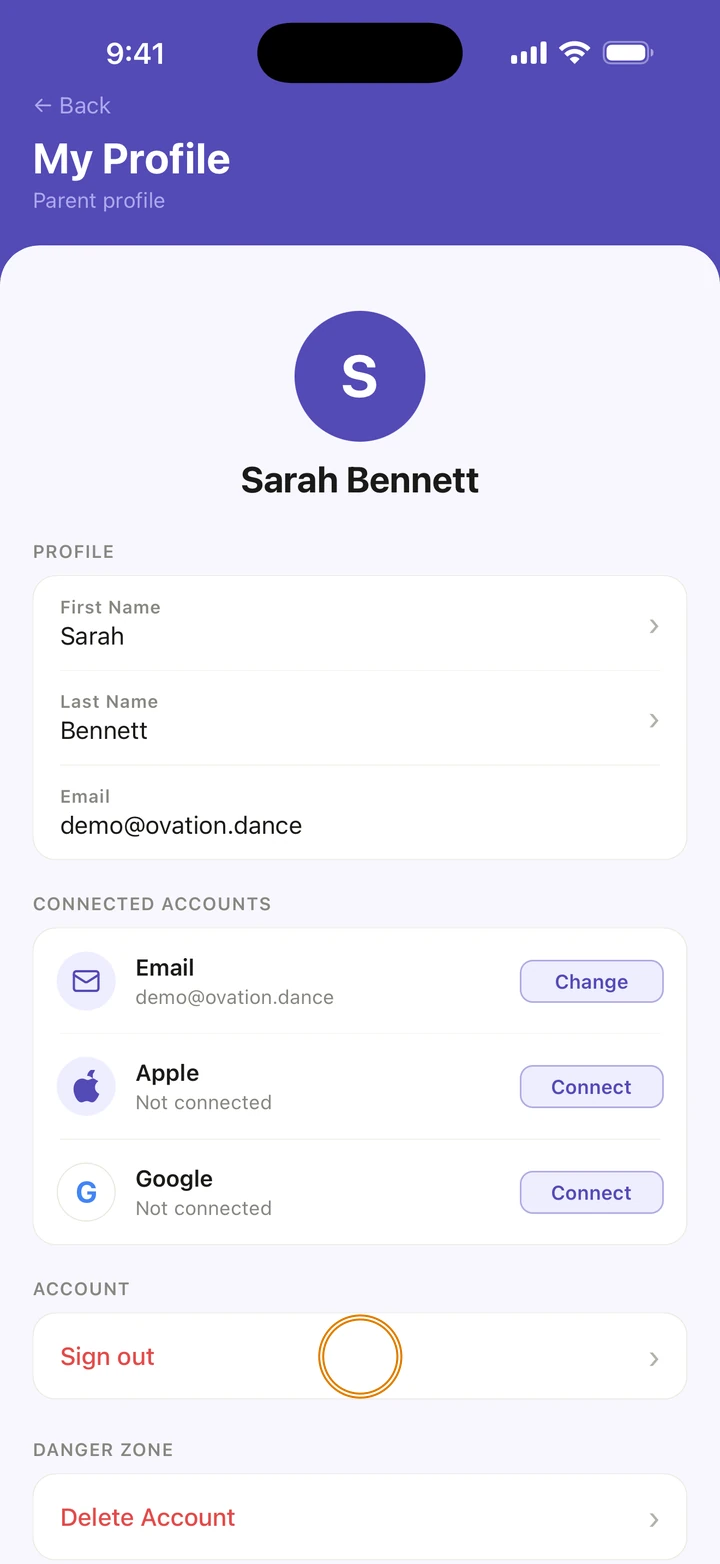
To sign out, tap Sign out under ACCOUNT, then Sign out again.
-
To delete your account, tap Delete Account under DANGER ZONE, then Delete Everything, then Yes, delete my account.
Good to know
- Forgot your password? On the sign-in screen, tap Forgot password?, type your email and tap Send reset code. Type the 6-DIGIT CODE from the email and a new password, then tap Reset password. The code works for 15 minutes.
- If you signed up with Apple or Google, there is no password to reset. Use the same button on the sign-in screen.
- Deleting your account permanently deletes your account and all its data, including dancers, competitions, awards and posts. It can't be undone.
- Deleting your account doesn't cancel an Ovation Pro subscription with Apple. Cancel it first with Manage subscription in Manage, or in your iPhone's Settings.
If something goes wrong
- Can't sign in? On the sign-in screen, under Trouble signing in?, tap Email us at [email protected].
- For anything else, go to Manage → Get help. A real person reads every message.
Related
Checked on Ovation 1.1.5