Conventions: classes by group
Add a convention's class grid one day at a time, choose your dancer's group, and their classes and breaks for the day land in their week.
- About 3 minutes
- Photo
- Paste text
Before you start
A convention's schedule goes in one day at a time: one page, a photo of the day's grid, or up to 1,700 characters of pasted text. Each day you import is one of the free plan's first two AI imports; Ovation Pro has no limit, and typing the classes in is free.
-
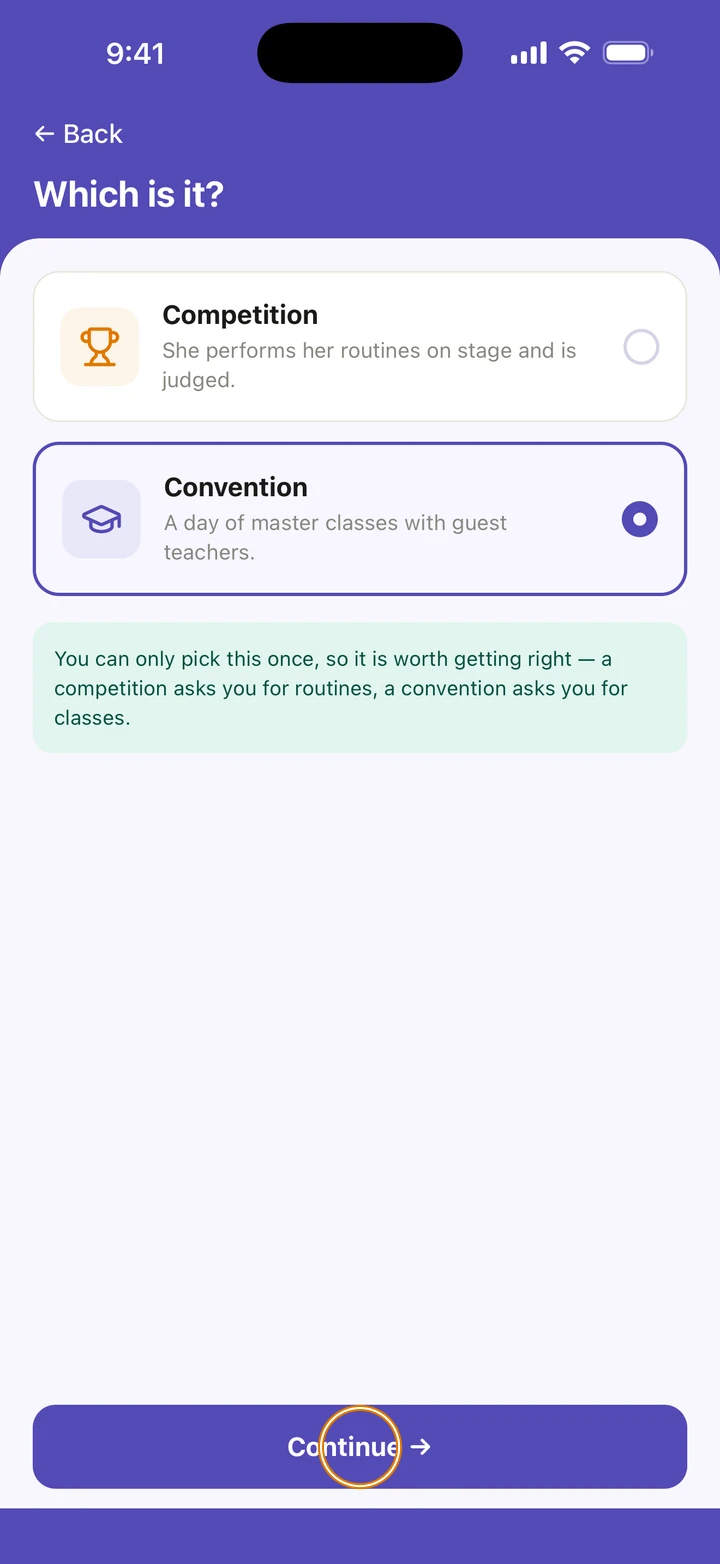
Add the convention as you would a competition. If Ovation asks Which is it?, choose Convention, then Continue →.
-
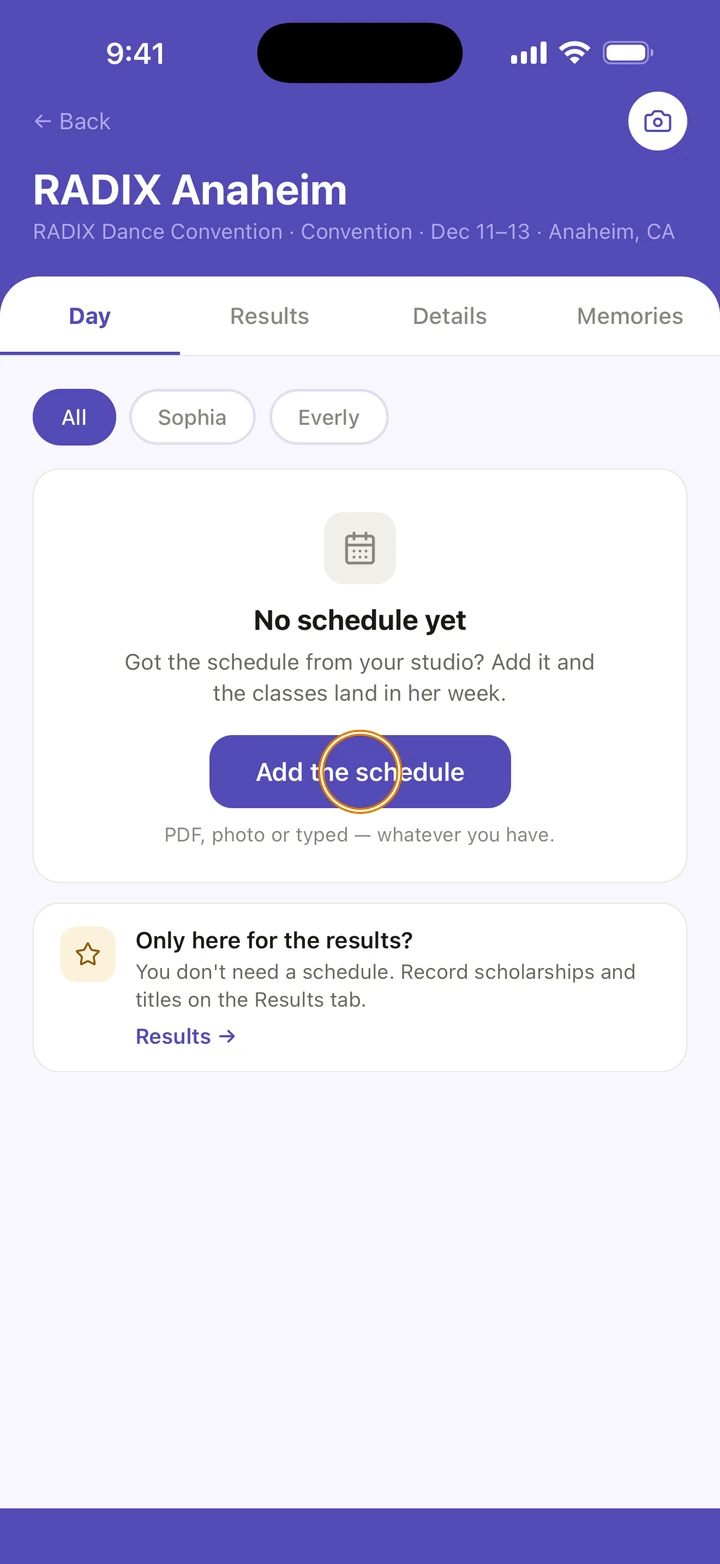
Open it and, on its Day tab, tap Add the schedule.
-
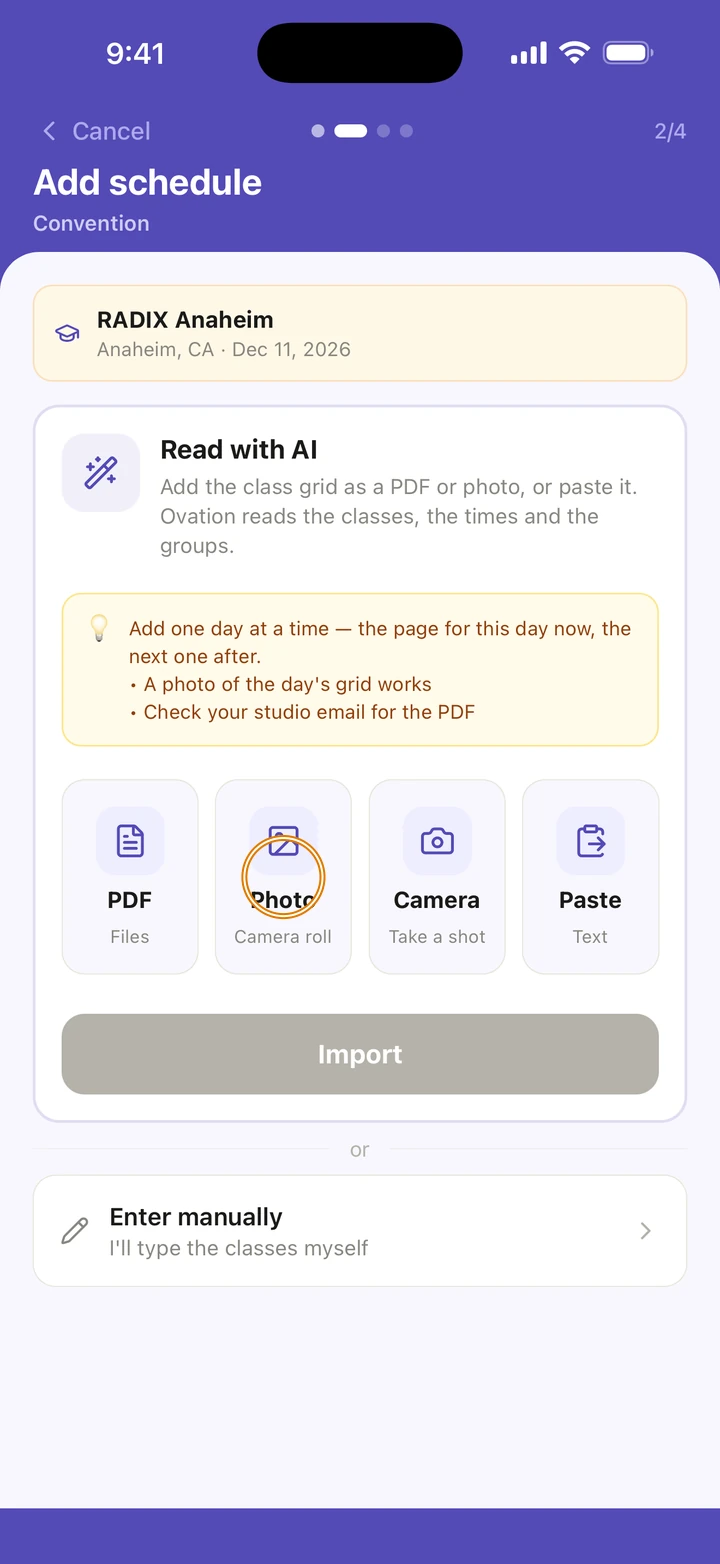
Under Read with AI, tap PDF, Photo or Camera for one day's class grid, or Paste that day's classes. Tap Import. It usually takes about 30 seconds.
-
If Ovation asks Which day is this page?, tap the date.
Screenshot coming soon -
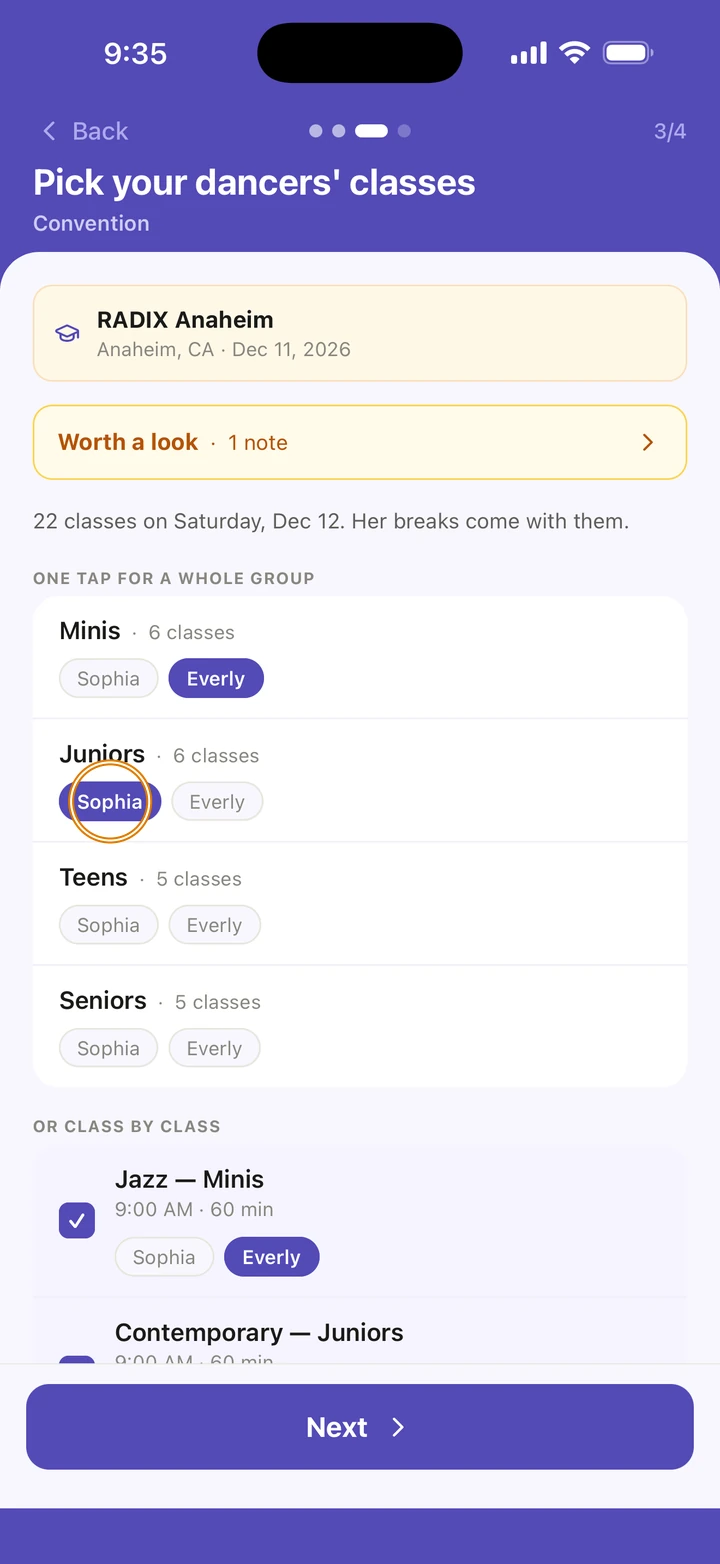
On Pick your dancer's classes, under ONE TAP FOR A WHOLE GROUP, tap Add all beside your dancer's group. With more than one dancer, tap each dancer's name beside their group. Or tick classes one at a time under OR CLASS BY CLASS.
-
Tap Next, check the day on Looks good?, and tap Add this day.
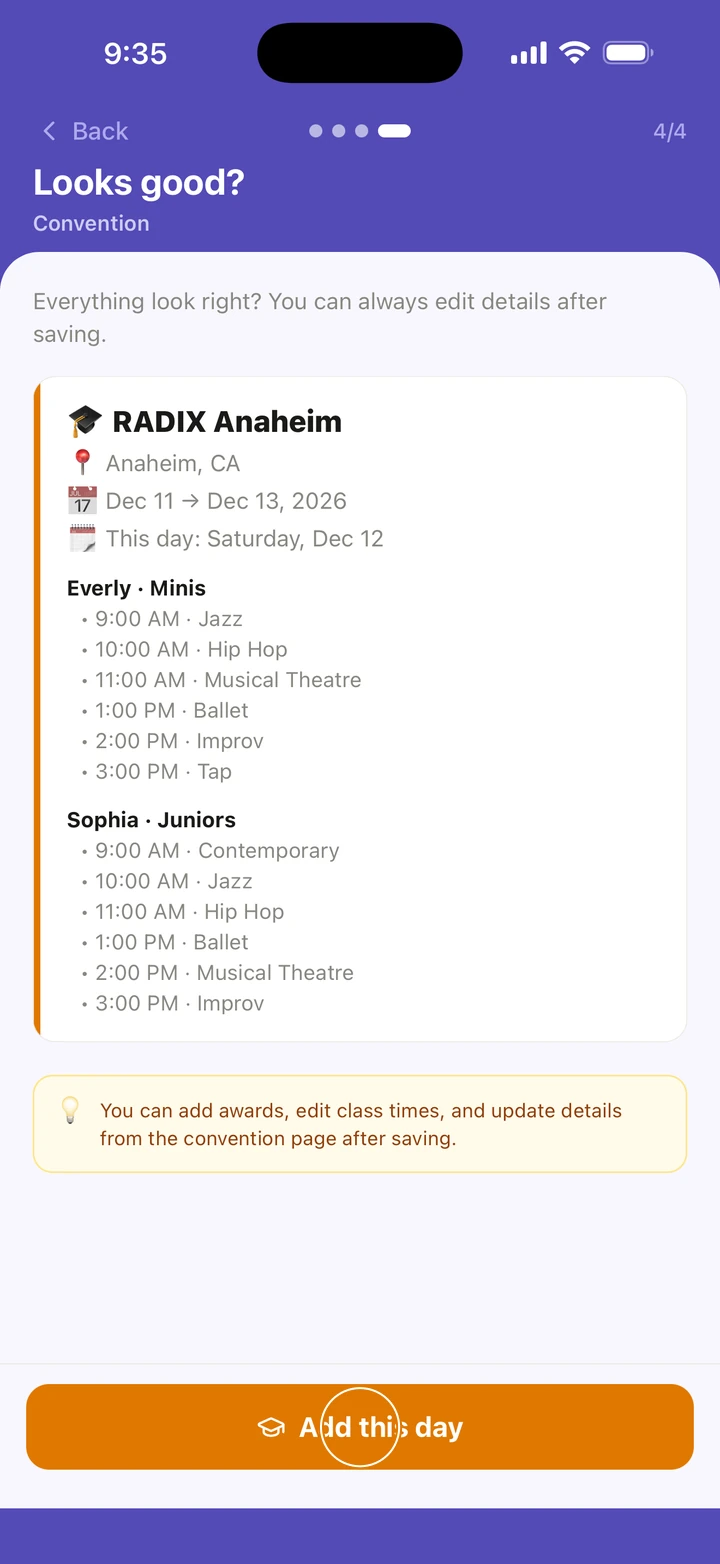
-
For the next day, tap Add another day on the Day tab, and do the same. The last button says Add this day.
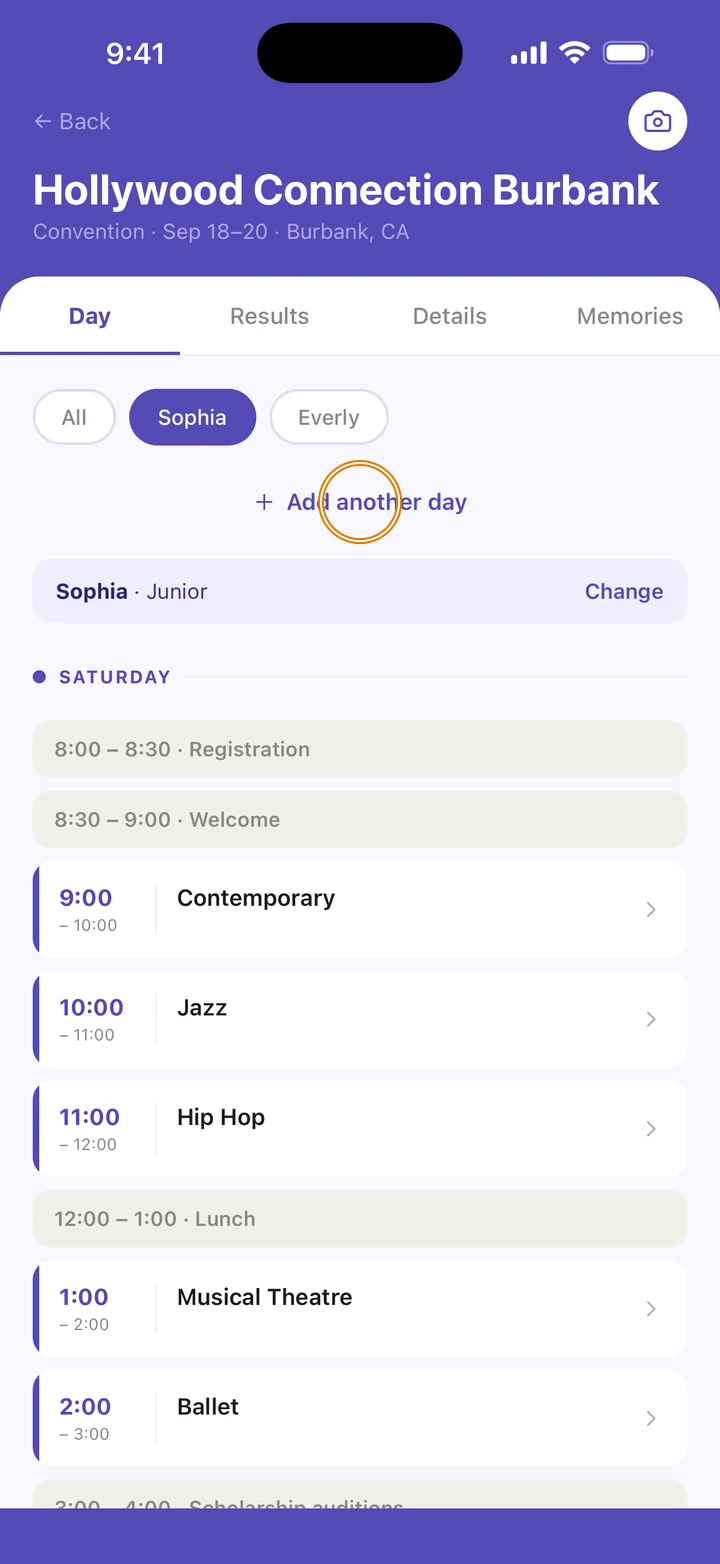
Good to know
- The groups come off the schedule, not from your dancer's age. Every convention sets its own, so choose the one your studio put your dancer in.
- The Day tab shows your dancer's classes and breaks in time order. With more than one dancer, All shows everyone's, with their names.
- To change your dancer's group, tap Change beside it on the Day tab. If it says Showing every class, no group is chosen yet: tap the button below it to choose one.
- The classes show on the Schedule tab, and with reminders on, Ovation reminds you before you leave and before pickup on each convention day.
- Scholarships, titles and invitations go on the convention's Results tab: tap + Add.
- If the grid has an awards ceremony, Ovation may ask Is this the awards? about a break. Tap Yes, it’s awards and it shows on your dancer's day.
If something goes wrong
- If Ovation says That is a lot of text or One day at a time, import a single day: a screenshot of that day's page works well.
- If it says No classes found, try the page with the day's schedule on it, or tap Enter manually and type the classes in.
- For anything else, go to Manage → Get help. A real person reads every message.
Related
Checked on Ovation 1.1.5