Closures and days you're away
Mark the days the studio is closed, or the days your dancer will miss, and those classes show as skipped on your schedule.
- About 2 minutes
Before you start
Ovation lists the classes that meet on the dates you pick, so this works best once your classes are on your schedule. You can still save the dates first.
-
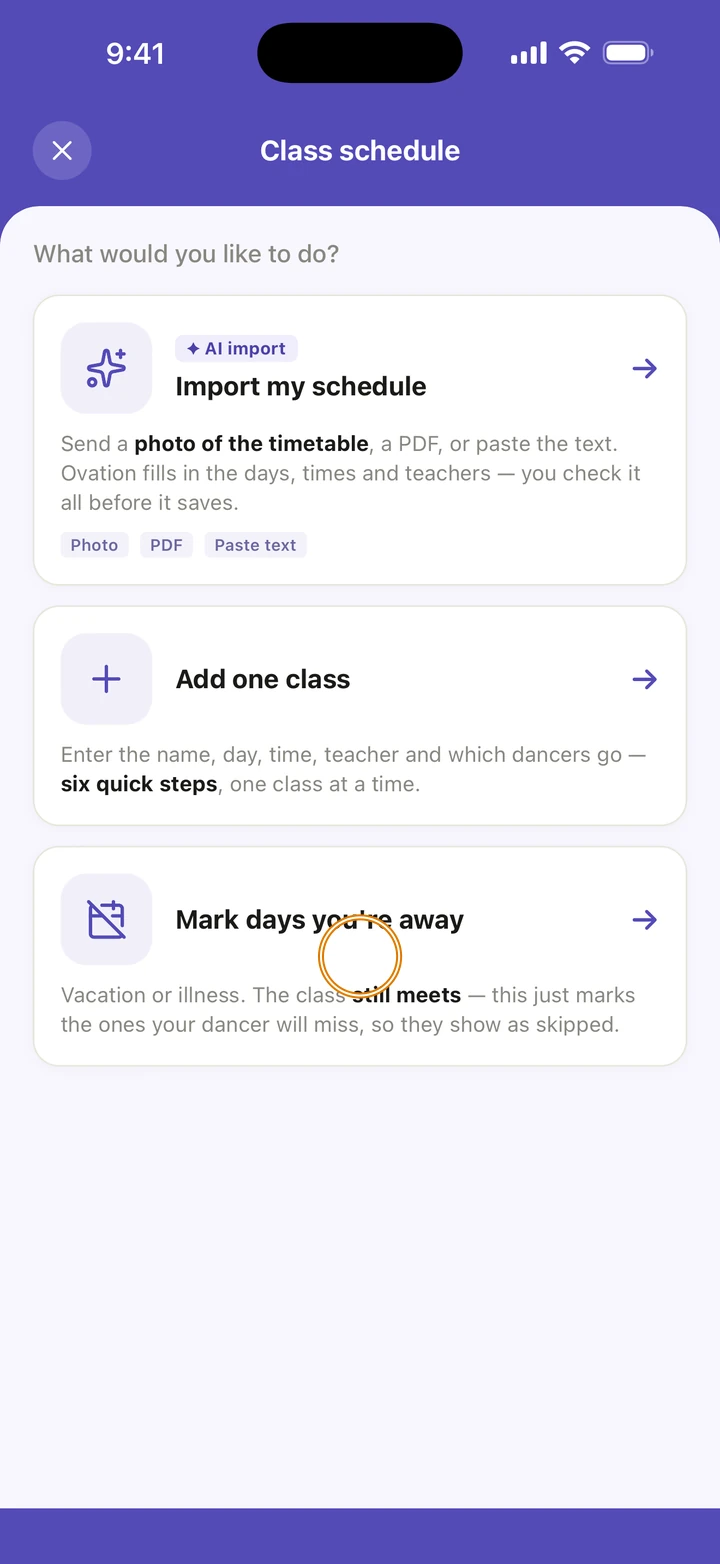
For a studio closure, on the Schedule tab tap +, then Studio calendar, then Add a studio closure. For days your dancer will miss, tap +, then Class schedule, then Mark days you're away.
-
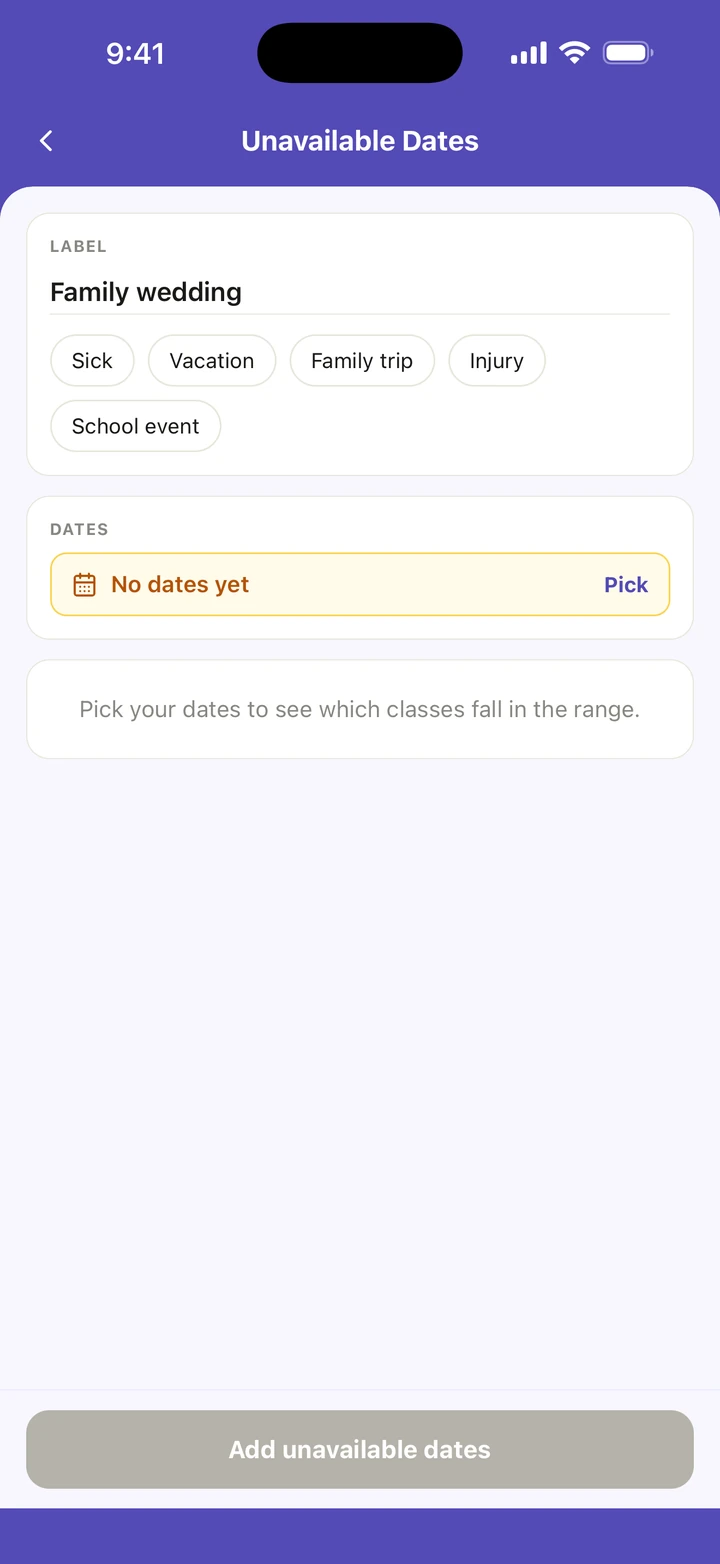
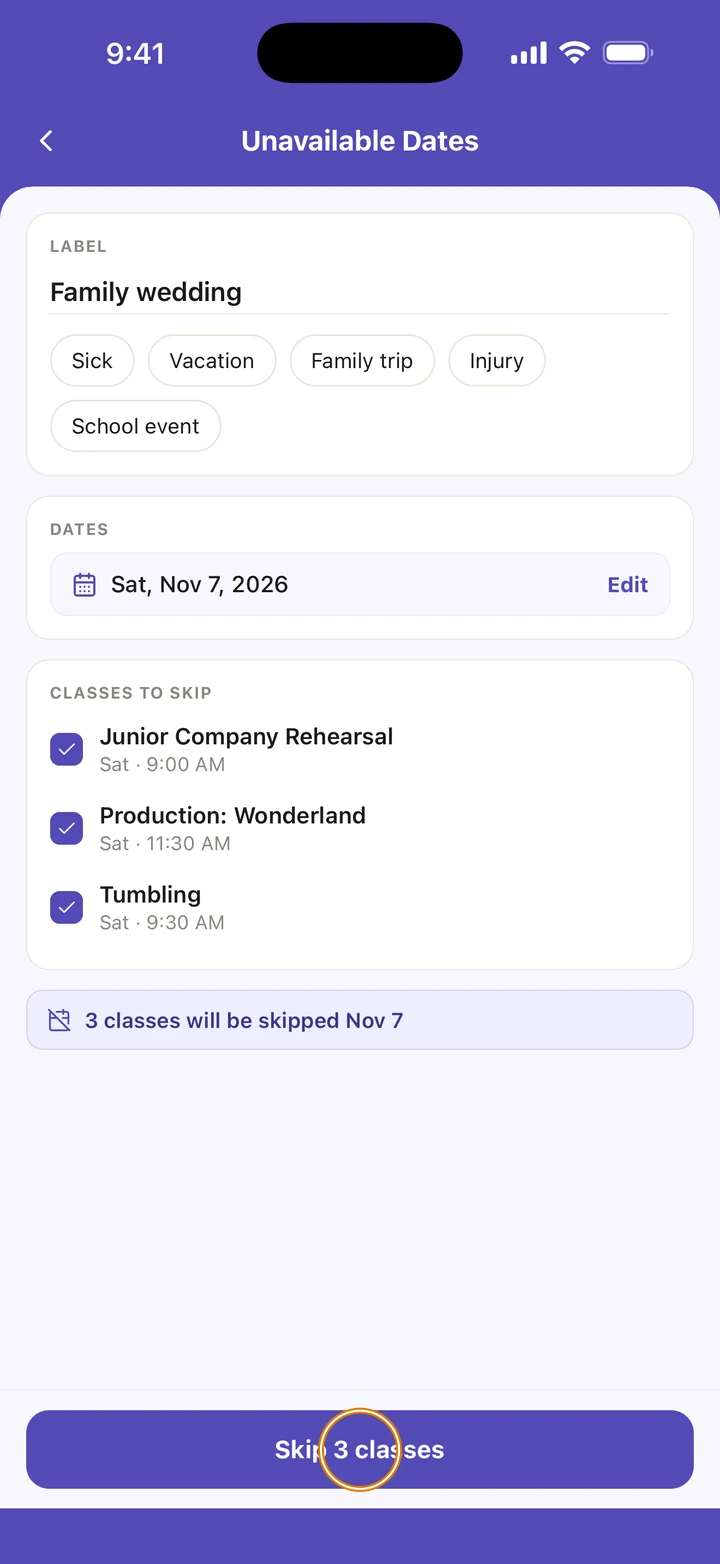
Under LABEL, type a name or tap a suggestion, such as Winter Break or Vacation.
-
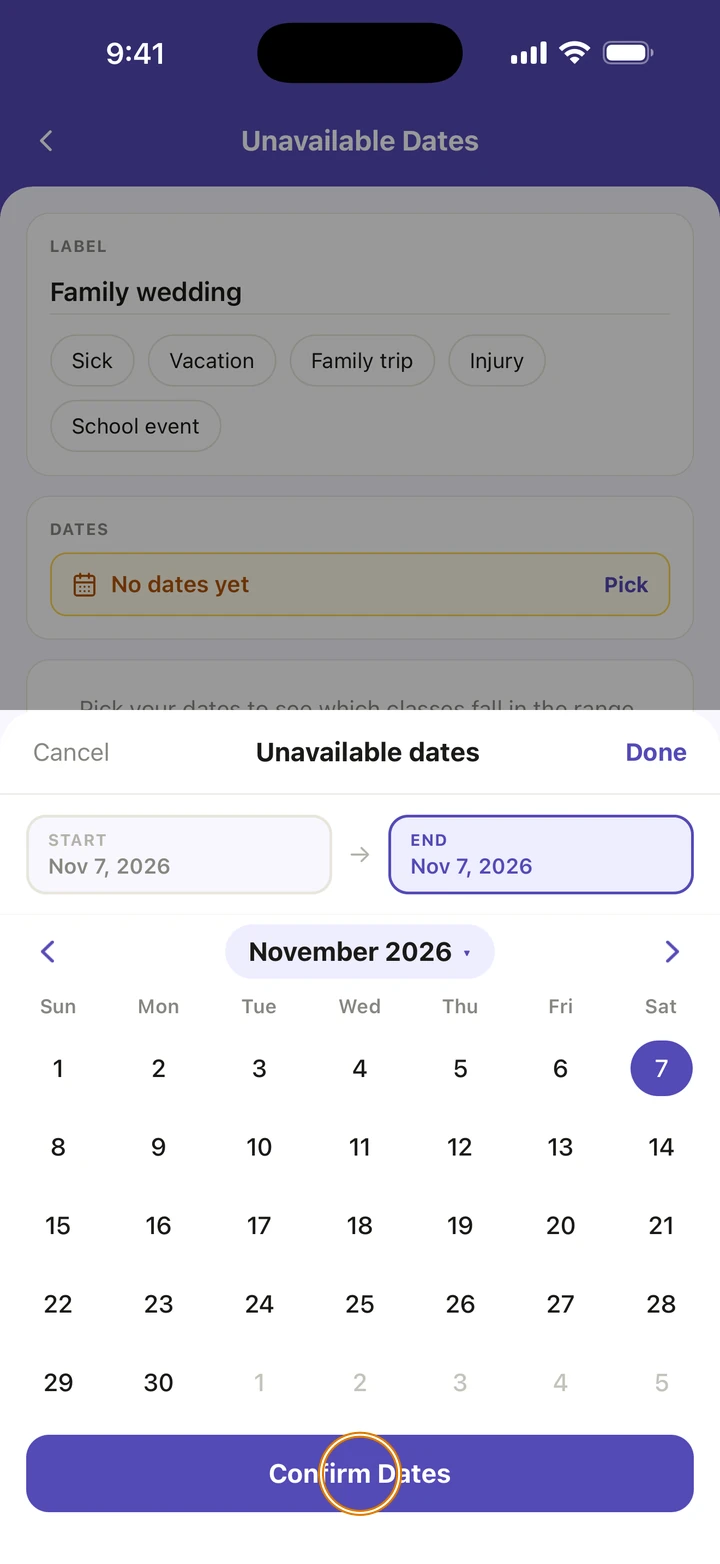
Under DATES, tap Pick. Tap the first day and the last day, or Same day for one day, then tap Confirm Dates.
-
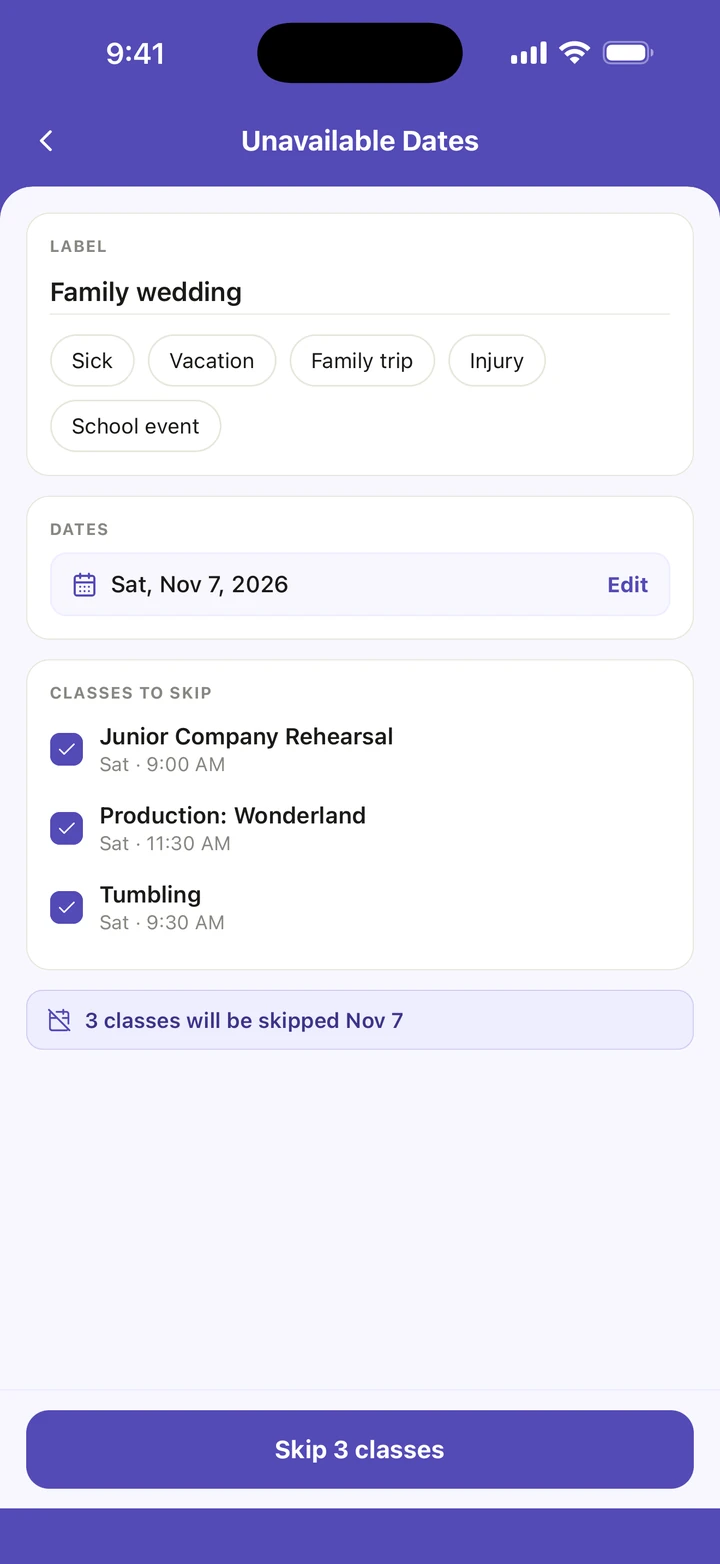
Check the classes Ovation lists under CLASSES TO CANCEL or CLASSES TO SKIP. They are all ticked to start with; untick any that still go ahead.
-
Tap the button, which says what it will do, for example Cancel 4 classes or Skip 2 classes.
Good to know
- A studio closure means the class doesn't meet for anyone on those dates. Days away are for when the class still meets but your dancer will miss it.
- Those sessions stay on your schedule, struck through and marked (Skipped), and Ovation doesn't send class reminders for them.
- No classes on those dates yet? Save the dates anyway. A studio closure applies itself to any class you add on those dates; for days away, Ovation asks whether to skip a class you add later.
- Everything you have marked is in Manage → Unavailable dates. Dates from an imported studio calendar say Studio calendar; the ones you add say Added by you.
- Days away skip the class on those dates for everyone in it, so a class two of your dancers share is skipped for both. To skip one date for one dancer only, open the class and use Skip this day.
- To change the dates, remove them and add them again.
If something goes wrong
- A class you expected isn't listed? Ovation lists only the classes that meet on the dates you picked. Check the dates, or add the class first.
- Marked the wrong dates? Open them in Manage → Unavailable dates, tap Remove these dates, then Remove. The classes come back on your schedule.
- For anything else, go to Manage → Get help. A real person reads every message.
Related
Checked on Ovation 1.1.5